TM4642.TM4406.PickupMACS.pdf - 第19页
SMT Software Engineering Group IM Ope ration s Y A MAHA MOTOR CO ., L TD. MDOC-SOFT50 177 19 /23 (4) [Mark database overvie w] dialog opens . Press th e [Ne w] button. (5) [Registration new m ark into database] dialog …
SMT Software Engineering Group
IM Operations YAMAHA MOTOR CO., LTD.
MDOC-SOFT50177
18/23
6. Appendix
6.1. Setting method of Feeder MACS mark data
As described on [4.1.3. Mark data of Feeder MACS], to execute Feeder MACS, you need to
register the special mark data into the database, and set the database number.
It is possible to create mark data, but we recommend use the one enclosed in the installation
CD. Setting method is as follows.
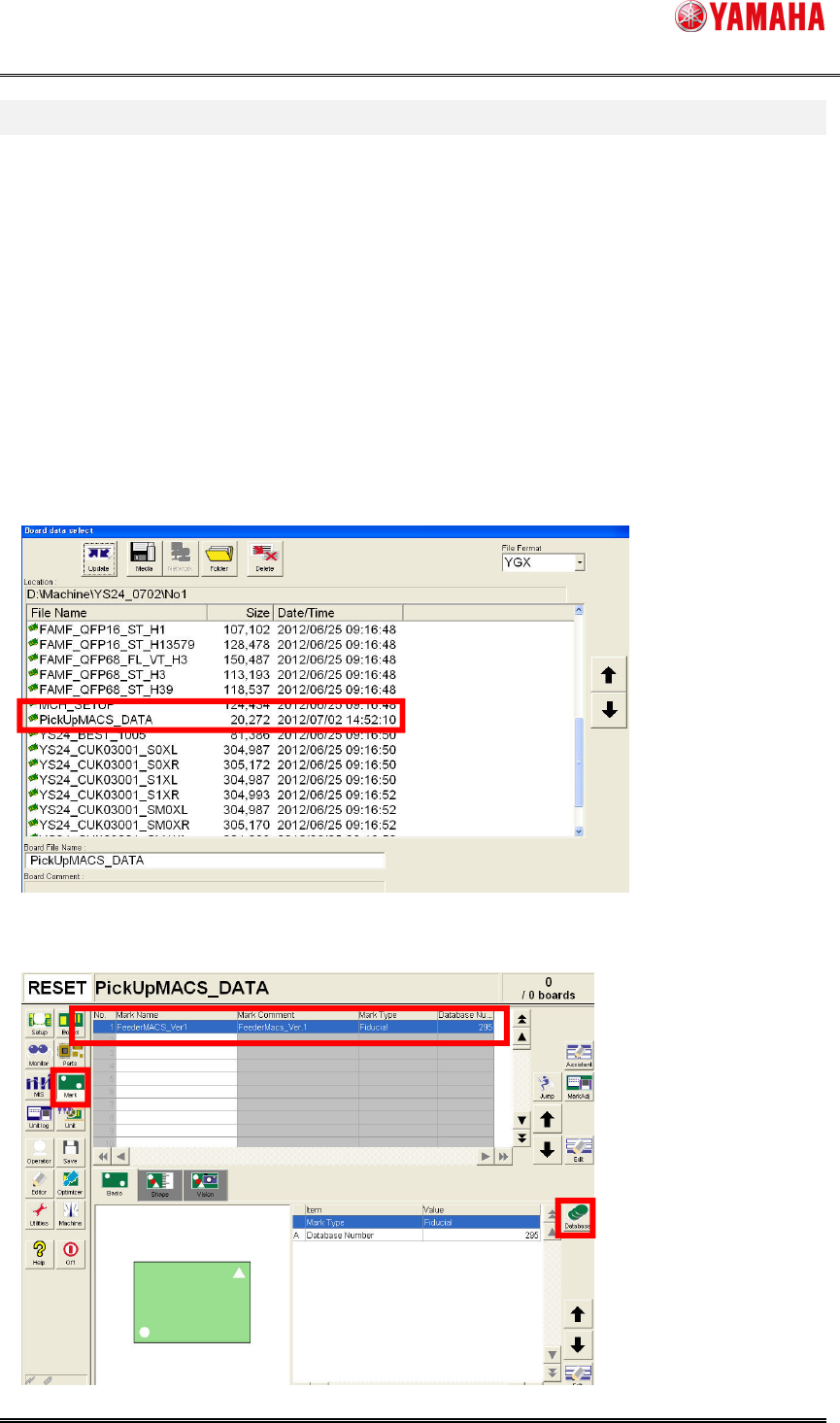
(1) Copy [PickUpMACS_DATA.ygx] from the installation CD to the [No1] folder of the target
machine.
(2) Read board data [PickUpMACS_DATA.ygx] on the [Setup] screen. Sometimes a board
data read error occurs, but ignore it.
(3) Press the [Mark] button. Select mark data named [Feeder MACS]. And press the
[Database] button.
SMT Software Engineering Group
IM Operations YAMAHA MOTOR CO., LTD.
MDOC-SOFT50177
19/23
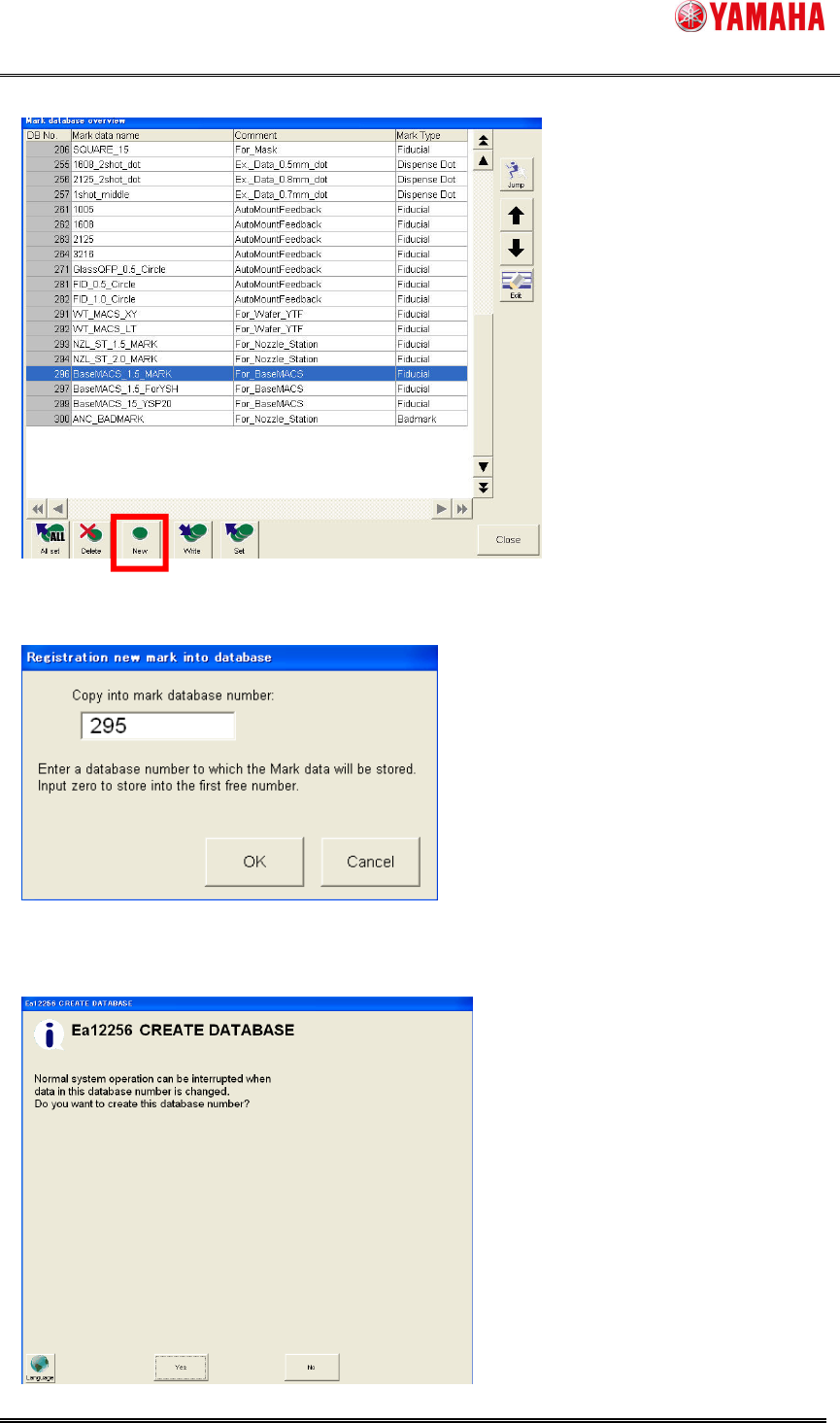
(4) [Mark database overview] dialog opens. Press the [New] button.
(5) [Registration new mark into database] dialog opens. Input a no use database number.
Press the [OK] button. (295 is recommended)
(6) When 295 is input, the following message is displayed, and press the [Yes] button.
If this message appears when you select other than 295, please change the number.
SMT Software Engineering Group
IM Operations YAMAHA MOTOR CO., LTD.
MDOC-SOFT50177
20/23
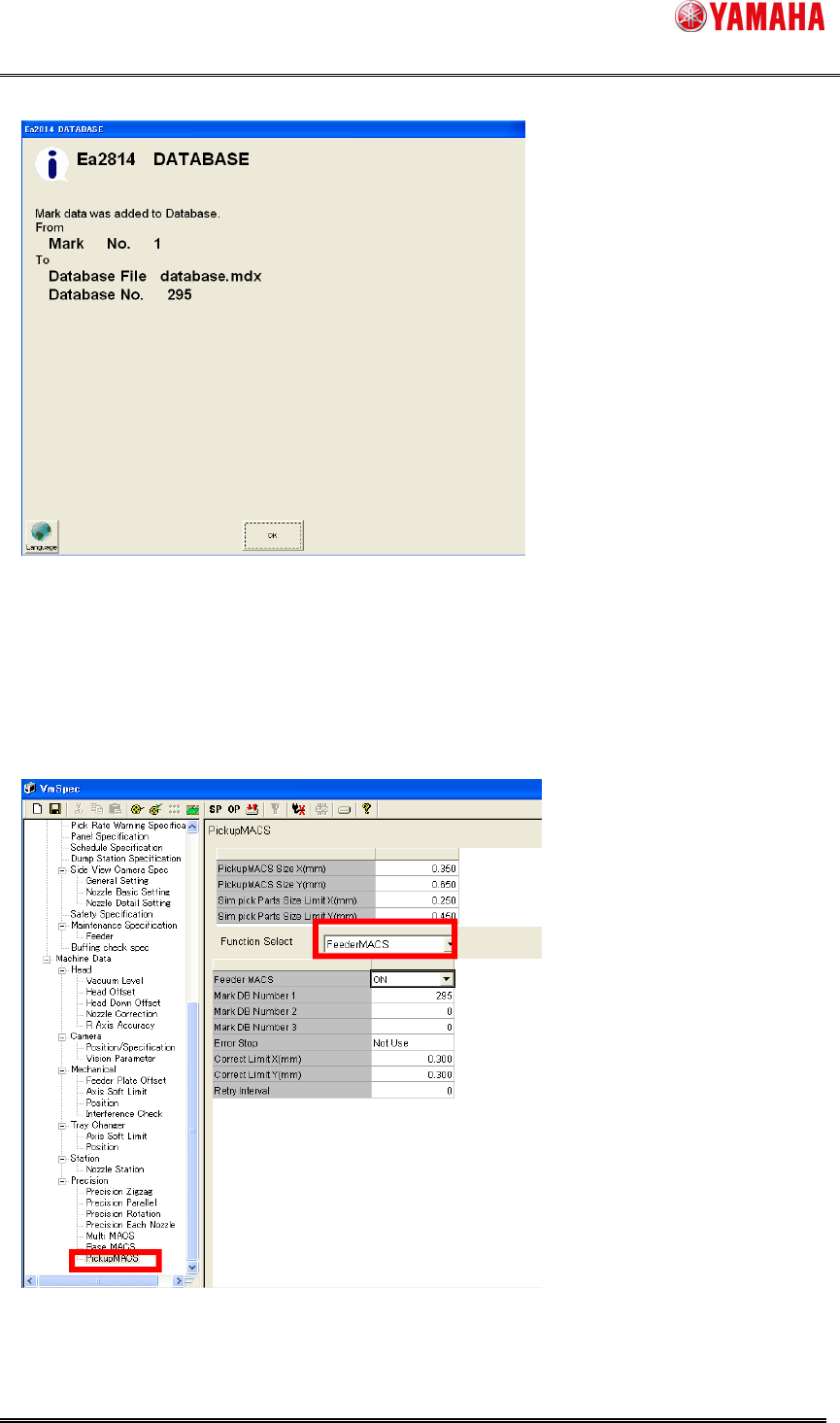
(7) Dialog showing the data registration completed. Press the [OK] button.
(8) Check that the mark data exists on [Mark database overview]. If yes, the registration to
the mark database is completed.
(9) Next, reflect the registered mark database to the setting of Feeder MACS. Press the
[Machine] button and open the machine setup dialog.
(10) Select [Machine] - [Setting] - [Machine Data] - [Precision] - [Pickup MACS]. Select
“Feeder MACS” from the combo box.