manual-biron-nano-handle-b-soldering-tool-jbc-0036842_ID-262259_EN.pdf - 第11页
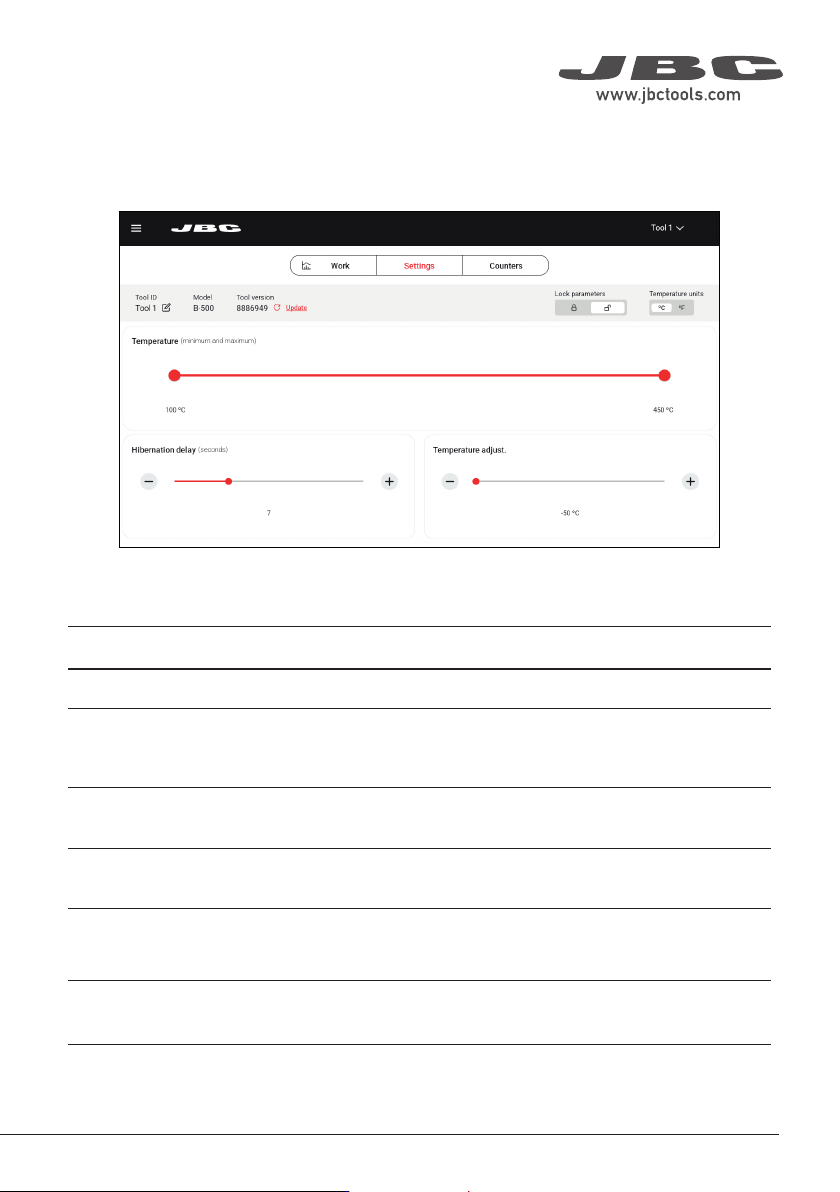
Main Screen - Settings Th e B.IRO N ap p of fer s an i ntu iti ve use r in ter fa ce, wh ic h prov ide s qu ic k acc e ss to seve ra l stat ion paramet ers : Parameter T o ol ID Lock p aramet ers T emperature unit s T e …

Main Screen - Work
Status
The tool can display different statuses:
Status Caused by Effect Solution
Work
Lift an operative tool from
the charging holder.
The cartridge heats up to
the selected temperature.
N/a
Charge
Place the tool in the
charging holder.
The cartridge cools down
to room temperature and
the battery charges.
N/a
Hibernation
Leave the tool completely
stationary out of the
charging holder for an
adjustable period of time (5
to 15 seconds).
The cartridge cools down
to room temperature.
N/a
Cover
Place the safety cap onto
the tool.
The cartridge cools down
to room temperature and
the status lightband turns
off. Communication with
the station is interrupted.
N/a
Connection lost
The connection between
the tool and the station has
been interrupted.
Possible reasons: the tool
has its safety cap on, the
tool has been inactive for 5
min., the tool is over 10 m
away from the station.
Tool-to-app information
exchange interrupted.
If the safety cap is on,
remove it. Place the
tool in the charging
holder if needed.
If the safety cap is not
on, place the tool in
the charging holder.
Off The tool is turned off.
Cartridge cools down to
room temperature.
Turn on the tool by
pressing the On/Off
button on the main
screen.
No cartridge
The tool does not have a
cartridge inserted or it is not
inserted correctly.
Inoperative tool.
Check that the
cartridge is inserted
correctly or insert a
cartridge.
Shortcircuit
Defective or unusable car-
tridge inserted.
Inoperative tool. Replace the cartridge.
Low batt
Battery of the tool nearly
depleted.
The tool will turn off
soon.
Charge the tool
by placing it in the
charging holder.
10
Main Screen - Settings
The B.IRON app offers an intuitive user interface, which provides quick access to several station
parameters:
Parameter
Tool ID
Lock parameters
Temperature units
Temperature
Hibernation delay
Temperature
adjustment
Description
Allows modifying the tool identifier.
Allows locking the parameters of the station using a four-digit code. The
default code is 0105, but a new code can be set by simply entering some
other four digits of choice when locking the parameters.
Allows changing the units of temperature measurement between degrees
Celsius and degrees Fahrenheit.
Define the minimum/maximum selectable working temperature.
Set the Hibernation delay from 5 to 15 sec. The countdown starts when
the tool remains completely stationary out of the charging holder or when
placed in the charging holder.
Sets an offset on the selected temperature value.
11
40 mm
50 mm
60 mm
80 mm
100 mm
130 mm
130 mm
para manuales - negro plano
200 mm
300 mm
0
Menu button
Work
Tool in charging holder or in Hibernation
Heating
Work
temp.
Work
Tip Temperature
Time
Temp.
Charge / Hibernation
Room
temp.
Operation
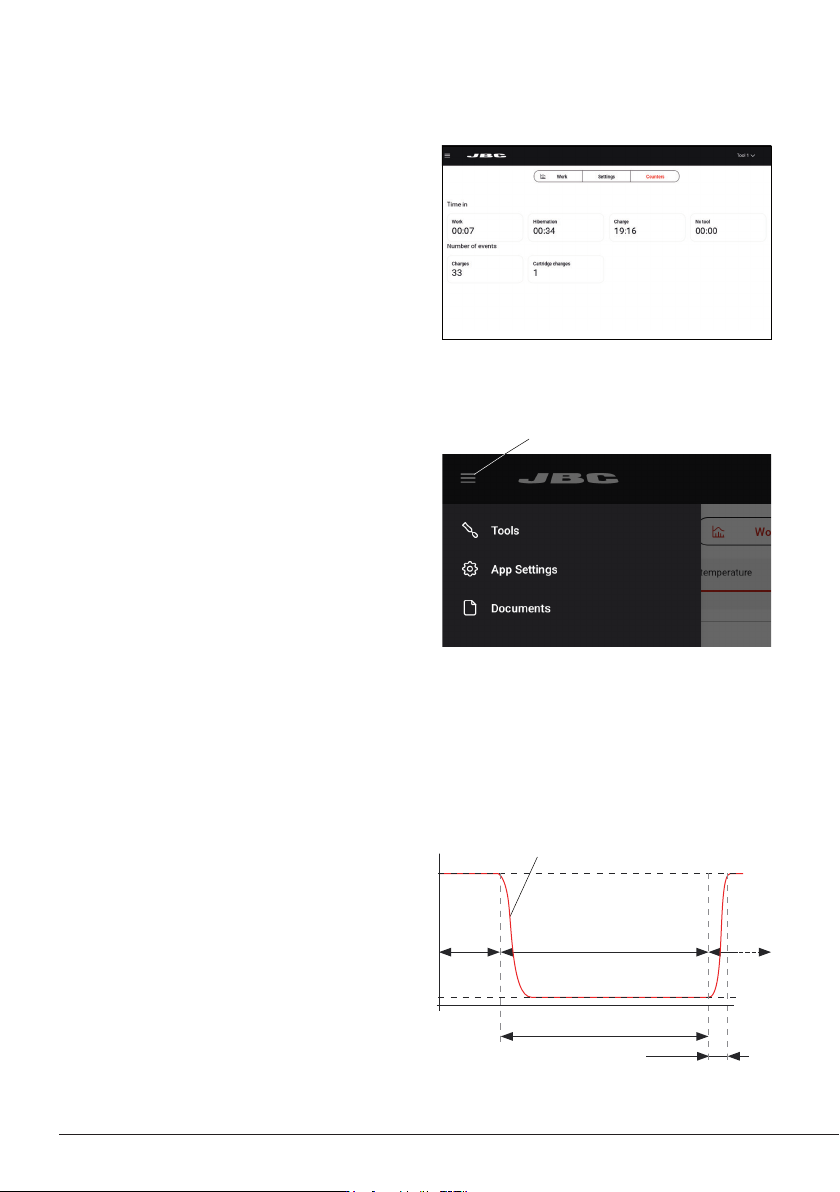
Thanks to JBC’s Intelligent Heat Management,
the cartridge tip regains temperature extremely
quickly.
This allows reducing the tip’s temperature
when the device is not in use, resulting in a
longer tip lifespan.
When the tool enters HibernationMode or the
charge status, the tip automatically cools down
to room temperature.
Main Screen - Counters
On this tab of the main screen, you can view
various counters, such as the time the tool has
been active or in hibernation, or the number of
times it has been charged or a cartridge has
been changed.
Menu
App Settings:
Configure specific settings for the station, such
as language or light/dark theme, update the
app version or take a walkthrough on some of
the app’s features.
Tools:
Go to the main screen (see section “Main
Screen”).
Documents:
User manuals related to the station or to the
tools can be consulted in this section or at
JBC’s website: www.jbctools.com.
12