manual-biron-nano-handle-b-soldering-tool-jbc-0036842_ID-262259_EN.pdf - 第8页
Stopping Data Display Wh en th e tool i s pla ce d in th e ch arg ing h old er o r wh en i t ente rs H ibe r nati on M ode, th e dat a dis pl ay stops. Th e dis pl ay sta r ts ag ai n auto mati ca lly w he n the to ol is…
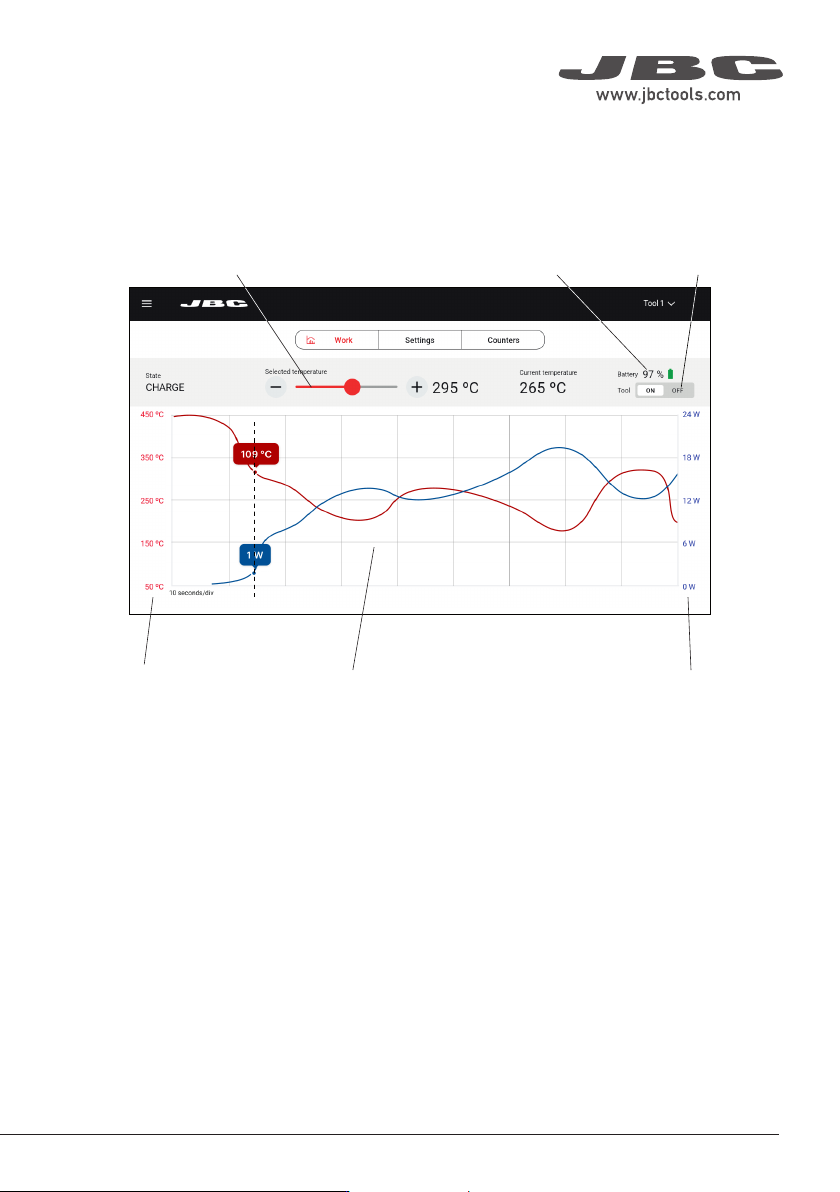
Main Screen - Work
The Work tab on the main screen shows a graph of the tip temperature and power supplied to the tip
updated in real time. It allows modifying the tool working temperature, checking the battery charge level
and turning the tool in use on and off.
Temperature
and Power Graph
Temperature Slider Battery Charge Level
Temperature
Scale
Power
Scale
Graph and Automatic Data Display
The graphs of temperature and supplied power start automatically as soon as the tool is lifted from
the charging base.
The temperature/power values can be checked at a certain point of the graph by tapping on the
desired position on the display screen.
The graph can be moved to the left and right by swiping the touch screen sideways with one finger.
Working Temperature Modifi cation
The working temperature can be modifi ed using the temperature slider or the buttons on its sides.
Tool On/Off Button
7
40 mm
50 mm
60 mm
80 mm
100 mm
130 mm
130 mm
para manuales - negro plano
200 mm
300 mm
Stopping Data Display
When the tool is placed in the charging holder or when it enters Hibernation Mode, the data display
stops.
The display starts again automatically when the tool is lifted from the tool holder and the graph is
automatically displayed again at the point where the previous display stopped, leaving a small gap on
the graph between the last registered value and the new starting point.
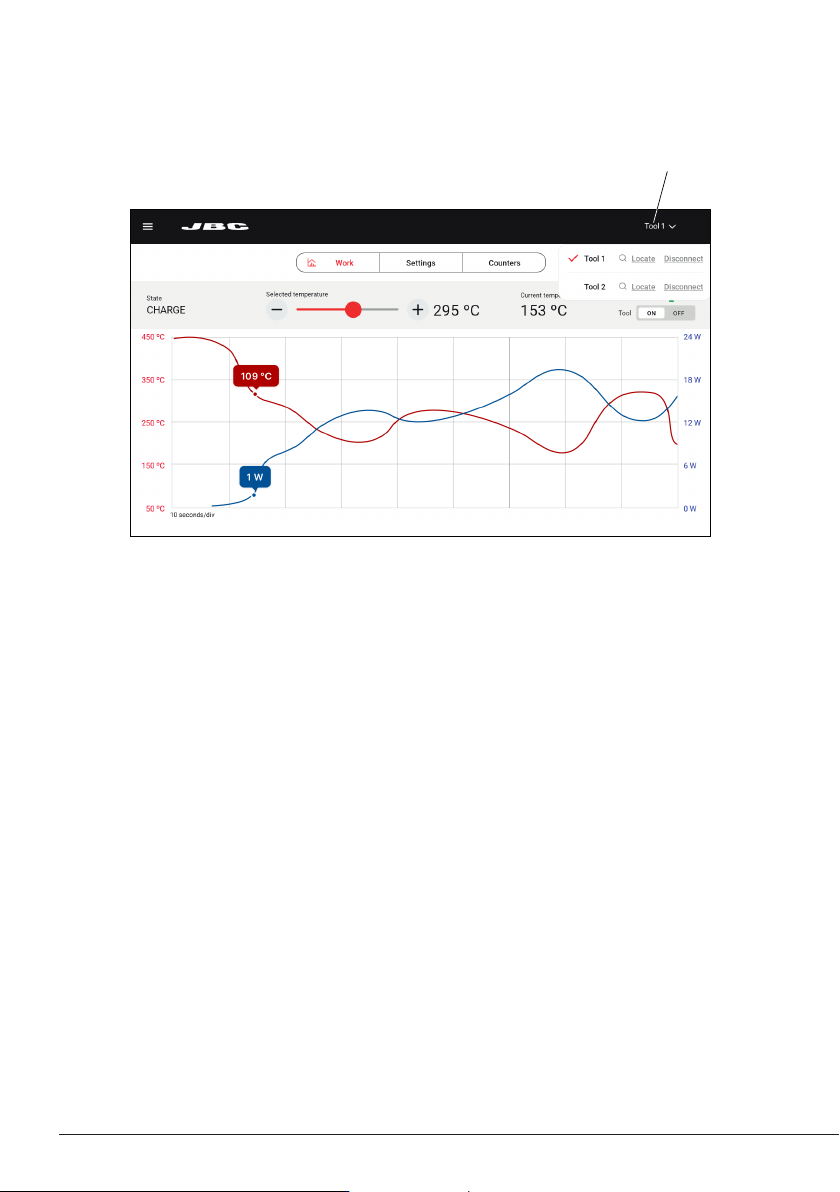
Working with Two Tools
When working with two tools, to switch between the two graphs, tap on the tool selector (upper-right
corner of the display) and select the desired tool from the drop-down menu.
It is also possible to alternate both graphs by simply lifting one tool or the other from the tool holder.
The display will automatically show the graph and information of the tool in use.
Locate Tool Function
From the tool selector, it is also possible to use the Locate tool function, which illuminates the status
lightband of the tool for identification by flashing blue.
Active Tool and Tool Selector
Main Screen - Work
8
Auto Turn-Off
The tool turns off automatically in three different cases:
a) When the tool (without the tool cap) is laid down and remains completely still in Hibernation Mode
for 5 minutes.
b) When the tool (with the tool cap on) remains completely still in Hibernation Mode for 60 minutes.
c) When the tool is in the charger and the charging base is disconnected from the mains.
Tool Reactivation
After automatically shutting off, place the tool back in the charging holder to reactivate it.
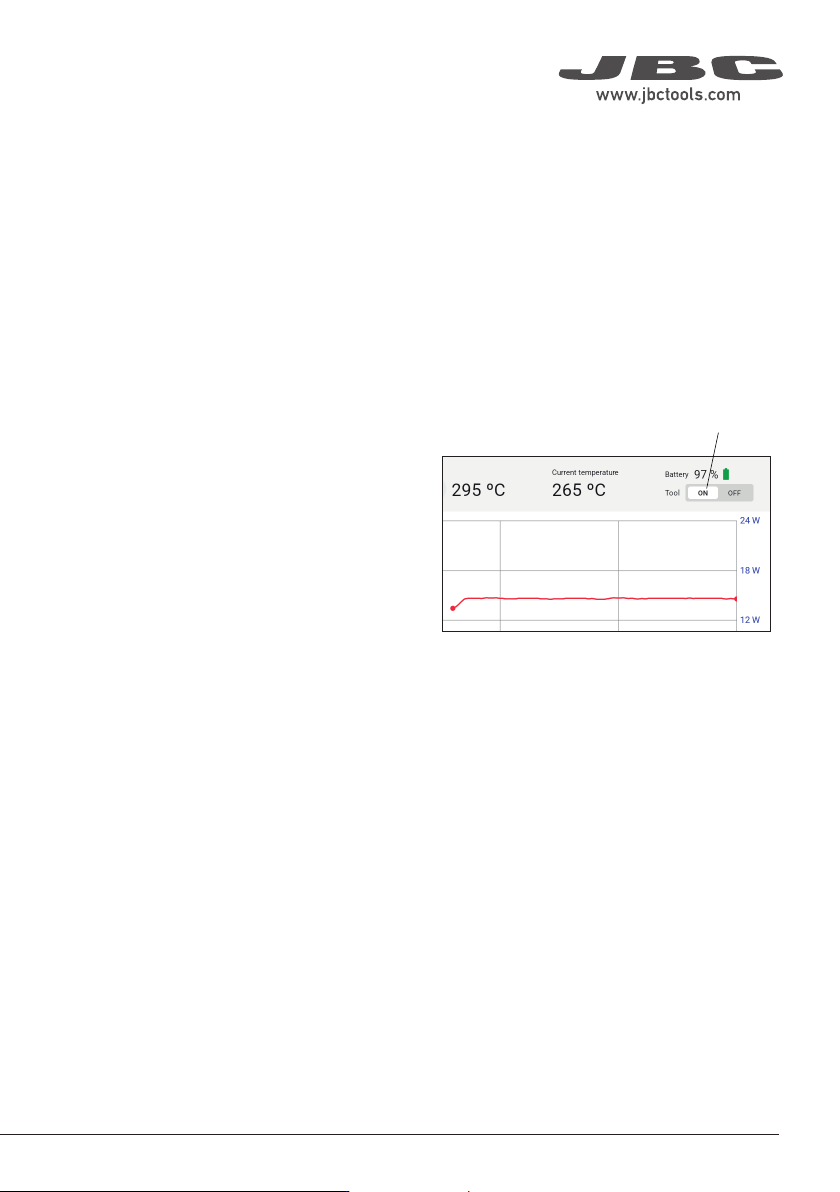
Manual Turn Off/On
Besides the “automatic turn-off” feature, the
tool can also be manually turned off/on by
tapping the Tool On/Off button on the display.
Note: If the tool is turned off manually and
remains completely still for more than 5 minutes
or with its cap on for more than 60 minutes,
place it back in the charging holder to reactivate
it.
Tool On/Off Button
Main Screen - Work
9
40 mm
50 mm
60 mm
80 mm
100 mm
130 mm
130 mm
para manuales - negro plano
200 mm
300 mm