manual-biron-nano-handle-b-soldering-tool-jbc-0036842_ID-262259_EN.pdf - 第13页
Safe t y C ap Safe T ool T ranspor tation Th an ks to the too l’ s safet y c ap, B.IRON to ols ca n be c ar ri ed a rou nd sa fel y , even wi th the cartridge in serted . Wh en th e ca p is pl ac ed o nto the too l, the …
0
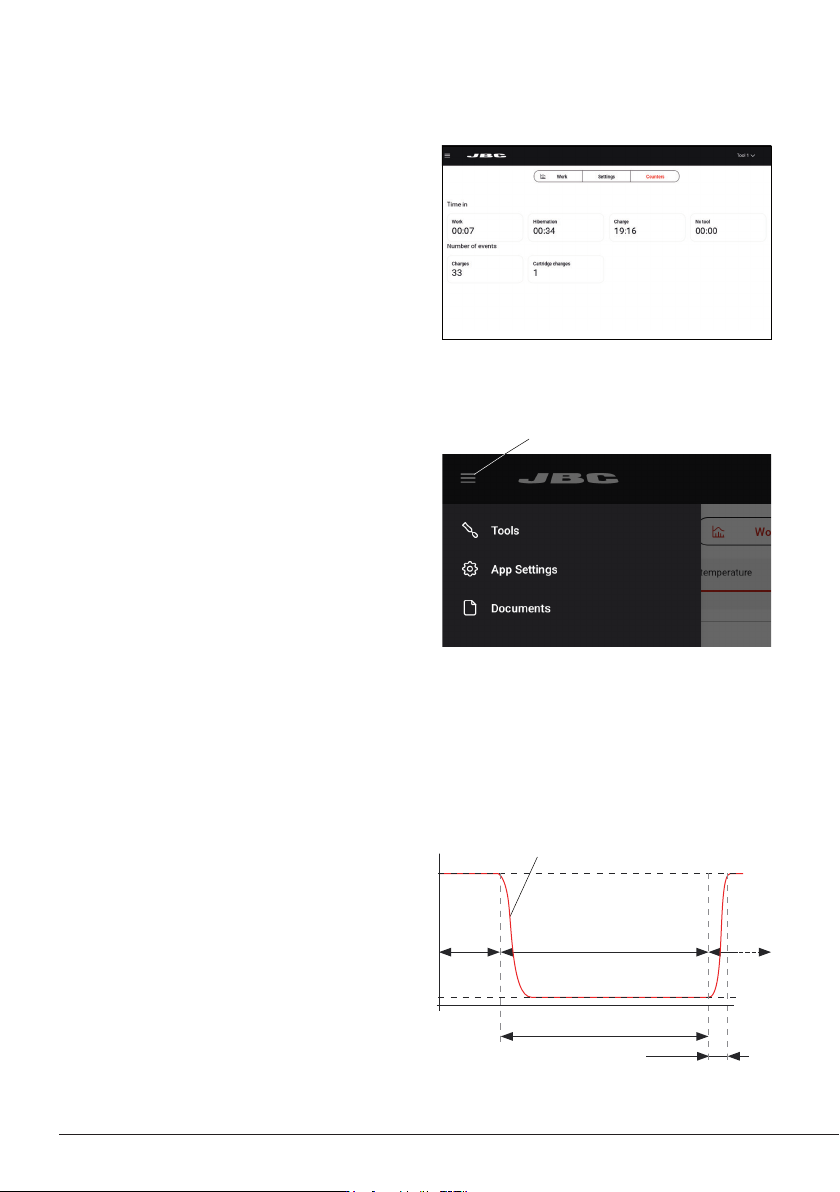
Menu button
Work
Tool in charging holder or in Hibernation
Heating
Work
temp.
Work
Tip Temperature
Time
Temp.
Charge / Hibernation
Room
temp.
Operation
Thanks to JBC’s Intelligent Heat Management,
the cartridge tip regains temperature extremely
quickly.
This allows reducing the tip’s temperature
when the device is not in use, resulting in a
longer tip lifespan.
When the tool enters HibernationMode or the
charge status, the tip automatically cools down
to room temperature.
Main Screen - Counters
On this tab of the main screen, you can view
various counters, such as the time the tool has
been active or in hibernation, or the number of
times it has been charged or a cartridge has
been changed.
Menu
App Settings:
Configure specific settings for the station, such
as language or light/dark theme, update the
app version or take a walkthrough on some of
the app’s features.
Tools:
Go to the main screen (see section “Main
Screen”).
Documents:
User manuals related to the station or to the
tools can be consulted in this section or at
JBC’s website: www.jbctools.com.
12
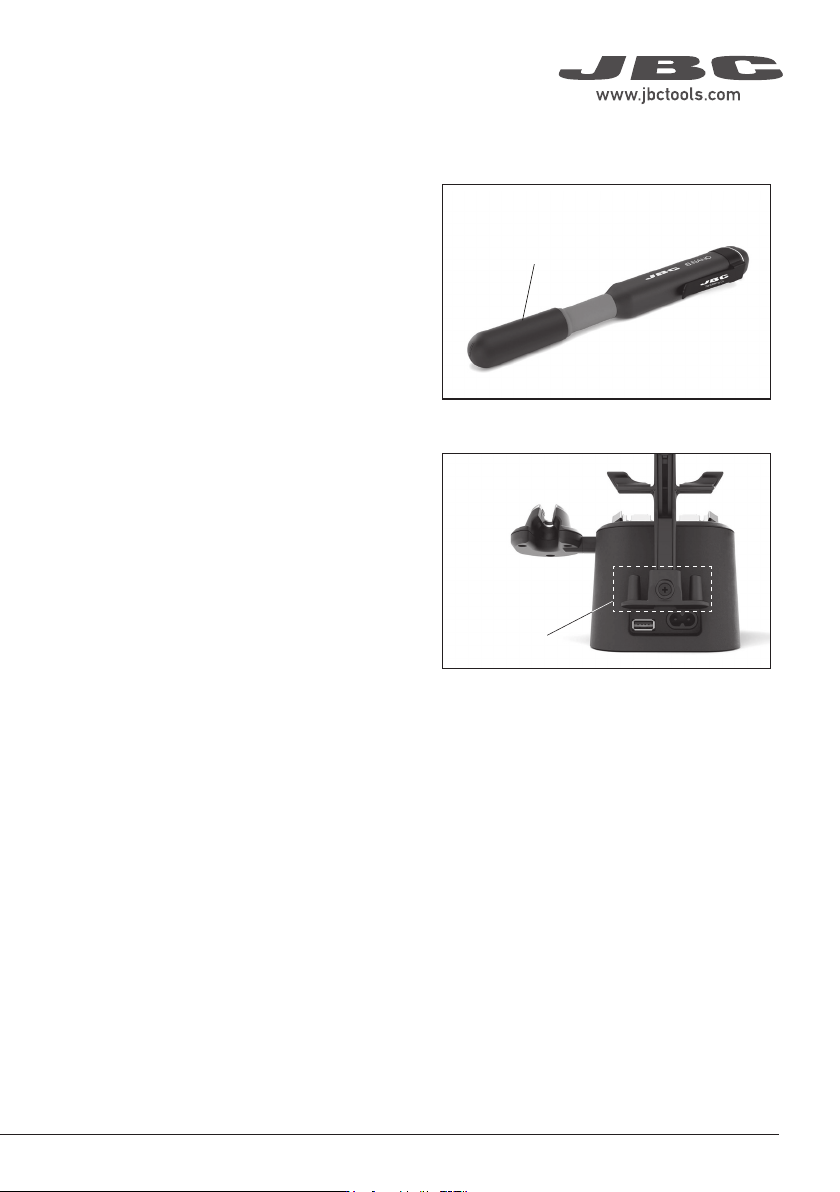
Safety Cap
Safe Tool Transportation
Thanks to the tool’s safety cap, B.IRON tools
can be carried around safely, even with the
cartridge inserted.
When the cap is placed onto the tool, the
cartridge tip cools down to room temperature.
Note: The purpose of the cap is to allow safe
transport, not storage.
Safety Cap Holder
While the tool is in use, the safety cap can be
stored on the cap holder located on the back of
the charging base.
There is space for two caps.
Cap Holder
Safety Cap
Safety Cap
13
40 mm
50 mm
60 mm
80 mm
100 mm
130 mm
130 mm
para manuales - negro plano
200 mm
300 mm
Then, connect the display to the device with the installer and enable file transfer on the USB preferences
of the display (swipe down from the top of the screen and tap on the notification from Android System).
Copy the installer to the internal storage of the display on Files > Internal storage > JBC (create folder if
non-existent). Access the folder named JBC on the internal storage of the display and run the installer.
After the installer is completed, the app will be updated to the latest version.
App Versions
App Update
Make sure that the required app version is installed on the display (tablet or smartphone) for
compatibility reasons:
- B.100, B.500 and B.NANO require app versions 1.6 or higher.
- B.TWEEZERS requires app versions 1.7 or higher.
App Installation
On your smartphone or tablet (Android / iOS),
go to the App Store/Play Store and search for
“JBC B.IRON” on the search bar.
On JBC’s portable display (Android), the
B.IRON app is already installed.
Note: Internet connection is required to
download the app from the App Store or
Google Play.
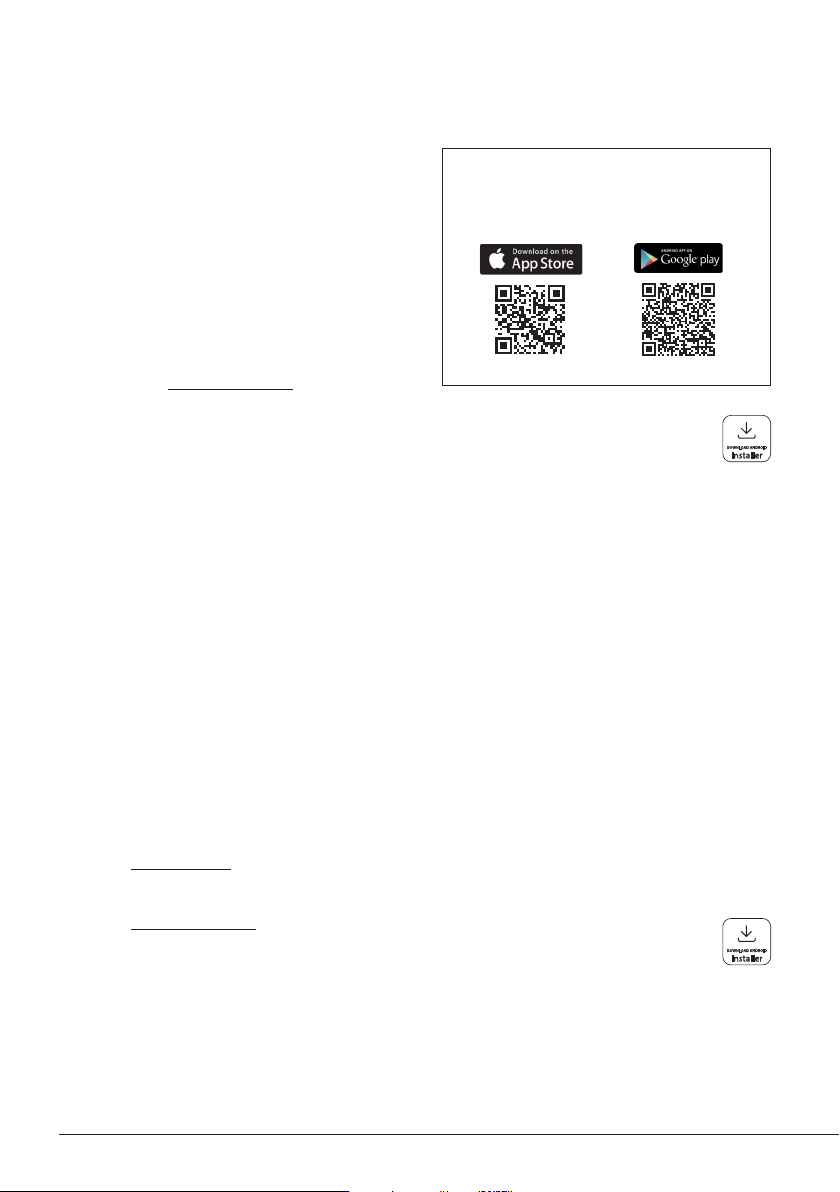
Alternatively, scan these QR codes to
access the B.IRON app website:
Display without Internet connection (Android)
Download JBC’s installer to another device with an Internet connection from JBC’s
website: https://www.jbctools.com/jbcsoftware.html.
Download JBC’s installer to another device with an Internet connection from JBC’s
website: https://www.jbctools.com/jbcsoftware.html.
For displays without Internet connection
(Android only)
Then, connect the display to the device with the installer and enable file transfer on the USB
preferences of the display (swipe down from the top of the screen and tap on the notification from
Android System).
Copy the installer to the internal storage of the display on Files > Internal storage > JBC (create folder if
non-existent). Access the folder named JBC on the internal storage of the display and run the installer.
Display with Internet connection (Android / iOS)
Update through “App Settings” on the main menu of the app, Google Play (Android) or App Store (iOS).
14