manual-biron-nano-handle-b-soldering-tool-jbc-0036842_ID-262259_EN.pdf - 第15页
1 T ool firmware updates ar e not executed automatically; they must be carried out by the user . On the display you are using with B.IRON, and wi th the l atest a pp ve rs io n ins tal le d, acc es s the B. I R O N a p p…
Then, connect the display to the device with the installer and enable file transfer on the USB preferences
of the display (swipe down from the top of the screen and tap on the notification from Android System).
Copy the installer to the internal storage of the display on Files > Internal storage > JBC (create folder if
non-existent). Access the folder named JBC on the internal storage of the display and run the installer.
After the installer is completed, the app will be updated to the latest version.
App Versions
App Update
Make sure that the required app version is installed on the display (tablet or smartphone) for
compatibility reasons:
- B.100, B.500 and B.NANO require app versions 1.6 or higher.
- B.TWEEZERS requires app versions 1.7 or higher.
App Installation
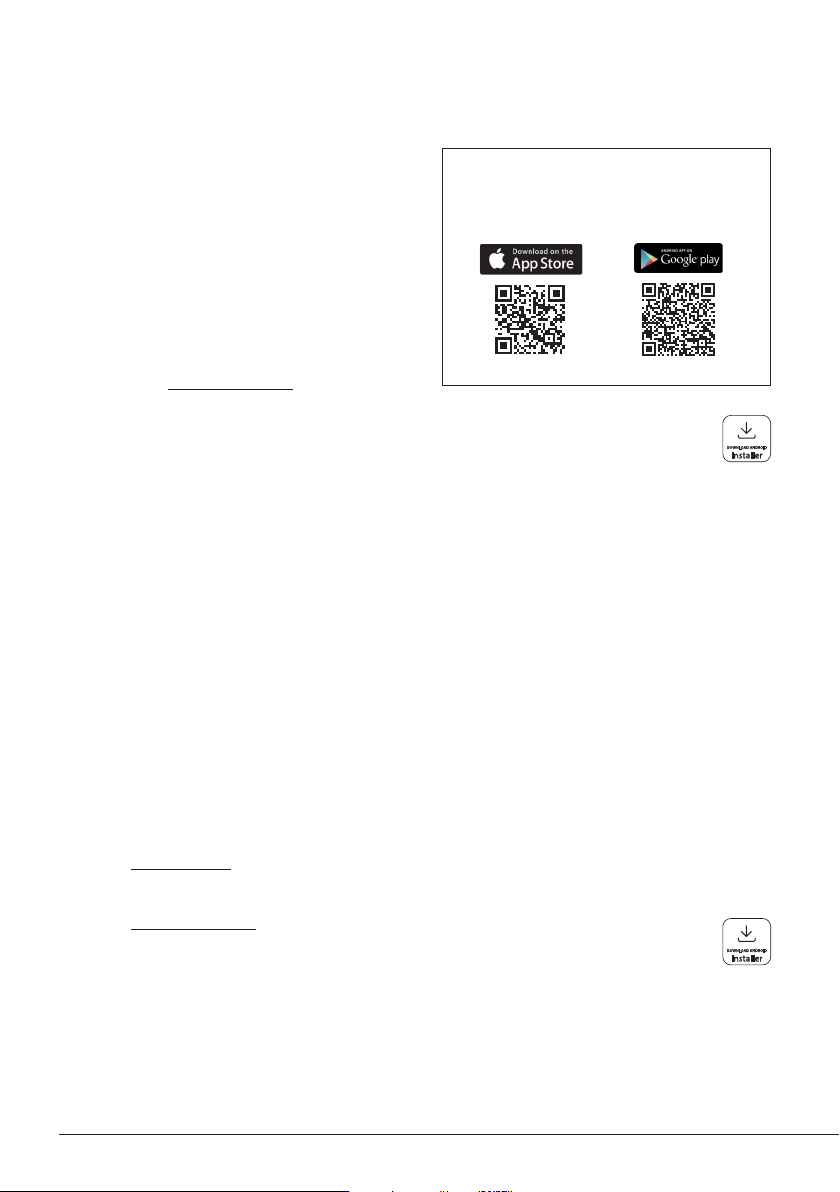
On your smartphone or tablet (Android / iOS),
go to the App Store/Play Store and search for
“JBC B.IRON” on the search bar.
On JBC’s portable display (Android), the
B.IRON app is already installed.
Note: Internet connection is required to
download the app from the App Store or
Google Play.
Alternatively, scan these QR codes to
access the B.IRON app website:
Display without Internet connection (Android)
Download JBC’s installer to another device with an Internet connection from JBC’s
website: https://www.jbctools.com/jbcsoftware.html.
Download JBC’s installer to another device with an Internet connection from JBC’s
website: https://www.jbctools.com/jbcsoftware.html.
For displays without Internet connection
(Android only)
Then, connect the display to the device with the installer and enable file transfer on the USB
preferences of the display (swipe down from the top of the screen and tap on the notification from
Android System).
Copy the installer to the internal storage of the display on Files > Internal storage > JBC (create folder if
non-existent). Access the folder named JBC on the internal storage of the display and run the installer.
Display with Internet connection (Android / iOS)
Update through “App Settings” on the main menu of the app, Google Play (Android) or App Store (iOS).
14
1
Tool firmware updates are not executed
automatically; they must be carried out by the
user.
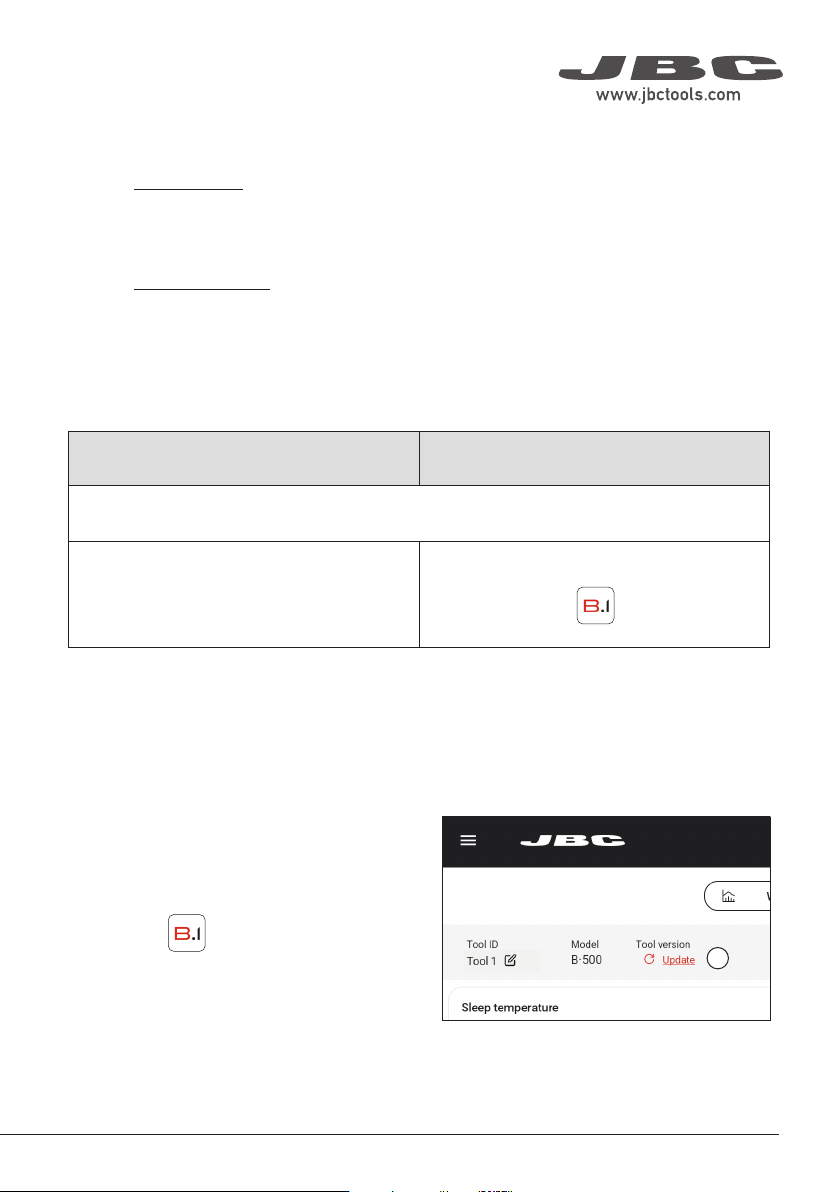
On the display you are using with B.IRON, and
with the latest app version installed, access the
B.IRON app:
Connect the tool you want to update. Then,
on the Settings tab of the main screen, tap
“Update” (1).
Executing the Tool Firmware Update File
Android devices iOS devices
Transfer the unzipped files from the internet-connected device to the device used with B.IRON
and place them in the following path/folder:
\Internal shared storage\Android\data\com.
jbctools.jbcbiron\files
Files > On my iPad > JBC B.iron
Display without Internet connection:
Download the firmware update file to another device with an Internet connection from JBC’s website:
https://www.jbctools.com/jbcsoftware.html and unzip the downloaded file.
Then do as described in the table.
Downloading the Tool Firmware Update File
Display with Internet connection:
Download the firmware update file to the display used with B.IRON from https://www.jbctools.com/
jbcsoftware.html. Go to the internal folder and unzip the downloaded file.
15
40 mm
50 mm
60 mm
80 mm
100 mm
130 mm
130 mm
para manuales - negro plano
200 mm
300 mm
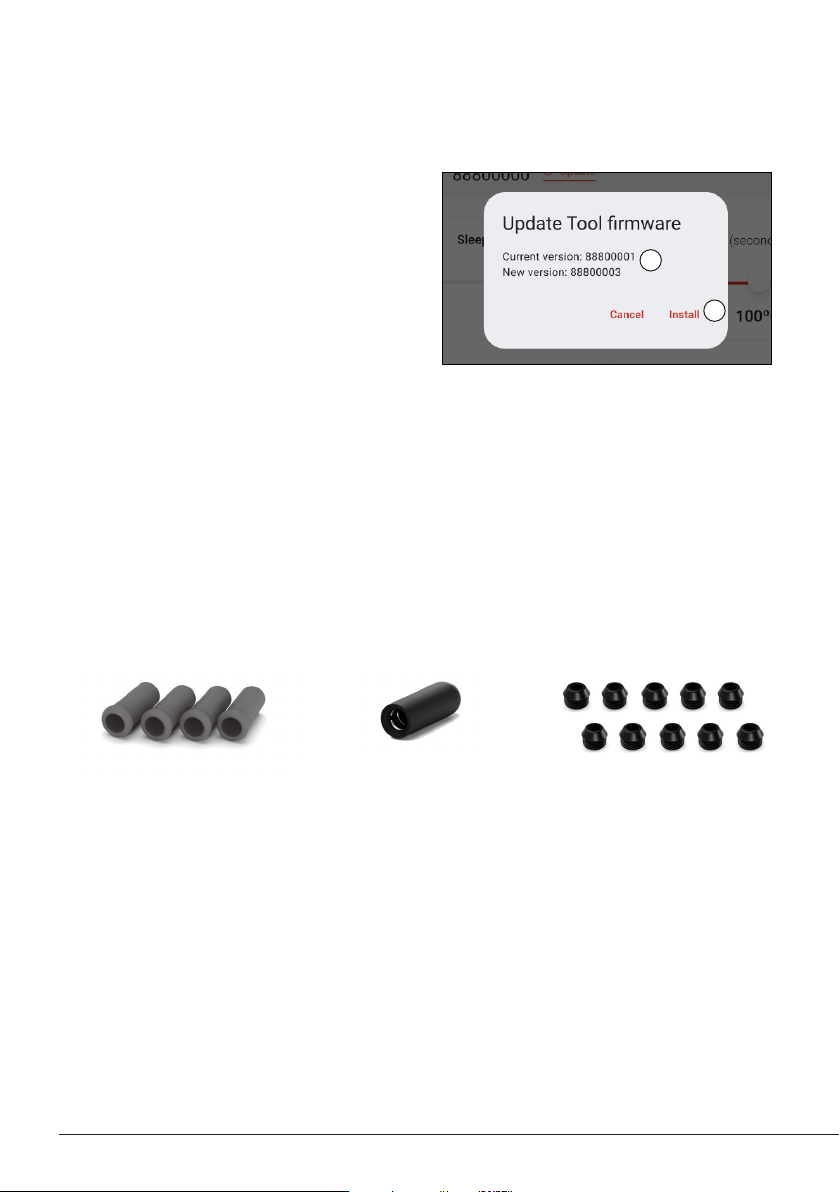
Replacement Parts for B.NANO Tools
B1510
Soft Foam Grips for B.IRON
Tools
Reference includes 4 grips
B1596
Safety Cap for B.IRON Tools
Reference includes 1 cap
OB5000
Sealing Plugs for B.NANO
Tools
Reference includes
10 sealing plugs
2
3
If the downloaded tool firmware update file
contains a more recent version than the one
already installed, the current and new version
are displayed (2). Tap “Install” to start the
update (3).
The update process takes about 10 minutes.
The B.IRON status lightband continuously
changes its color during the update process.
Once the update is complete, the pop-up
message “The tool version has been updated
correctly” appears on the screen.
If “No new version available” is displayed, no
update is possible or required.
Executing the Tool Firmware Update File (continuation)
16