i3070-Software-Installation.pdf.pdf - 第12页
12 i3070 Software Installation 6 Complete the license installation: • T o install th e node-locked licenses on a testhead contr oller or test development workstation, see Installing node-locked licenses on page 13. • T o…
i3070 Software Installation 11
Completing the software installation
Task Steps
The installation wizard procedure is now completed. Continue with the following tasks.
1 If installing on a testhead controller,
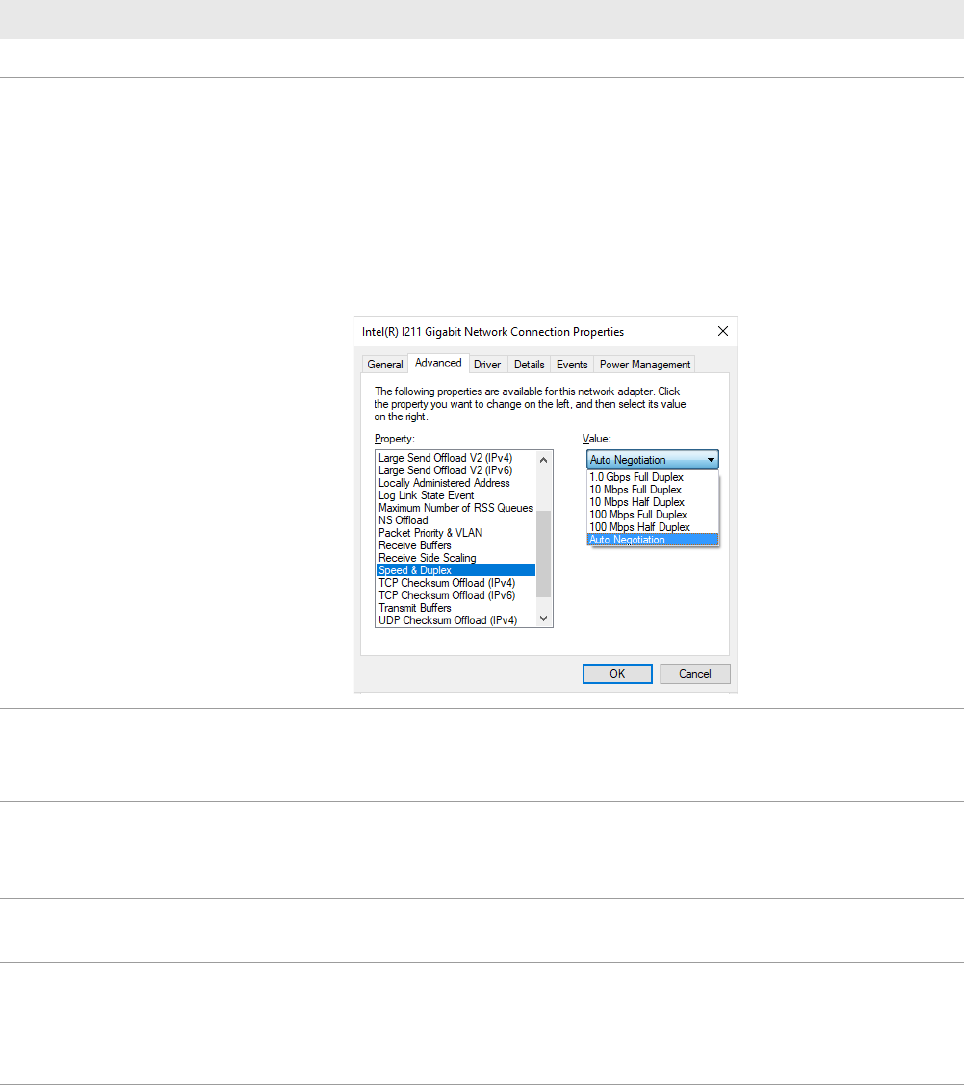
set the recommended Speed &
Duplex on Testhead LAN to prevent
lost heartbeat failure:
a Right-click on the Testhead LAN icon in the Taskbar and select Status.
b In the Testhead LAN Status dialog box, click Properties.
c In the Testhead LAN Properties dialog box, click Configure.
d In the network adapter’s Properties dialog box, click the Advanced tab.
e Select Speed & Duplex and change its value according to the Module
Control Card in use.
ControlXTPB – Auto Negotiation
ControlXTPA – 100 Mb, half duplex
2 Check startup type for BOOTP
Turbo:
a Open Control Panel and click Administrative Tools > Services.
b In the service list, look for BOOTP Turbo and ensure that the Startup Type is
Automatic.
3 Set power options to never turn off
the hard disks and monitor:
a Open Control Panel and click Power Options.
b Click Change plan settings for the power plan in use.
c Set all options to Never and click Save changes.
4 Check for software patches: Go to www.keysight.com/find/i3070patches to check for any software patches
and install them.
5 Copy needed files: a Open a KornShell window.
b Execute
setupEnv.ksh. (This will copy four files to the $HOME folder.
This step creates the user account and home env.)
c Close the KornShell window.
12 i3070 Software Installation
6 Complete the license installation: • To install the node-locked licenses on a testhead controller or test
development workstation, see Installing node-locked licenses on page 13.
• To allow access to optional feature licenses (which are floating licenses), see
Setting up client machines to use floating licenses on page 16.
7 To run the i3070 software when
Windows Firewall is enabled
(optional):
To allow the i3070 software to run when Windows Firewall is enabled, go to the
C:\I3070_ICT\util folder, right-click CreateFirewallRule.bat and select Run as
administrator.
The script creates inbound rules for the required ports and TCP/IP addresses.
• Default ports enabled: 1337, 3071, 9090, 5672, 31883, 40100, 40102,
50100, 50102, 7030.
• Default IP addresses enabled: 10.3.112.1 to 10.3.112.255, 0.0.0.0,
192.168.1.1, 255.255.255.255.
Completing the software installation (continued)
Task Steps
i3070 Software Installation 13
Installing Software Licenses
– Installing node-locked licenses
– Setting up client machines to use floating licenses
Installing node-locked licenses
Run Keysight License Manager 6 to add the node-locked licenses on:
• a testhead controller, or
• a test development workstation.
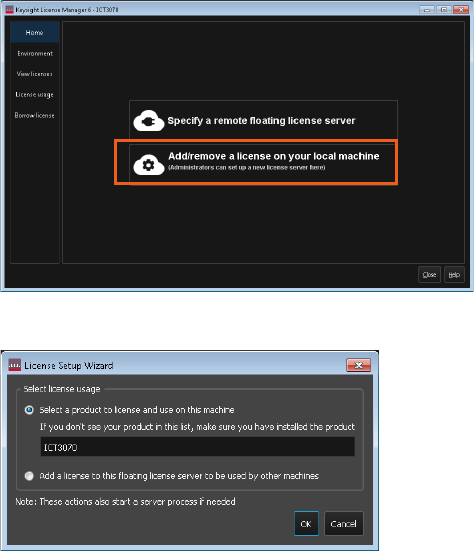
1 Launch Keysight License Manager 6 (Start > Keysight License Manager 6 >
Keysight License Manager 6).
2 Click Add/remove a license on your local machine.
3 Select the product to license (ICT3070) and click OK.