i3070-Software-Installation.pdf.pdf - 第6页
6 i3070 Software Installation Critical folders and files If you ar e upgrading a system, you can us e the following shell command to captur e most of the computer’s networking information: ipconfig /all > mynetwork.tx…
i3070 Software Installation 5
System requirements
Before installing the software, ensure that the workstation has a DVD-ROM drive
and meets the following specifications.
Table 1 System requirements
Specifications
Processor Recommended: Intel Core i5 (4th Generation or newer) or equivalent
Operating System Windows 10 Pro (64-bit)
Windows 10 Enterprise (64-bit) version 1903 or later
Windows 11 Pro
Ensure that all Windows updates are installed.
Memory Recommended: 8 GB of RAM (minimum 4 GB)
Available Disk Space Recommended: 10 GB (minimum 5 GB), must be on drive C
Display Properties • Screen resolution: at least 1280 x 1024 pixels
• Color quality: at least 16-bit
Language Setting Must be English (United States).
If you are upgrading a controller to Windows 10, ensure that
it meets the Windows system requirements and there are no
compatibility issues.
6 i3070 Software Installation
Critical folders and files
If you are upgrading a system, you can use the following shell command to capture
most of the computer’s networking information:
ipconfig /all > mynetwork.txt
This saves the networking data to mynetwork.txt, which you can refer to when
restoring the network settings.
Back up the critical files if you are unable to make a complete system backup.
1. These files are not on a test development workstation.
2. The default installation folder may be I3070_ICT or Agilent_ICT.
Table 2 Critical folders and files
Folders/files Description
\windows\system32\drivers\etc\hosts Local hostname resolution and networking information
\windows\system32\drivers\etc\bootptab Hardware addresses for the testhead
1
\<installation folder>\autofile Fixtures ID auto numbers
\<installation folder>\boards Board test programs. If your board files are in a different folder,
back up that folder.
\<installation folder>\diagnostics\th1\ASRU_Reference System Calibration file (system dependent)
\<installation folder>\diagnostics\th1\config Testhead hardware configuration
1
\<installation folder>\home User’s home folder
\<installation folder>\standard\config Testhead resources configuration
1
\<installation folder>\dev Back up any ps (DUT power supply) files that were customized.
Any other custom folders and files containing important
data.
Any other user data
i3070 Software Installation 7
Installing the i3070 Software
• All software must be installed to drive C, which must also be the drive where
the operating system is installed.
• Disable anti-virus software before starting the installation. Otherwise, some of
the components might not install properly. Remember to reactivate the
anti-virus software after the i3070 software is installed.
• Unless directed otherwise, always accept the default selections. Otherwise,
errors could occur when using the software.
Before installation
Task Steps
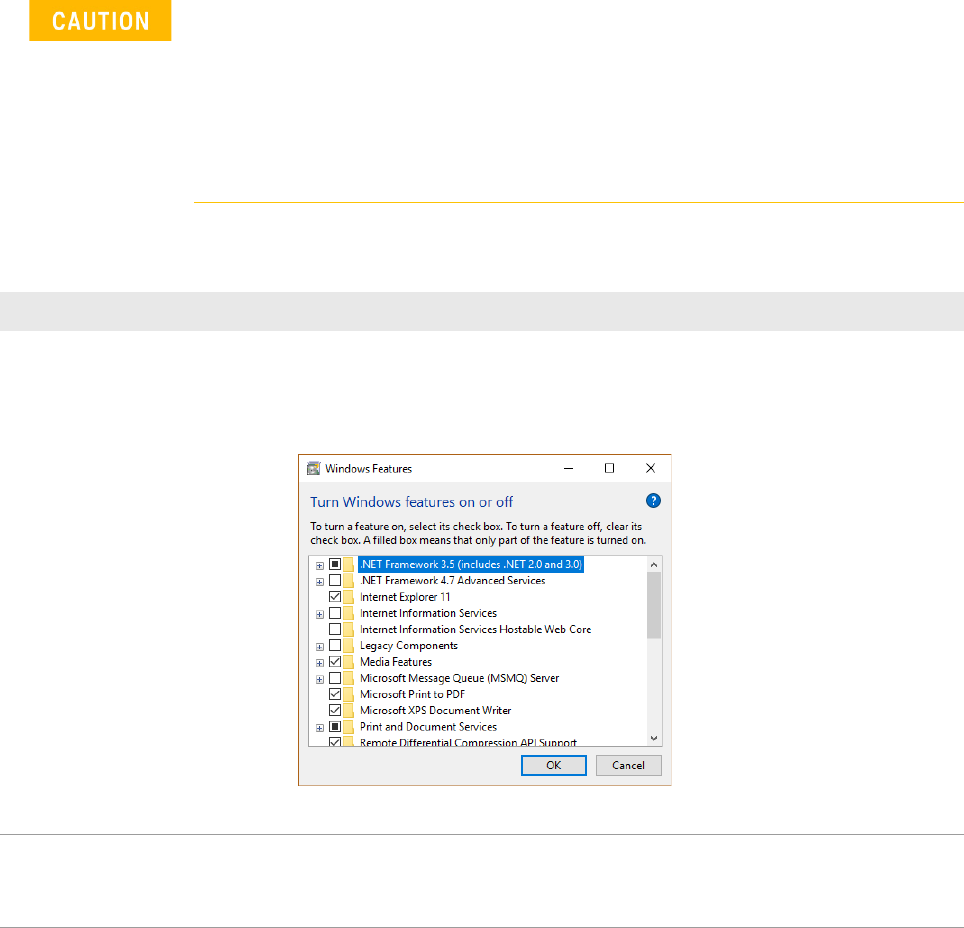
1 Turn on .NET Framework: a Use Search on the taskbar to find Control Panel and click Programs and Features >
Turn Windows features on or off.
b In the Windows Features dialog box, select .NET Framework 3.5 (includes .NET 2.0
and 3.0) and click OK.
c Reboot the computer if prompted.
2 Turn off Windows Firewall: a Select the Start button, open Windows Defender Security Center and click Firewall
& Network protection.
b Turn off Windows Firewall for both Private Network and Public Network.
You do not need to select any of the
items under .NET Framework 3.5,
unless you are a developer who
requires WCF script and handler
mapping functionality.