i3070-Software-Installation.pdf.pdf - 第14页
14 i3070 Software Installation 4 Click Br owse to locate and s elec t the lic ens e fi le(s ) tha t you saved ear lier . 5 Click Next to com ple te t he li ce ns e s etu p . 6 Go to the C:\I3070_ICT\util folder. Right-cl…
i3070 Software Installation 13
Installing Software Licenses
– Installing node-locked licenses
– Setting up client machines to use floating licenses
Installing node-locked licenses
Run Keysight License Manager 6 to add the node-locked licenses on:
• a testhead controller, or
• a test development workstation.
1 Launch Keysight License Manager 6 (Start > Keysight License Manager 6 >
Keysight License Manager 6).
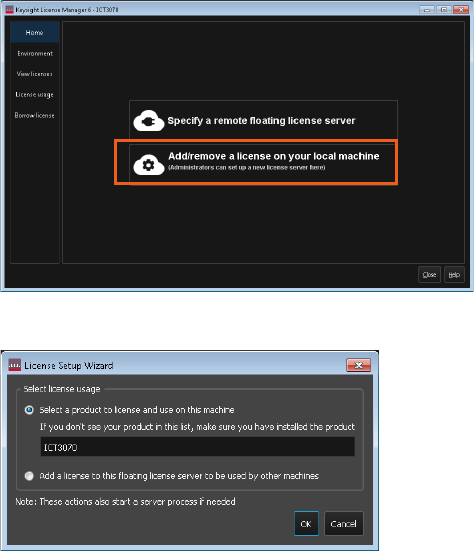
2 Click Add/remove a license on your local machine.
3 Select the product to license (ICT3070) and click OK.
14 i3070 Software Installation
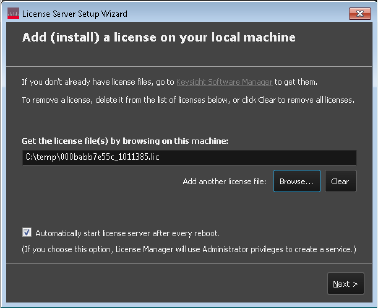
4 Click Browse to locate and select the license file(s) that you saved earlier.
5 Click Next to complete the license setup.
6 Go to the C:\I3070_ICT\util folder. Right-click licenseSearchPathReg.bat and
select Run as administrator. This will ensure that the license search path setup
is consistent for all ICT3070 user accounts.
You can now run the i3070 software on:
• Testhead controller
• Test development workstation issued with node-locked licenses.
Proceed with the license server setup if you have floating licenses to install for
optional test features and test development workstations. For instructions, see the
“Single/Triple-Redundant Network License Server Setup Guide”.
i3070 Software Installation 15
View licenses
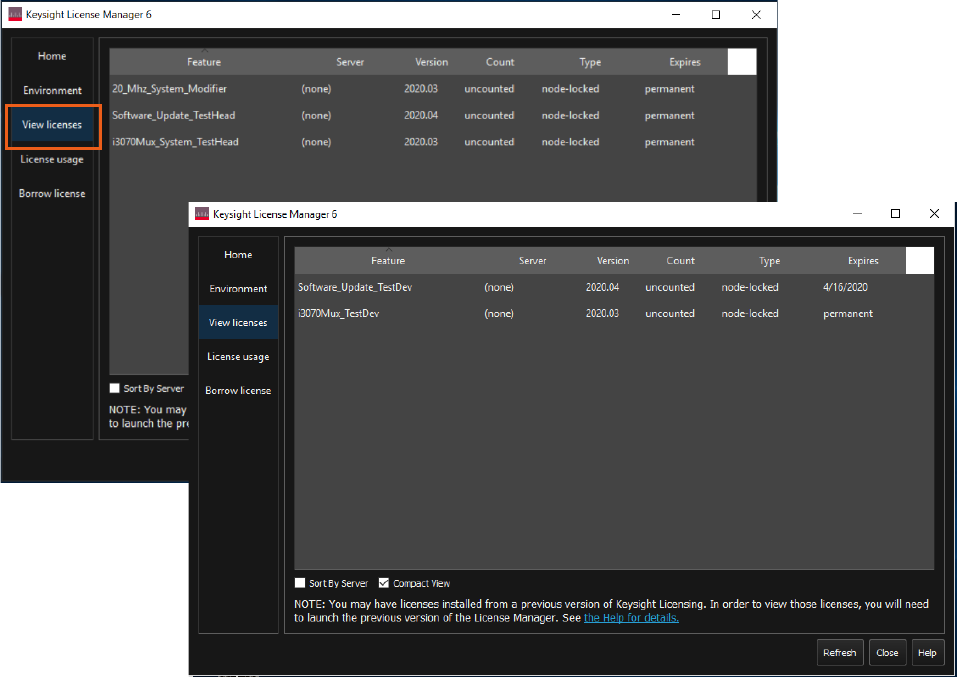
Once the licenses are successfully installed, you can view them from the View
licenses tab. The following shows examples for a testhead controller and test
development workstation.