00195467-01_Installation Manual Setup Center 2.2.pdf - 第69页
Installation Manual SIPLACE Setup Center 2.2 5.4 S teps to perform af ter Install ation 5.4.1 SIPLACE Setup Center Database and Windows XP SP2 When installing Windo ws XP Service Pack 2 (SP2), the Windows Fire wall, form…
SIPLACE Setup Center 2.2 Installation Manual
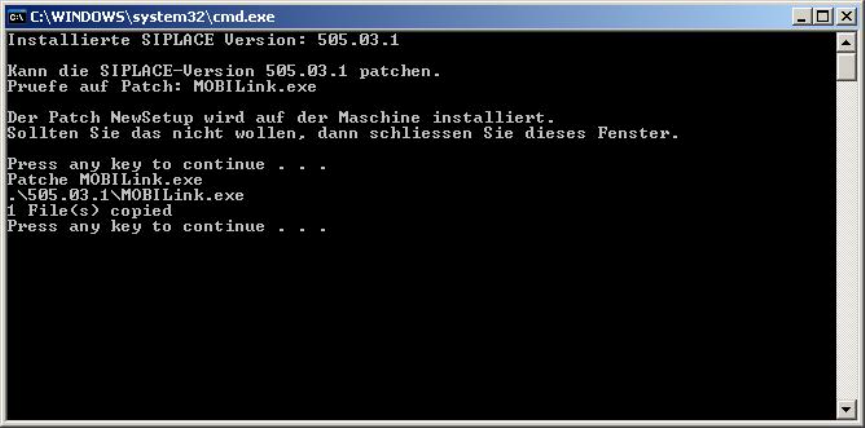
Press any key to finish the setup
68 of 90

Installation Manual SIPLACE Setup Center 2.2
5.4 Steps to perform after Installation
5.4.1 SIPLACE Setup Center Database and Windows XP SP2
When installing Windows XP Service Pack 2 (SP2), the Windows Firewall, formerly ICF (Internet
Connection Firewall), is enabled by default. The default configuration in SP2 blocks incoming
traffic for the most TCP ports.
If you are running the SIPLACE Setup Center GUI on a Windows XP SP2 host and the SIPLACE
Setup Center database on another host, you have to open the port 1433 and 1434 for the
database connection. Furthermore, you have to open the port 445, because blocking will cause
errors when using mans MMC snap-ins like Event Viewer, Local Users & Groups, Services,
Computer Management, Disk Management, Device Manager, Group Policy, and others.
Please refer to Windows help to get further information how to open TCP ports.
5.4.2 SIPLACE Setup Center Configuration
SetupCenter GUI requires to be configured before it can be used. The configuration can be found
via the main menu Options | Settings. Read “SIPLACE Setup Center – Getting Started” for more
information.
5.4.3 Dragon Scanner Configuration
New scanners and scanner base stations require the set-up once before the first use.
This doesn’t necessarily need to happen after the Installation of SIPLACE Setup Center, but it is
recommended. The Scanner configuration is independent from the software installation.
Note:
The scanner powers off after a period of inactivity. Pulling the trigger will power the
scanner on.
Setting up the scanner system requires four steps:
1. Scanner configuration
2. Setting of the scanner address
3. Binding the scanner to the RF station
4. RF station configuration
69 of 90
SIPLACE Setup Center 2.2 Installation Manual
5.4.3.1 Scanner Configuration
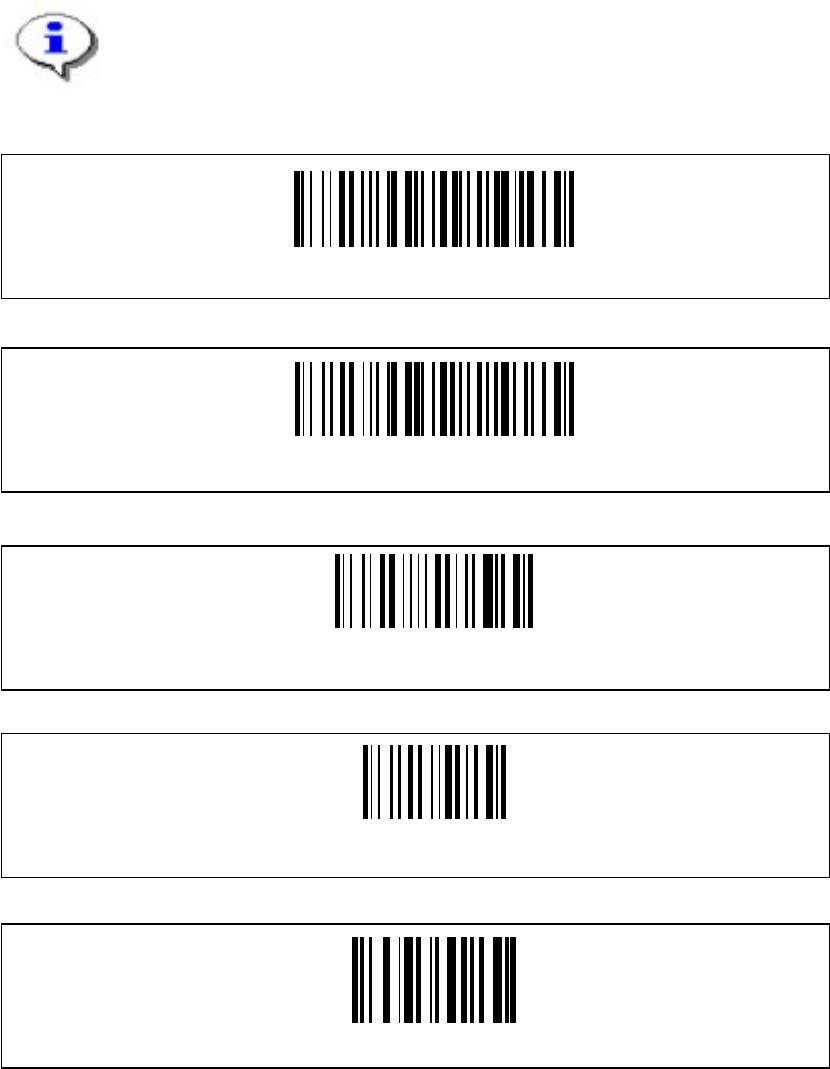
The new Scanner is setup up by scanning of a series of barcodes. Pull the trigger to switch the
scanner on and scan the following barcodes in the order they are printed:
Note
The configuration must be completed in one run. If it is halted or any problems
appear, all configuration steps have to be redone from the beginning.
Set DLL6000-R compatibility
Restore DRAGON ™ M standard configuration
Restore DRAGON ™ M default
Enter Configuration
Radio protocol timeout
70 of 90