00195642-01_IM-SetupCenter-3.0_EN.pdf - 第50页
Installation Software Installation Setup Center 50 Installation Manual SIPLACE Setup Center V3.0 6-18: "Setup Type" dialog box X Select the setup type you want to install in the Setup Type dialog box. X Click N…
Installation
Setup Center Software Installation
Installation Manual SIPLACE Setup Center V3.0
49
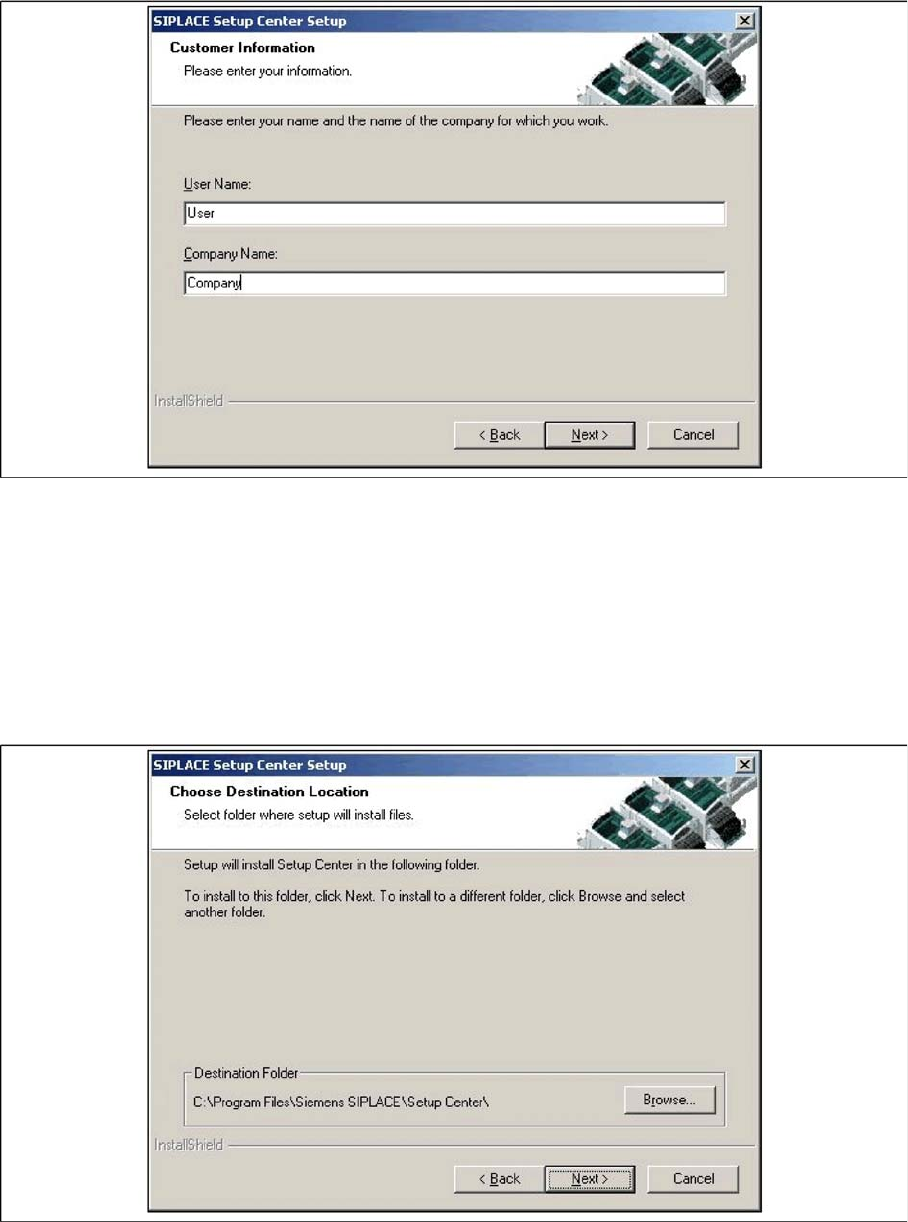
6-16: "Customer Information" dialog box
X Click Next.
Step 5
X The Choose Destination Location dialog box prompts you to enter the name of the folder in which
SIPLACE Setup Center should be installed. The system suggests a default destination folder for you.
X However, you can click the Browse button to open a dialog box in which you can enter or select the
path you want to use. If the folder you specify does not exist, it is created after having accepted a
confirmation dialog.
6-17: "Choose Destination Location" dialog box
X Click Next.
Step 6
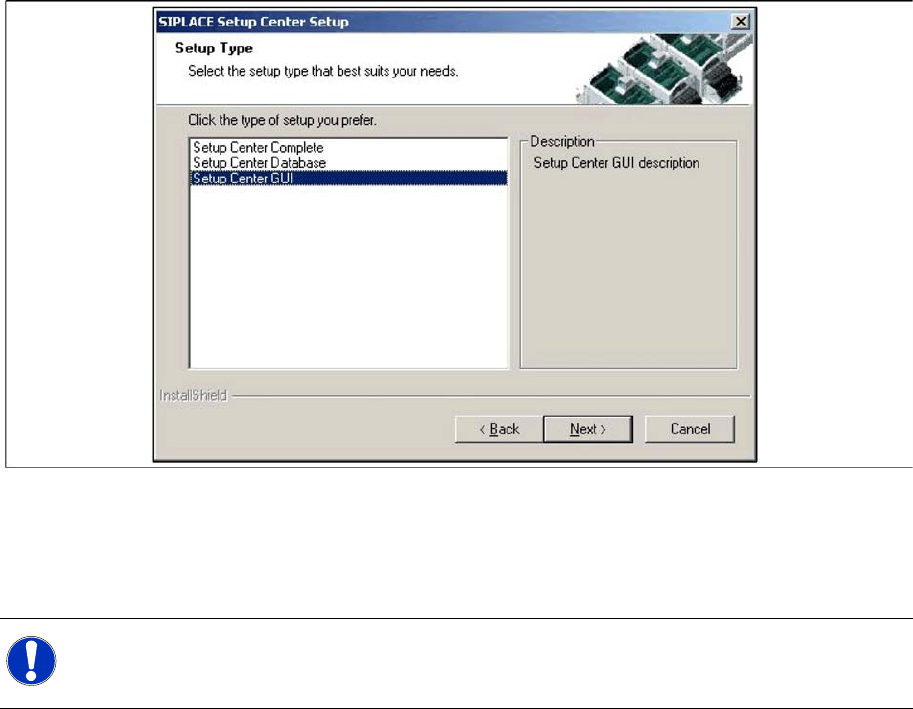
X The Setup Type dialog box displays the SIPLACE Setup Center components you could choose for
installation.
Installation
Software Installation Setup Center
50 Installation Manual SIPLACE Setup Center V3.0
6-18: "Setup Type" dialog box
X Select the setup type you want to install in the Setup Type dialog box.
X Click Next.
X If you select a type, a short description of the setup type in question appears in the Description box.
NOTE:
After choosing a setup type which includes a database installation, the setup program
immediately checks if SQL server is installed on the computer.
Installation
Setup Center Software Installation
Installation Manual SIPLACE Setup Center V3.0
51
6.3.1.2 Individual setup types and next steps
Setup Type – GUI
This setup type will install the GUI application of SIPLACE Setup Center. It is used to setup up a client
system while the database is located on a remote system.
Step 1
X Run through the steps in chapter "General Settings".
X Select the SIPLACE Setup Center GUI setup type.
X Click Next.
Step 2
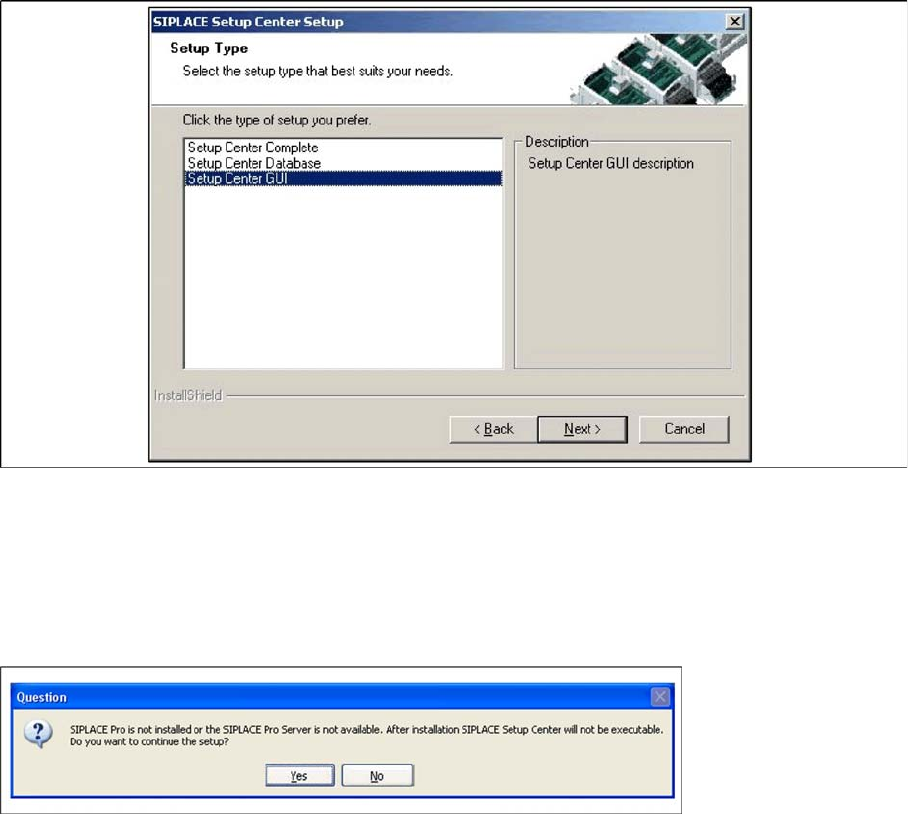
The installation detects the existing SPI version and installs the according SIPLACE Setup Center files.
In case no SPI is detected, a warning message is displayed.
X Make sure that SIPLACE Pro is already installed or the SIPLACE Pro Server is available.
X Click Yes to continue the setup.
Step 3
X Enter the information required to be connected with the SQL Server and database in the Select SQL-
Server dialog box.