00195642-01_IM-SetupCenter-3.0_EN.pdf - 第81页
Installation Motorola / Symbol MC70 Scanner Configura tion Steps to pe rform after Installation Installation Manual SIPLACE Setup Center V3.0 81 X Select SIPLACE Scanner Config Tool to continue. X Choose the language fro…
Installation
Steps to perform after Installation Motorola / Symbol MC70 Scanner Configuration
80 Installation Manual SIPLACE Setup Center V3.0
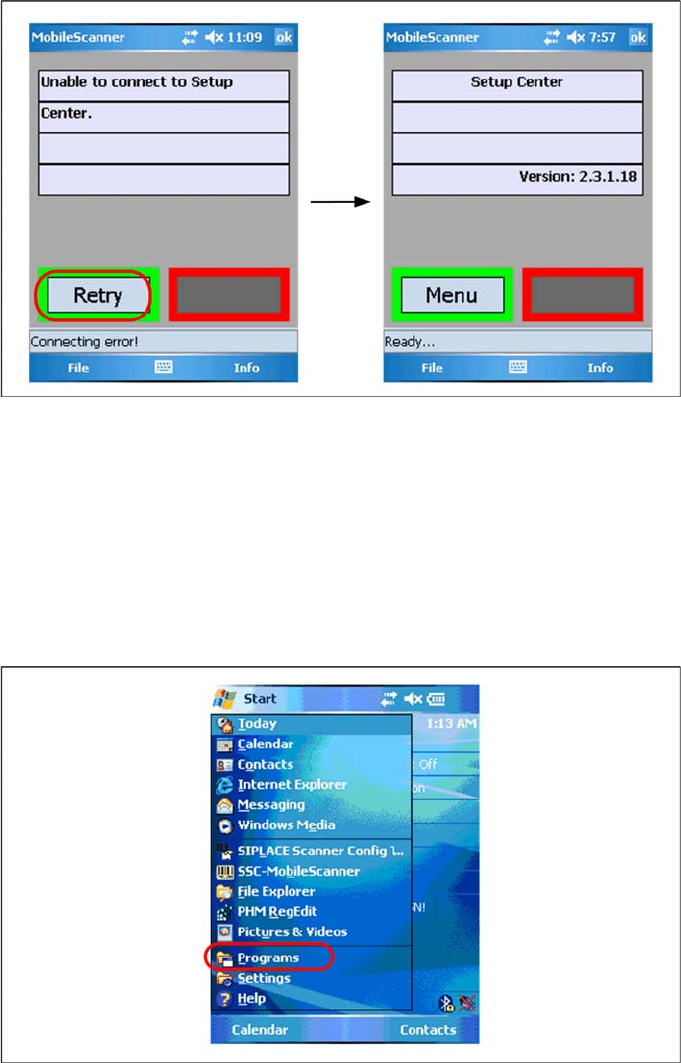
6.4.4.3 Establishing Connection
X Start Setup Center.
X Click on "Connect" to establish a connection to Setup Center.
In case the connection fails check the network settings again.
The software is now successfully configured.
6.4.4.4 SIPLACE Scanner Config Tool
Scanning problems with 1D barcodes
If the MC70 is unable to scan most of your 1D barcodes, use the following configuration utility, to resolve
the problems.
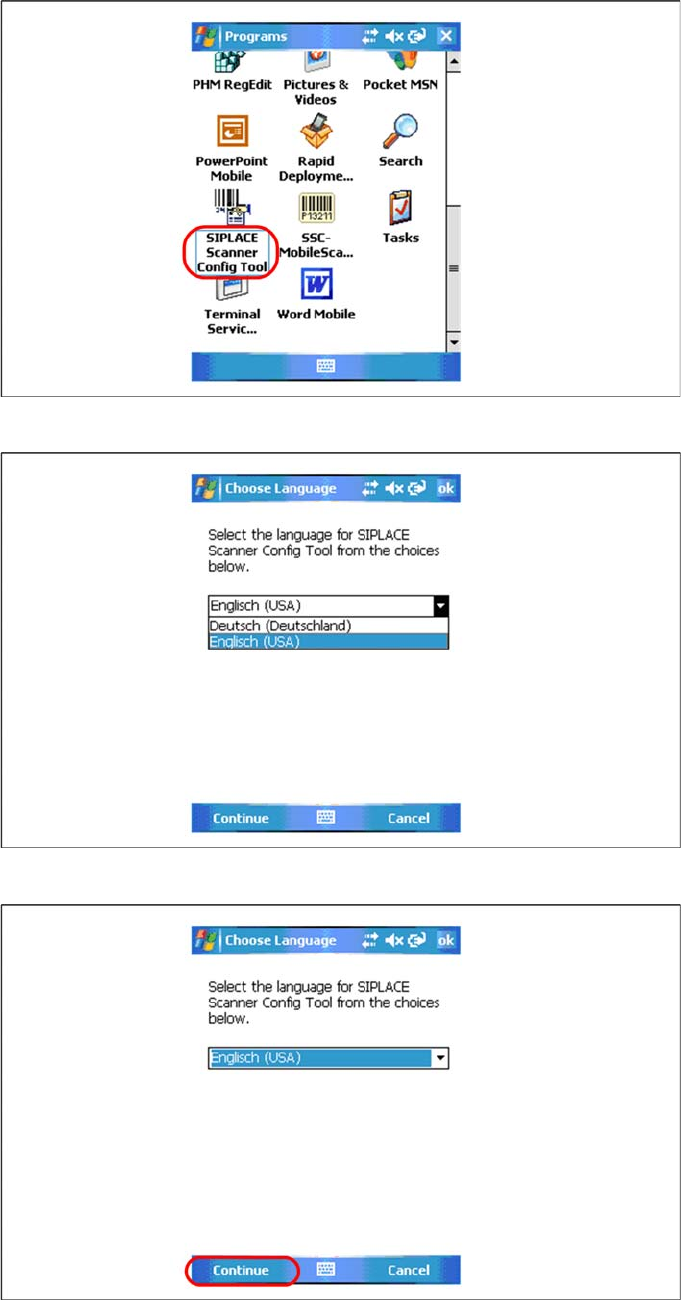
X Please exit all running applications on scanner and Symbol AppCenter to continue.
X Select Start->Programs to show present applications on scanner.
Installation
Motorola / Symbol MC70 Scanner Configuration Steps to perform after Installation
Installation Manual SIPLACE Setup Center V3.0
81
X Select SIPLACE Scanner Config Tool to continue.
X Choose the language from list.
X Press Continue to proceed.
Installation
Steps to perform after Installation Motorola / Symbol MC70 Scanner Configuration
82 Installation Manual SIPLACE Setup Center V3.0
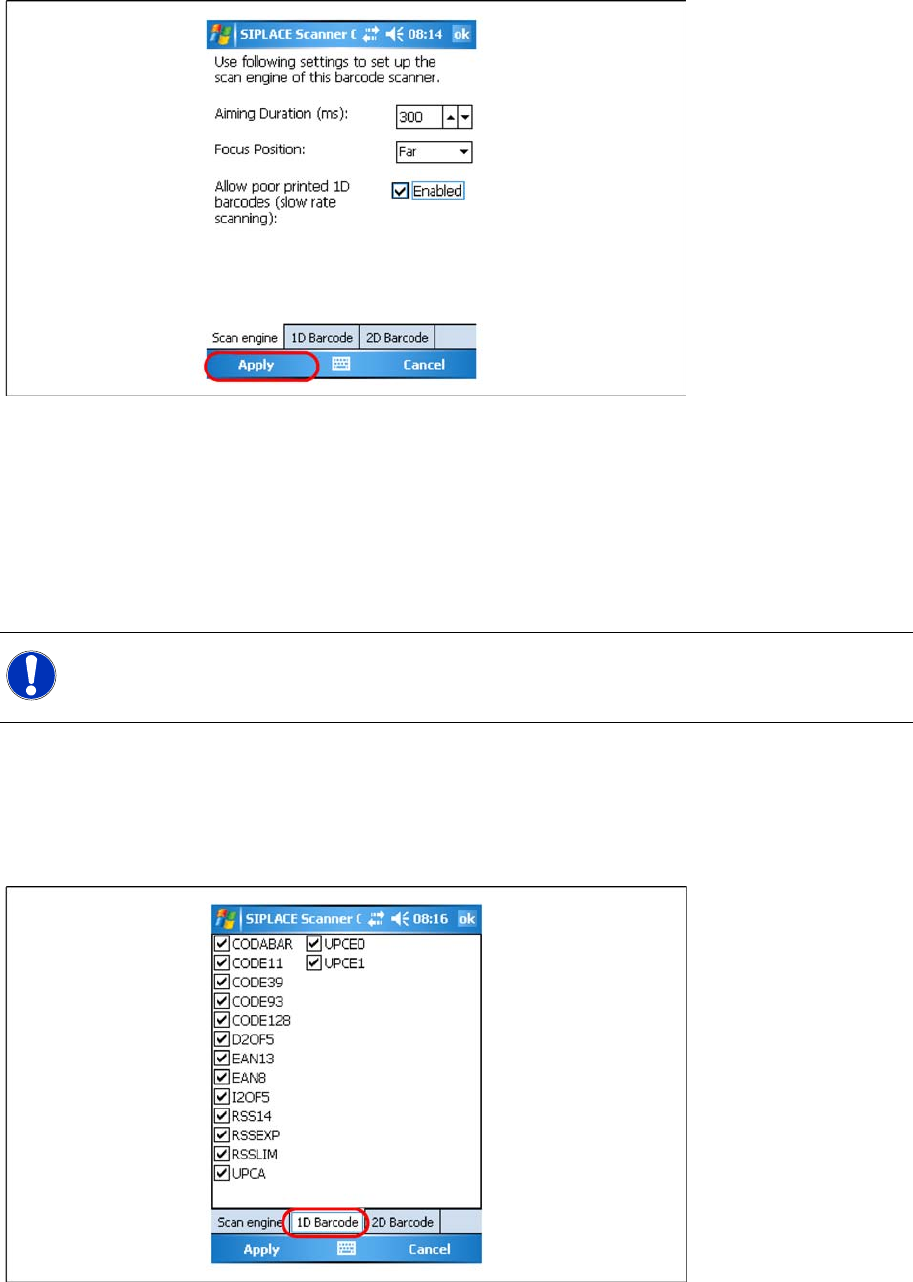
You can change the following scan parameters here:
Aiming Duration (ms):
Sets the time, how long a user is able to target a barcode with target laser.
Focus Position:
– Far: You have to focus a barcode in scan range of about 23 cm (9 inches).
– Near: You have to focus a barcode in scan range of about 13 cm (5 inches).
Allow poor printed 1D barcodes (slow rate scanning):
Use this setting, if most of your barcodes cannot be read in case of light damage.
X Press Ok or Apply to save the settings.
Setting 1D or 2D barcodes for MC70 Scanner
X Choose the allowed 1D barcodes for your MC70 Scanner here.
NOTE:
This setting is depending on barcode size. If you have problems to read your 1D barcodes with
small size, change the setting to “Near”.