00195642-01_IM-SetupCenter-3.0_EN.pdf - 第57页
Installation Setup Center Software Installation Installation Manual SIPLACE Setup Center V3.0 57 X Select the SIPLACE Setup Center co mplete system setup type. X Click Next . Step 2 The installation detects the existing …
Installation
Software Installation Setup Center
56 Installation Manual SIPLACE Setup Center V3.0
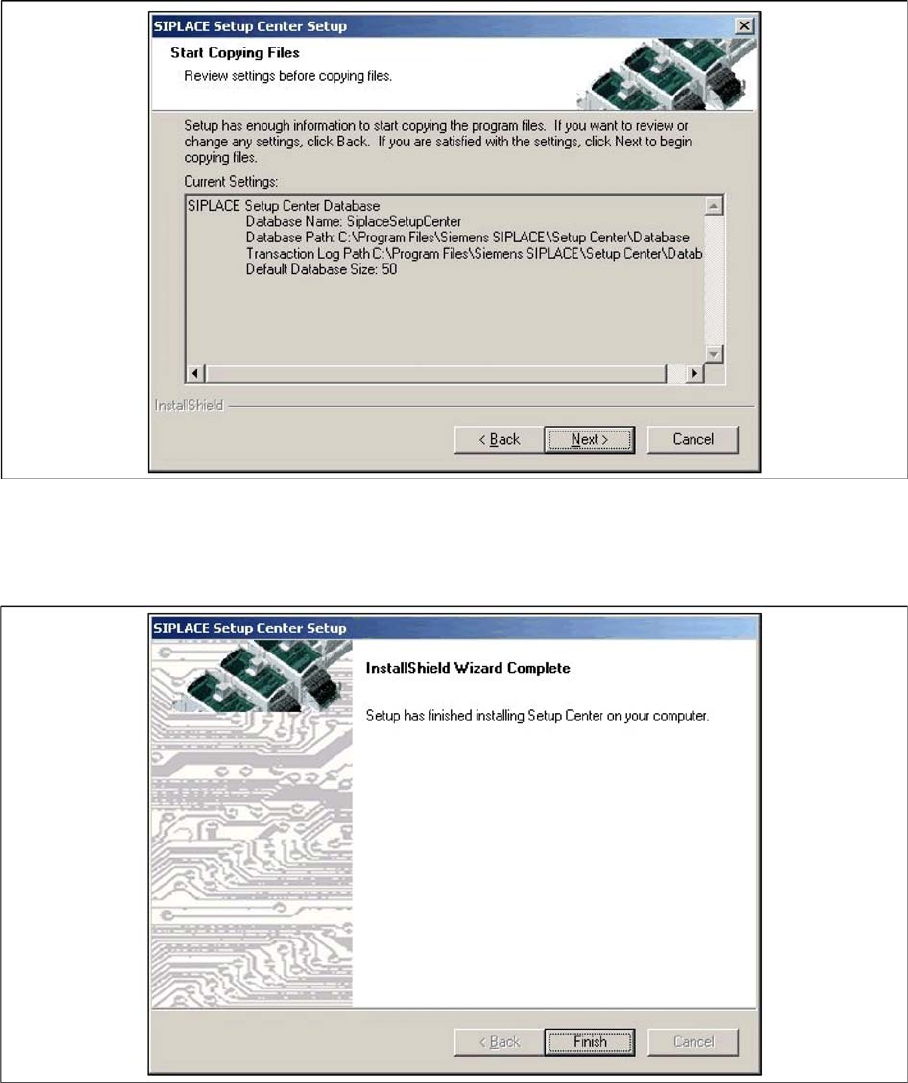
Step 5
X The installation routine is now started.
X The "Setup Complete" window confirms that the installation has been completed successfully.
X Click Finish.
Setup Type – Complete
This setup type contains all SIPLACE Setup Center components for operating the system on a single
computer. It is used to install a Setup Center stand alone system.
The Setup detects weather SQL Server has already been installed.
Select this type to install all SIPLACE Setup Center system components (GUI, Database) on one
compute. However, it is possible to integrate further clients on other computers.
Step 1
Run through the steps in chapter "General Settings".
Installation
Setup Center Software Installation
Installation Manual SIPLACE Setup Center V3.0
57
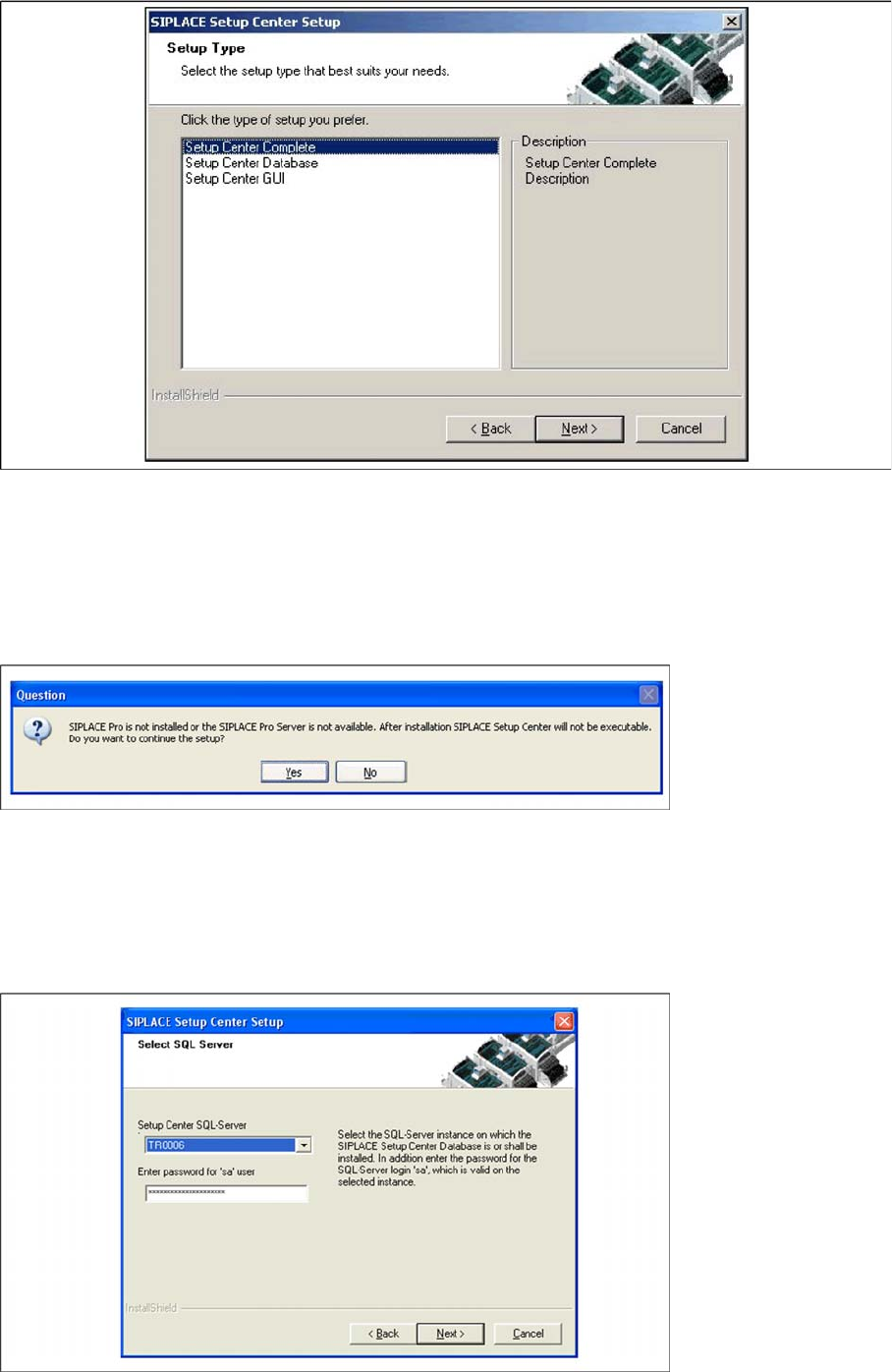
X Select the SIPLACE Setup Center complete system setup type.
X Click Next.
Step 2
The installation detects the existing SPI version and installs the according SIPLACE Setup Center files.
In case no SPI is detected, a warning message is displayed.
X Make sure that SIPLACE Pro is already installed or the SIPLACE Pro Server is available.
X Click Yes to continue the setup.
Step 3
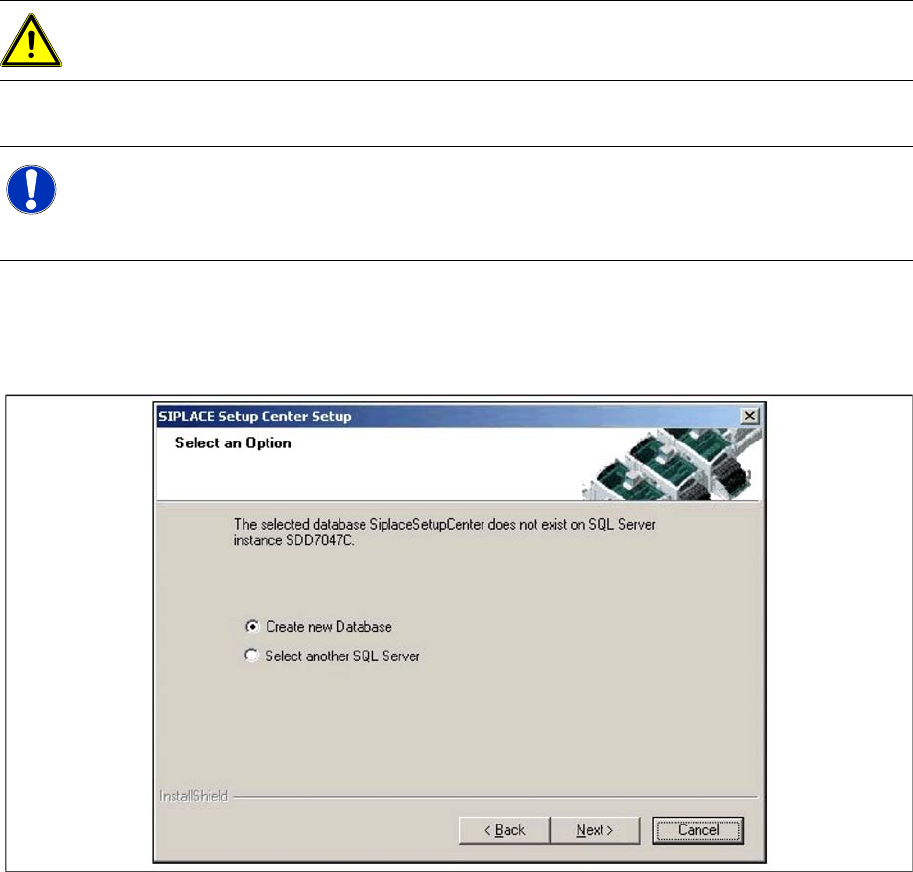
X Enter the information required to be connected with the SQL Server and database in the Select SQL-
Server dialog box.
X Choose your SQL Server Instance from the pull-down menu.
Installation
Software Installation Setup Center
58 Installation Manual SIPLACE Setup Center V3.0
X Enter the Password for the SQL Server user "sa", i.e. the SQL server system administrator.
X Click Next.
Step 3a
X The following dialog appears, in case no database with the name
SiplaceSetupCenter
exists::
X Choose Select another SQL Server, you return to the previous dialog.
X Click Next to create a new database.
Step 4
X Enter the information required to be connected with the SQL Server and database in the DB
Initialization dialog box.
X The figure you enter in the MB text box defines the initial size of the SIPLACE Setup Center database
files (default: 50) which are to be created during the installation.
X Confirm the default value or enter the size you want in the MB text box.
ATTENTION:
Only the SQL Server Instances on the local computer are selectable
NOTE:
This password is empty if MSDE has been freshly installed. In this case, erase the displayed
default password. Subsequently, a window will open, prompting you to change this password.
You may accept the Siemens Service default password or choose one of your own.