00197044-02_IM_706_1_DE_EN.pdf - 第29页
Station S oftware 706. 1 / Install ation Man ual Ausgabe 11/2012 E dit ion 29 Thereaf ter, the f ollowing dialo g is displ ayed . Figure 5-8 : Installing driver software f or Sontheim devi ce , part 2 ► Perform the sam e…
Station Software 706.1 / Installation Manual Ausgabe 11/2012 Edition
28
5.4.1 Additional dialogs under Windows Embedded Standard 7
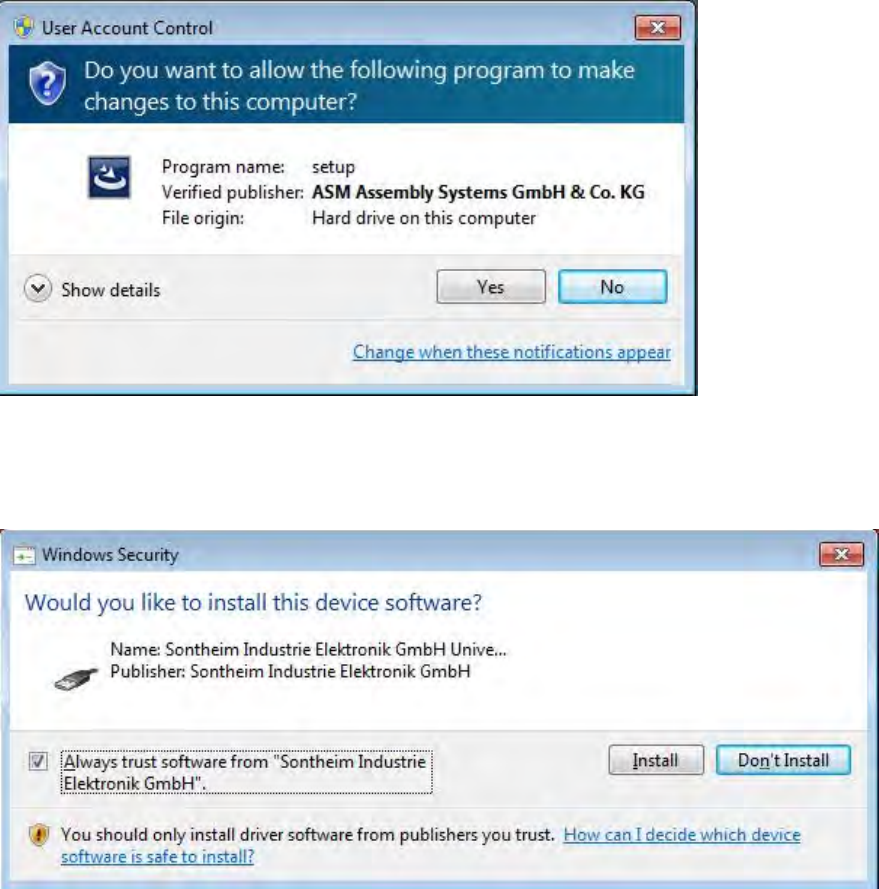
If Windows Embedded Standard 7 is installed as operating system and User Account Control is
enabled, the following dialog windows are additionally displayed.
Figure 5-6: User Account Control
► Click the Yes button to allow the SIPLACE Software installation.
If a Sontheim device is connected, the following dialog is displayed.
Figure 5-7: Installing driver software for Sontheim device, part 1
► Activate the Always trust software from "Sonheim Industrie Elektronik GmbH" field.
► Click the Install button to install the corresponding driver software.
Station Software 706.1 / Installation Manual Ausgabe 11/2012 Edition
29
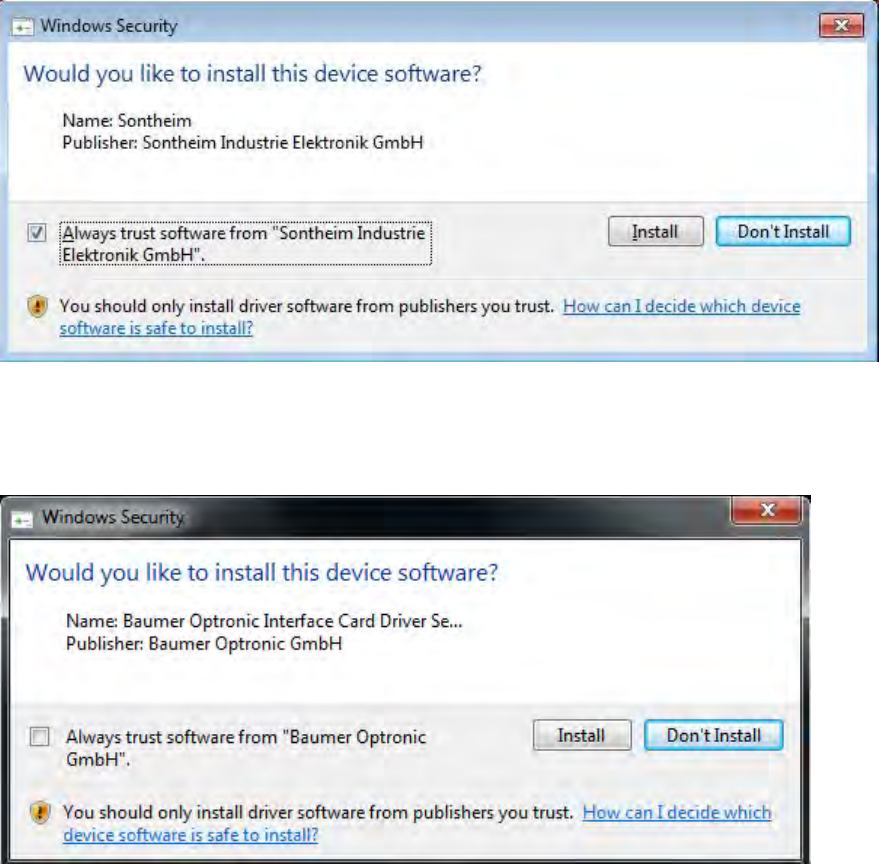
Thereafter, the following dialog is displayed.
Figure 5-8: Installing driver software for Sontheim device, part 2
► Perform the same steps as in the previous dialog.
If a Baumer card is installed, the following dialog is displayed.
Figure 5-9: Installing driver software for Baumer card
► Activate the Always trust software from "Baumer Optronic GmbH" field.
► Click the Install, button to install the corresponding driver software.
Station Software 706.1 / Installation Manual Ausgabe 11/2012 Edition
30
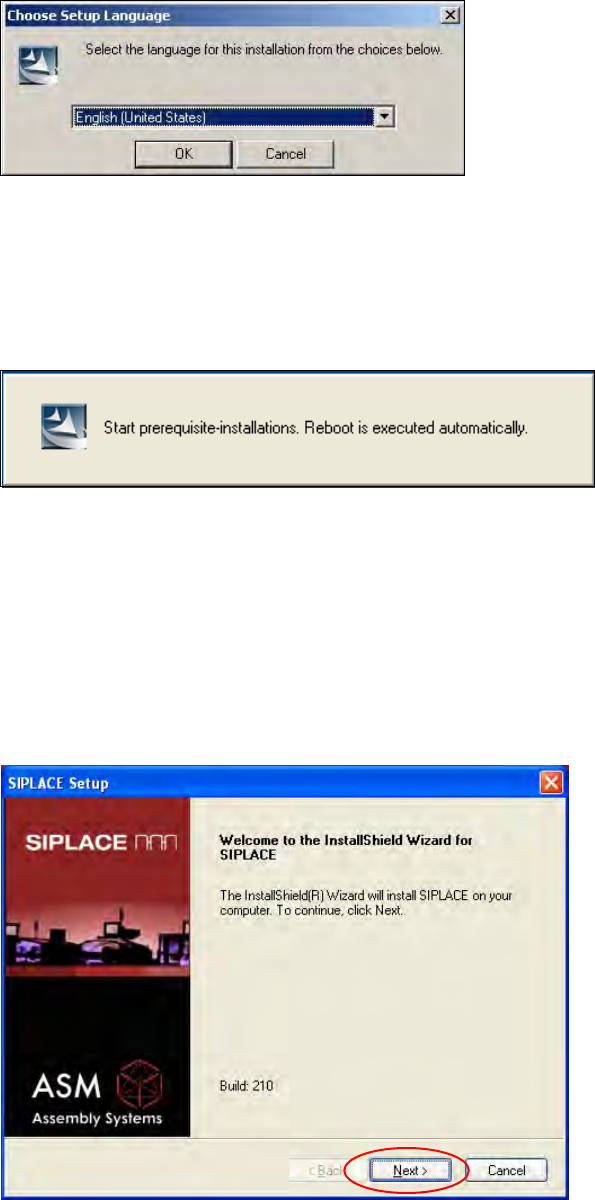
5.4.2 Language Selection
Installation of the station software continues with the selection of the language.
► Select the language to be used during installation.
You can choose between German (Germany) and English (United States).
Figure 5-10: Language selection
► Click the OK button.
5.4.3 Installing the System Files
Figure 5-11: Installing the system files
The necessary system files are installed if they are not already on the machine computer. Under
Windows XP the machine computer is rebooted automatically after installation. You are
automatically logged in as administrator. Under Windows 7 no reboot is necessary.
Installation of the station software continues with the welcome screen.
5.4.4 Welcome Screen
Figure 5-12: Welcome screen