TS577R-UserGuide.pdf - 第17页
17 3. En ter number of memories to be run in sequence (ex. 1 to 3) 4. To uch the “Sequence Mode” icon 5. To uch the Check Mark icon to save and exit The screen will look similar ly to the screen below: Notes : A. If ther…
16
5.5 Stored Program in Memory cell
The unit has 50 memory cells to store all dispense parameters. The controller can
activate all memory cells in sequence mode.
5.5.1 To Store dispense parameters
1. Touch the forward or backward arrow to
select desired memory cell.
2. Enter all desired dispense parameters then touch the “Save”
icon to save the data.
5.5.2 To run in Single Sequence Mode
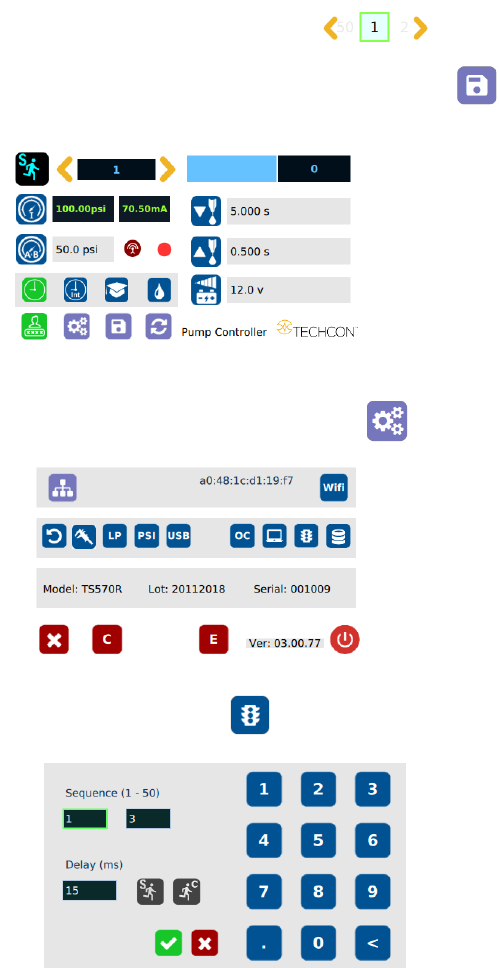
1. Touch the Setup icon to enter the setup screen
2. Touch the Run Method icon
17
3. Enter number of memories to be run in sequence (ex. 1 to 3)
4. Touch the “Sequence Mode” icon
5. Touch the Check Mark icon to save and exit
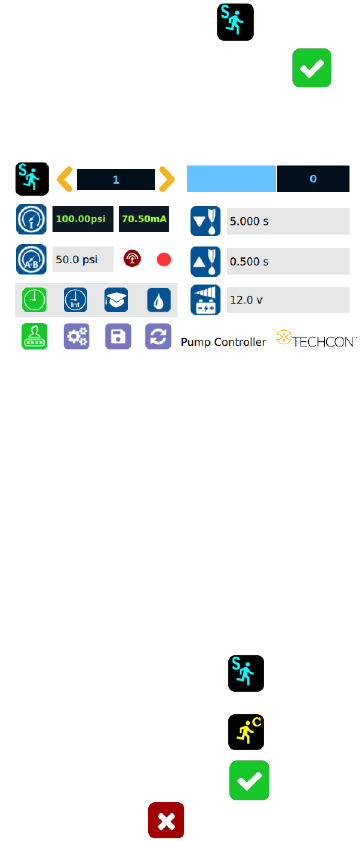
The screen will look similarly to the screen below:
Notes:
A. If there is no delay time entered in the setting, the operator has
to press the foot switch or touch the Run icon after each
memory cell is completed to activate the next memory cell.
B. If delay time is entered in the setting, the controller will activate
the next memory cell in sequence automatically.
5.5.3 To run in Continuous Sequence Mode
1. Follow step 1 to 2 above then enter the waiting time “delay time” between
each activation.
2. Touch the “Sequence Mode” icon
3. Touch the “Continuous Mode” icon
4. Touch the Check Mark icon to save
5. Touch the X icon to exit
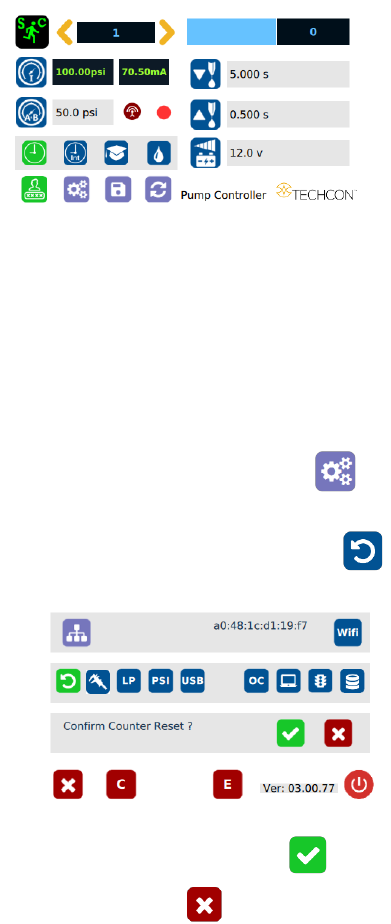
The screen will look similarly to the screen below:
18
Note: If the sequence mode is set to activate memory cell 1 – 3, and the
delay time is set at 5000 ms, the controller will activate memory 1 to 3
continuously with 5000 ms delay between each activation.
5.6 Cycle Counter
The cycle counter records the numbers of automatic dispense cycle being
activated. Up to 999,999 cycles can be recorded. To reset the counter, follow
steps below:
1. Touch the Setup icon to enter setup screen
2. Touch the Counter Reset icon to reset counter
3. Touch the Check Mark icon to confirm
4. Touch the X icon to exit