TS577R-UserGuide.pdf - 第22页
22 Note: Once the unit is turned off, the Wi-Fi connection is lost. To re-connect the unit back to the same network after the unit is tur ned on, repeat steps 1 - 4 and touch the “Default” tab. 6. INTERNET of Thing (Io T…
21
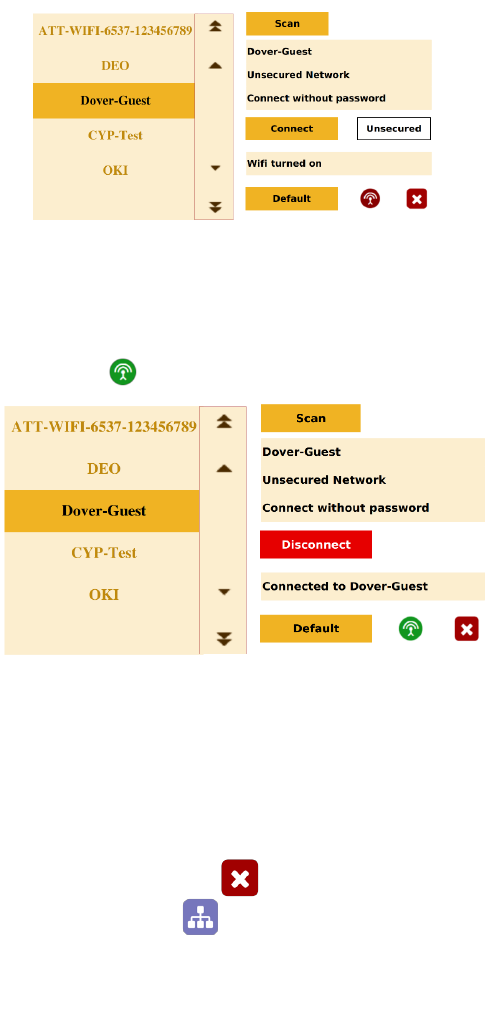
4. Touch the “Scan” tab to scan for all available networks
5. Touch the Up and Down arrows to select the desired network
6. If the selected network is an unsecured network (not password protected),
touch “Connect” tab to connect.
7. Once the unit is successfully connected to the Wi-Fi network, the
“Connect” tab will change to “Disconnect” and the online symbol will
change to green
8. If the selected network is a secured network (password protected), first
create a text file and type the network’s password, then save the file as
“password.txt”
9. Copy the “password.txt” file to a blank USB thumb drive. Note: Do not
put the “password.txt” file inside a folder
10. Insert the USB drive to the USB port located in the back of the unit
11. Touch “Connect” tab to connect. Once the unit is successufully connected
to the Wi-Fi network, remove the USB drive from the USB port
12. Touch X icon to save and exit
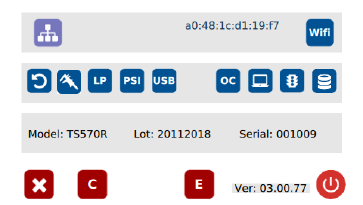
13. Touch the IP Address icon and the unit will show an IP address
22
Note: Once the unit is turned off, the Wi-Fi connection is lost. To re-connect
the unit back to the same network after the unit is turned on, repeat steps 1-4
and touch the “Default” tab.
6. INTERNET of Thing (IoT)
The IoT enabled function to allow users to:
• Monitor controller/valve performance remotely
• Make parameters adjustment remotely
• Collect data
• Receive notification when errors occur from controller
This function can be accessed through wired or wireless network
connection
To utilize all supported functions, the controller must be log into Techcon
web-base application software.
• The web-base application can be used locally or on the cloud.
• The web-base application has security features to prevent unauthorized
access.
23
6.1 Setup Web-based Application Sofware Locally
A. Install Web-based Application software
1. Go to Techcon Website:
http://www.techconsystems.com/en/resources/software-
download/smart-valve-controller-iot-software
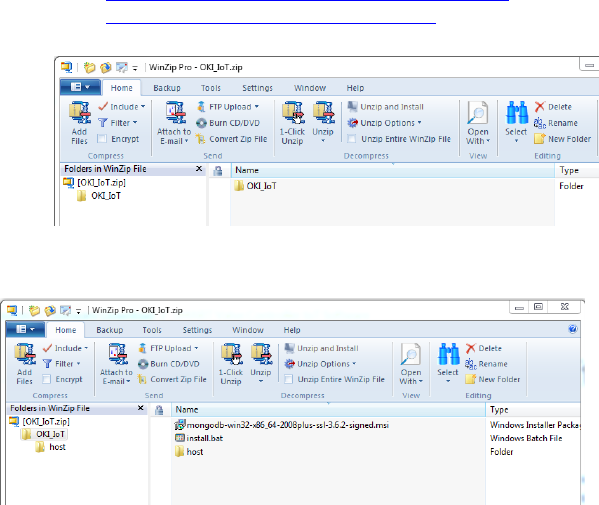
and download the “OKI_IoTLAN” to your computer
2. Open OKI_IoT folder
3. Double click on “install.bat” to install MongoDB
4. Make sure to select complete and uncheck Compass during the
installation.
Note: If you miss this step, you just install stuff on the machine that you
don’t need and of course it will take a few minutes longer to complete the
installation.
5. Open “host” folder