TS577R-UserGuide.pdf - 第20页
20 3. En ter the old password, then enter the new password 4. To uch the Check Mark icon to save 5. Touch the X icon to exit 5. 9 To Connect to Wi-Fi network. 1. Connect the antenna to the Wi-Fi connector located in the …
19
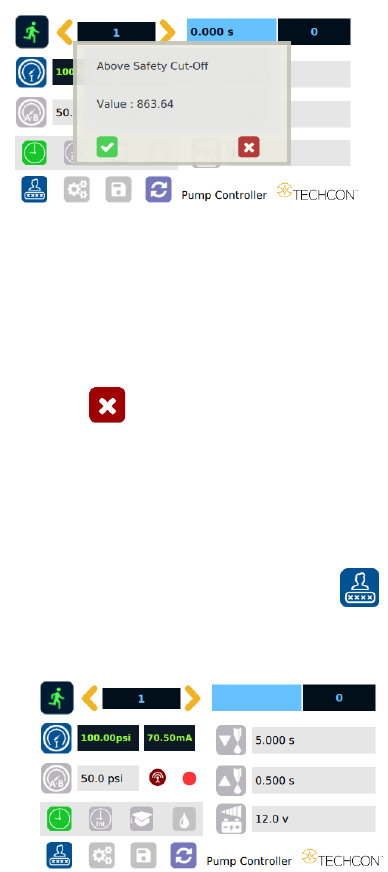
5.7 Over Current Protection
This controller is equipped with the over current protection for motor. If the
motor current is over 400 mA, the “Over Current Detected” message will apprear
on the screen and the unit will be disabled.
When this issue happened, check the valve to for clogging. Clean the valve
thoroughtly if necessary.
If after the valve has been cleaned and the over current is still occurred, then it is
time to replace the motor.
Touch the X icon to clear the over current message and reset the unit.
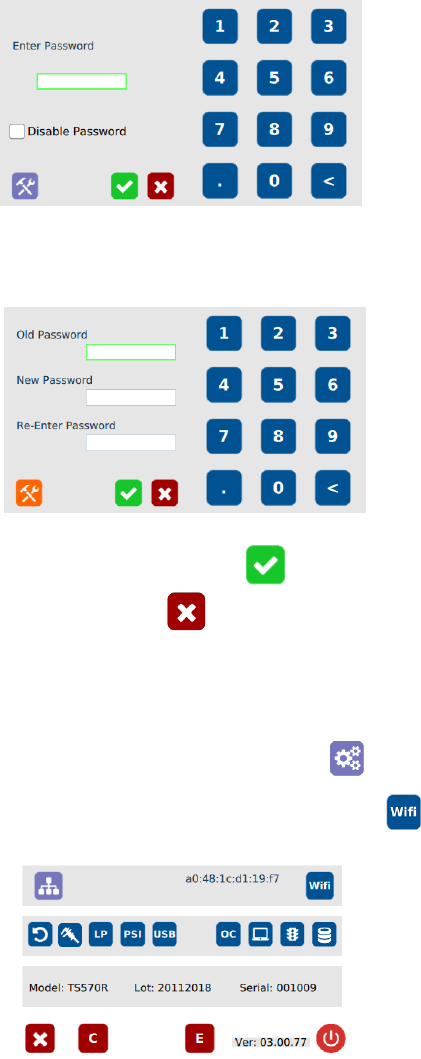
5.8 To Change Password
Note: The default password is “0000”. To change password, follow the
instructions below.
1. Touch the Login icon to enter the login screen
2. Touch the change “Password” icon
20
3. Enter the old password, then enter the new password
4. Touch the Check Mark icon to save
5. Touch the X icon to exit
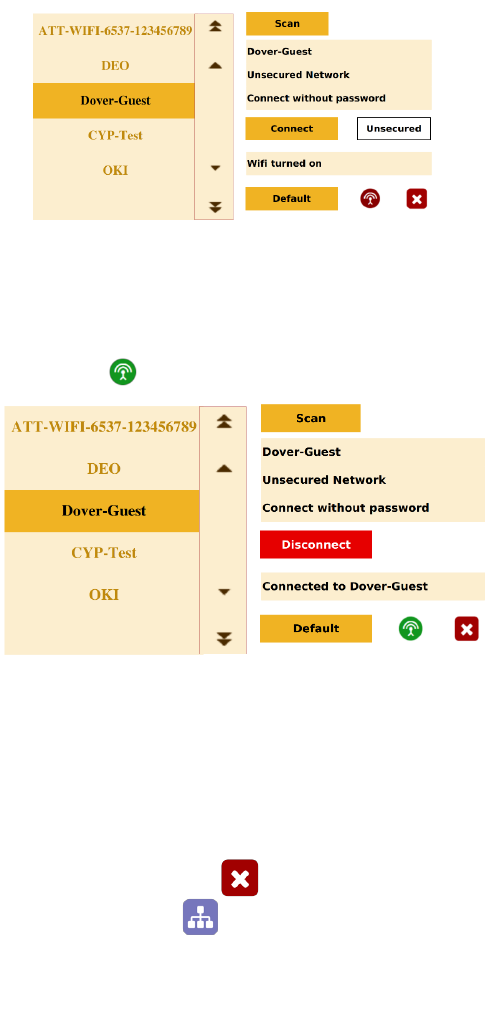
5.9 To Connect to Wi-Fi network.
1. Connect the antenna to the Wi-Fi connector located in the back of the unit
2. Touch the Setup icon to enter the setup screen
3. Touch the Wi-Fi icon to enter the network setup screen
21
4. Touch the “Scan” tab to scan for all available networks
5. Touch the Up and Down arrows to select the desired network
6. If the selected network is an unsecured network (not password protected),
touch “Connect” tab to connect.
7. Once the unit is successfully connected to the Wi-Fi network, the
“Connect” tab will change to “Disconnect” and the online symbol will
change to green
8. If the selected network is a secured network (password protected), first
create a text file and type the network’s password, then save the file as
“password.txt”
9. Copy the “password.txt” file to a blank USB thumb drive. Note: Do not
put the “password.txt” file inside a folder
10. Insert the USB drive to the USB port located in the back of the unit
11. Touch “Connect” tab to connect. Once the unit is successufully connected
to the Wi-Fi network, remove the USB drive from the USB port
12. Touch X icon to save and exit
13. Touch the IP Address icon and the unit will show an IP address