TS577R-UserGuide.pdf - 第31页
31 Email: En ter email address that you want to receive notification Phone number: Enter the phone number that you want to receive text m essage notification. Note: use mobile email address (SMS ad dress) format. Make su…
30
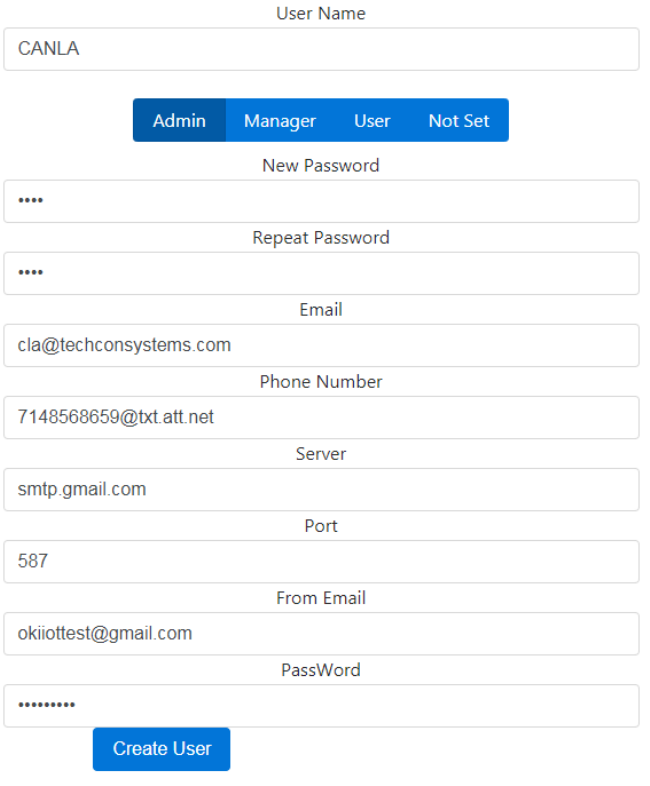
3. Proceed to fill out the form
User Name: Enter desired User Name
Select “Admin”
New Password: Enter desired password
31
Email: Enter email address that you want to receive
notification
Phone number: Enter the phone number that you want to
receive text message notification.
Note: use mobile email address (SMS address) format.
Make sure to check your phone carrier for the correct
format
Server: Enter your smtp server address
Port: Enter your smtp port
From Email: This is the sender email
Note: Your IT staff will need to setup the sender email
account. This email account can be used for multiple
controllers.
Password: Enter the password for the sender email
4. After the form is completely filled out, Click “Create
User”
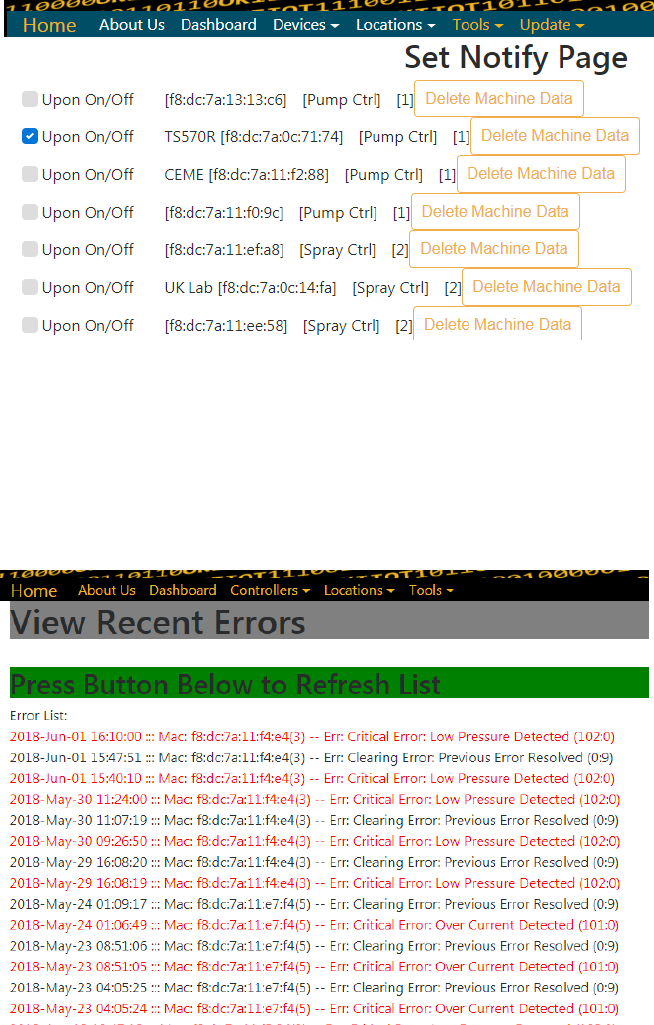
6.3.2 Select controller to receive notification
1. Click on the Tools menu
2. Select “Set Notification” from the drop-down menu
3. Select desired controllers to receive notification from by
checking the box next to “Upon On/Off” (make sure the Mac
address on the controller matches the Mac address on the Set
Notification page)
4. Click “Update Notifications” box
5. Selected controllers will send error notifications to the
registered phone or email that set in previous steps
32
6.3.3 View Error List
The web-based application will record errors that occurred from
all controllers. To view the error list:
1. Click on the Tools menu
2. Select “Error List” from the drop-down menu
3. The error list will appear