TS577R-UserGuide.pdf - 第33页
33 7 . SOFTWARE UPGRAD E Note: For future software upgrade, follow the instructions below. 20. Download the latest software version from Techcon website and copy it to a blank USB thumb drive . Note: Do not put the softw…
32
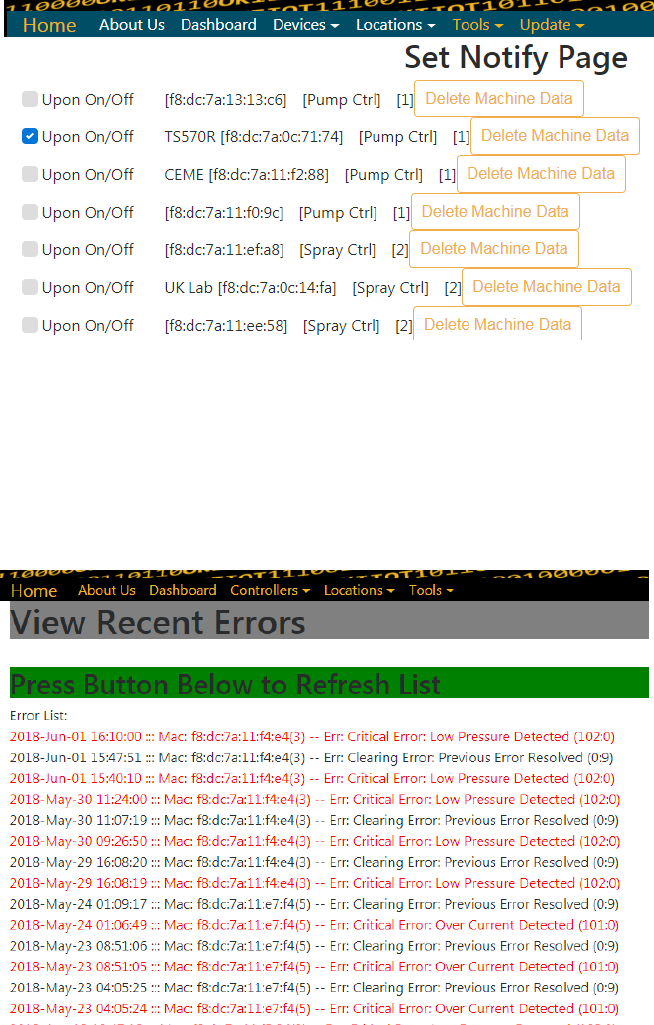
6.3.3 View Error List
The web-based application will record errors that occurred from
all controllers. To view the error list:
1. Click on the Tools menu
2. Select “Error List” from the drop-down menu
3. The error list will appear
33
7. SOFTWARE UPGRADE
Note: For future software upgrade, follow the instructions below.
20. Download the latest software version from Techcon website and copy it to
a blank USB thumb drive. Note: Do not put the software file inside a
folder
21. Make sure that the unit is turned off
22. Insert the USB drive to the USB port located in the back of the unit
23. Turn on the unit
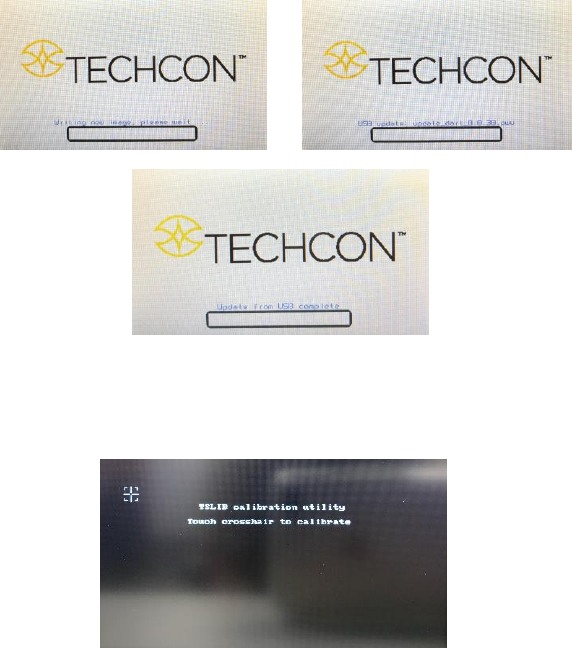
24. Wait while the system is loading the new software. This process can take
a few minutes
25. Wait until the system completes the software update from the USB drive
and the first touch-screen calibration is displayed
26. Remove the USB drive from the USB port before proceeding to the next
step
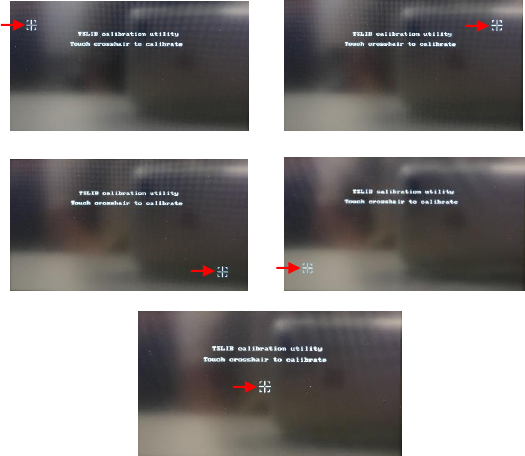
27. Follow the instructions on the display to calibrate the touch screen by
touching the crosshair at five different points. Note: In order to
accurately calibrate the touch screen, it’s recommended that the stylus
pen is used
34
28. Wait until the system completes the rebooting sequence and the home
screen is displayed
29. Repeat sections 5.1.1 and 5.1.2 to re-calibrate the air pressure