TS577R-UserGuide.pdf - 第26页
26 13. Ty pe “ipconfig” then press enter 14. Record the IPv4 address shown in the “IPv4 Address” line on the a bove screen; For this example, the Server IP address is: 172.16.40.151 This IP address will be entered in the…
25
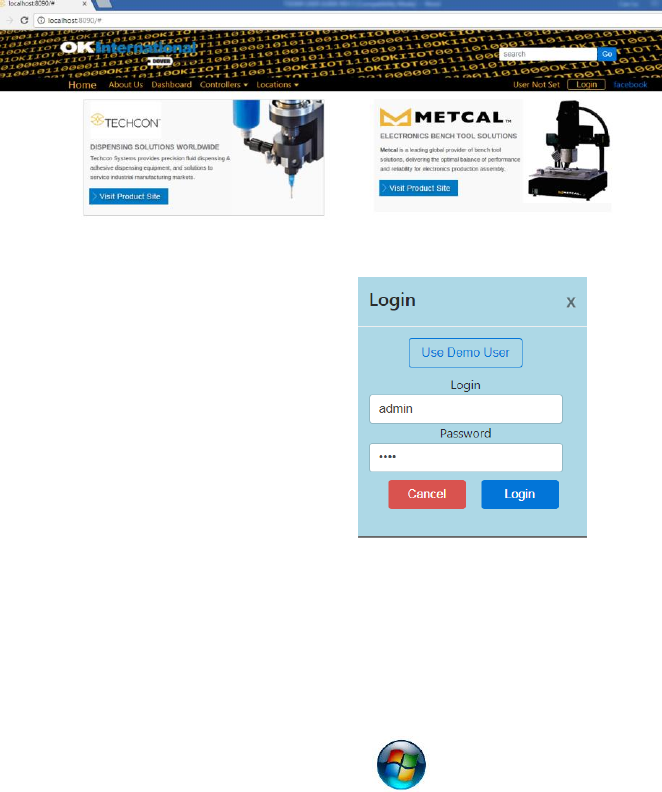
The web-based application is now ready for use. The below screen will
be displayed:
8. Click the “Login” button
9. Enter “admin” in the Login box
10. Enter “1001” in the Password
box
B. Register the Controller to the Web-based Application Software
To register a controller on the web-based application , the IP address
of the computer that run the applicatoin must be set in the controller.
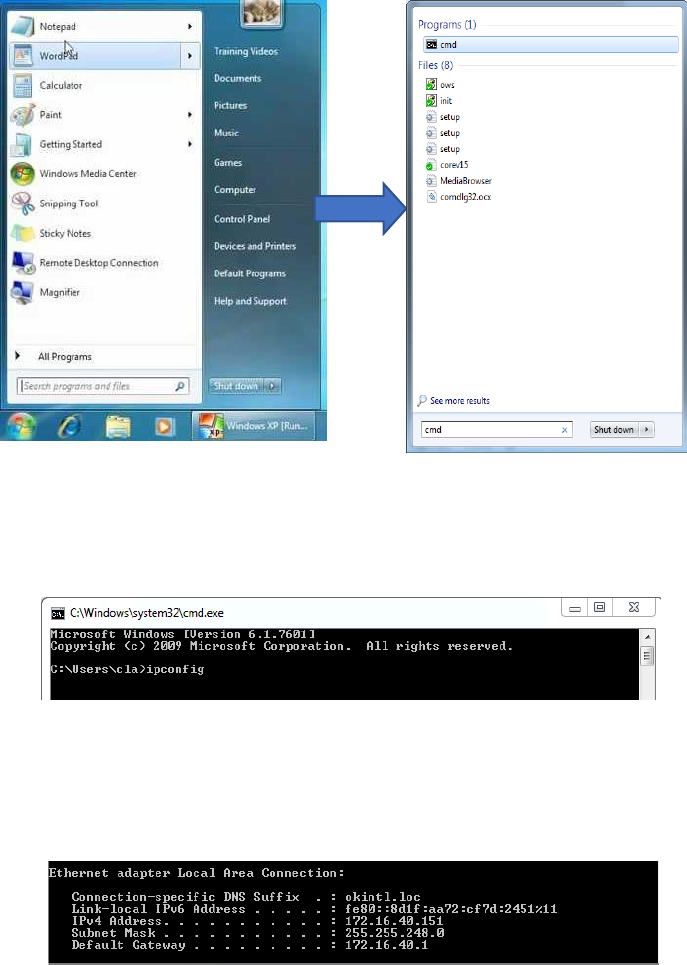
To obtain IP address
11. Click on the Window start icon
12. Type “cmd” in the box then press enter
26
13. Type “ipconfig” then press enter
14. Record the IPv4 address shown in the “IPv4 Address” line on the above
screen; For this example, the Server IP address is: 172.16.40.151
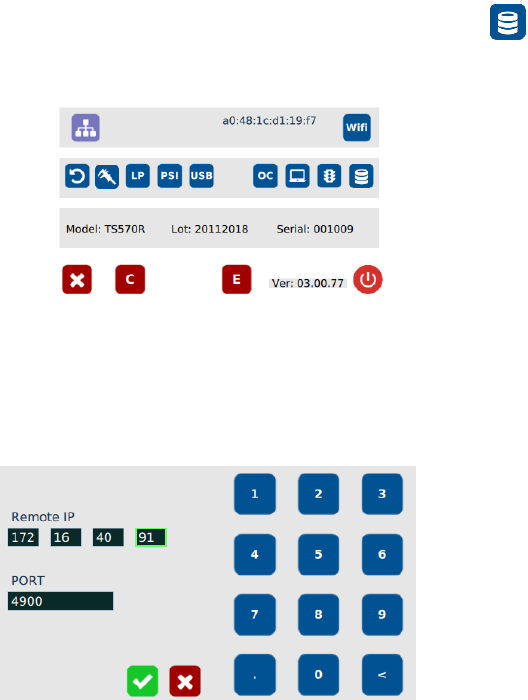
This IP address will be entered in the controller screen
27
15. Connect the ethernet cable to the ethernet port of the controller
16. Go to the setup screen of the controller and touch the “Remote
Server” icon
17. Enter the IPv4 address recorded in step #14 into Remote IP address box
18. Touch the green check mark icon to save
19. The controller is now registered on the web-based application.