00196785-02_IM_Taceability_3.3_EN.pdf - 第23页
Installation of Trace Service and Trace Monitor Installation Trace Se rvice Installation Manual SIPLACE Traceability 3.3 23 ► Confirm the installation by clicking on Next . ► The installation of Trace Service will begin.…
Installation of Trace Service and Trace Monitor
Trace Service Installation
22 Installation Manual SIPLACE Traceability 3.3
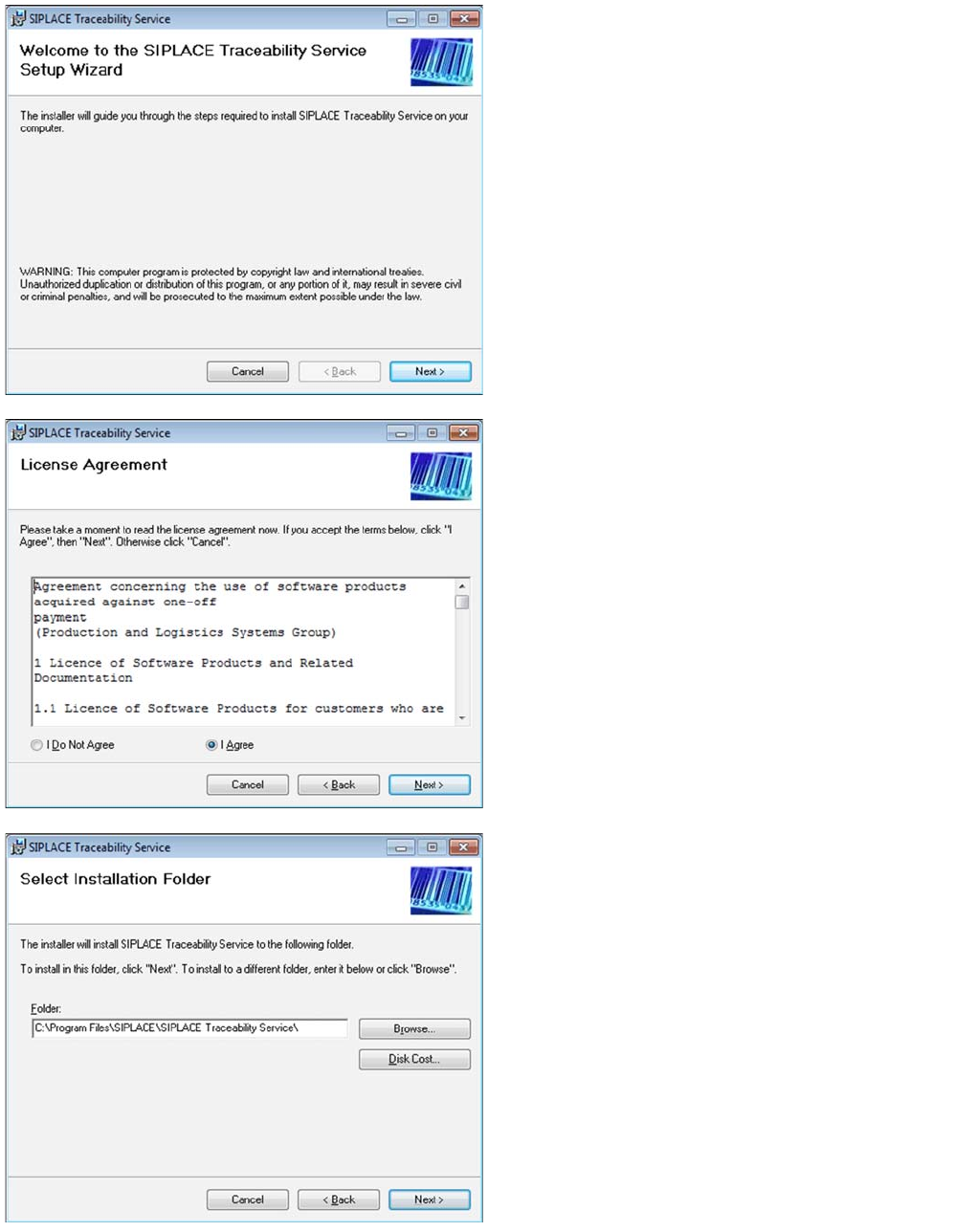
The Welcome dialog will appear.
►Click on Next to continue the installation procedure.
►Read the license agreement. If you agree with the
conditions, click on I Agree, otherwise click on I Do
Not Agree. If you select I Do Not Agree, the installa-
tion procedure will be terminated.
►Click on Next to continue the installation procedure.
►Now specify the folder in which you wish to install the
application. The default folder is C:\Program
Files\SIPLACE\SIPLACE Traceability
Service. You can alter the default installation folder
by using the Browse… button.
Installation of Trace Service and Trace Monitor
Installation Trace Service
Installation Manual SIPLACE Traceability 3.3 23
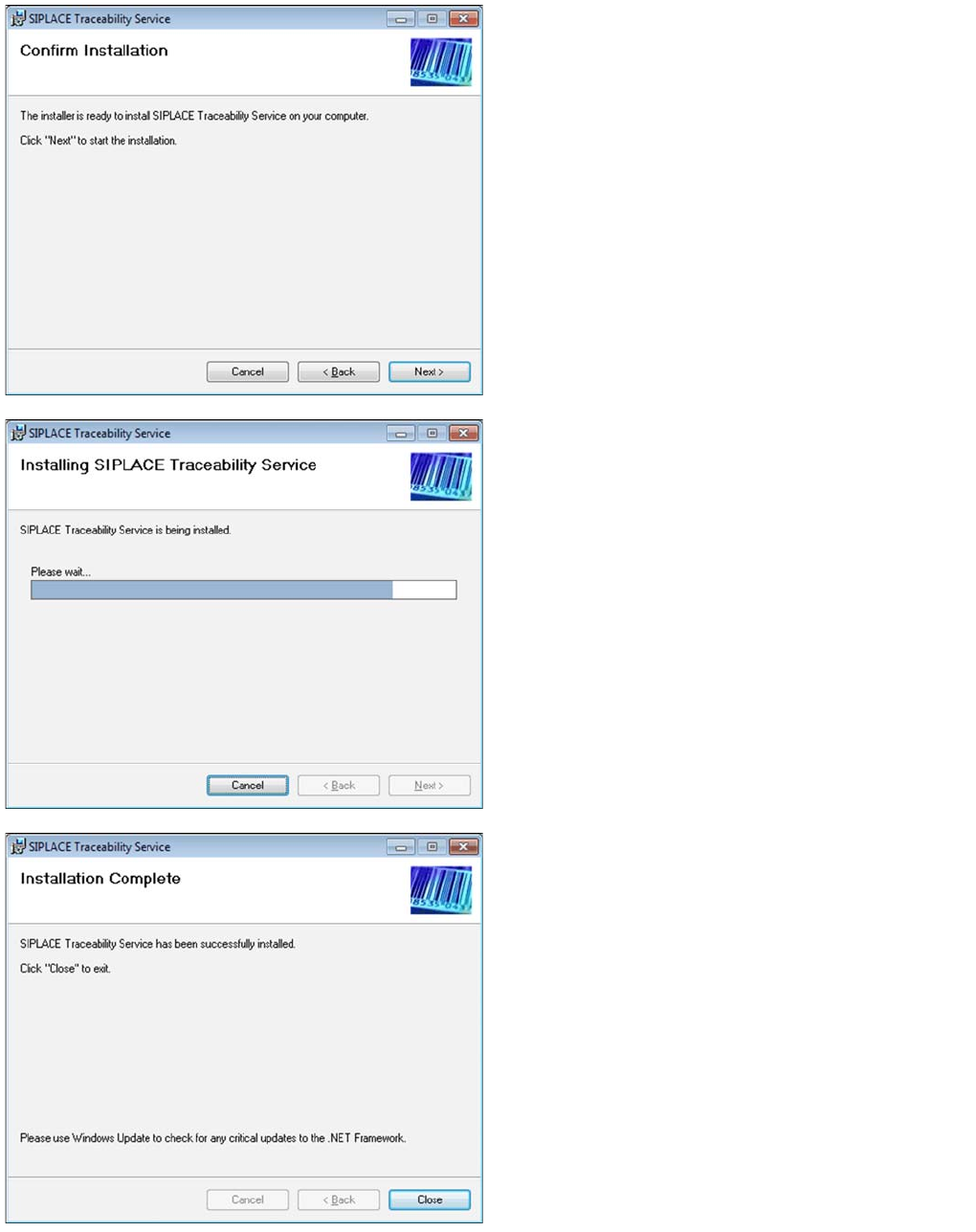
►Confirm the installation by clicking on Next.
►The installation of Trace Service will begin.
►The installation is successfully finished. Click Close to
exit.
Installation of Trace Service and Trace Monitor
Trace Service Troubleshooting
24 Installation Manual SIPLACE Traceability 3.3
5.2.2 Troubleshooting
5.2.2.1 Installation of Trace Service fails
The Problem is located in the Windows Vista/Windows 7 Firewall settings. The TraceService.exe
must be allowed through the Windows firewall.
You must be logged as Administrator and the firewall must be turned off.
To perform this do the following.
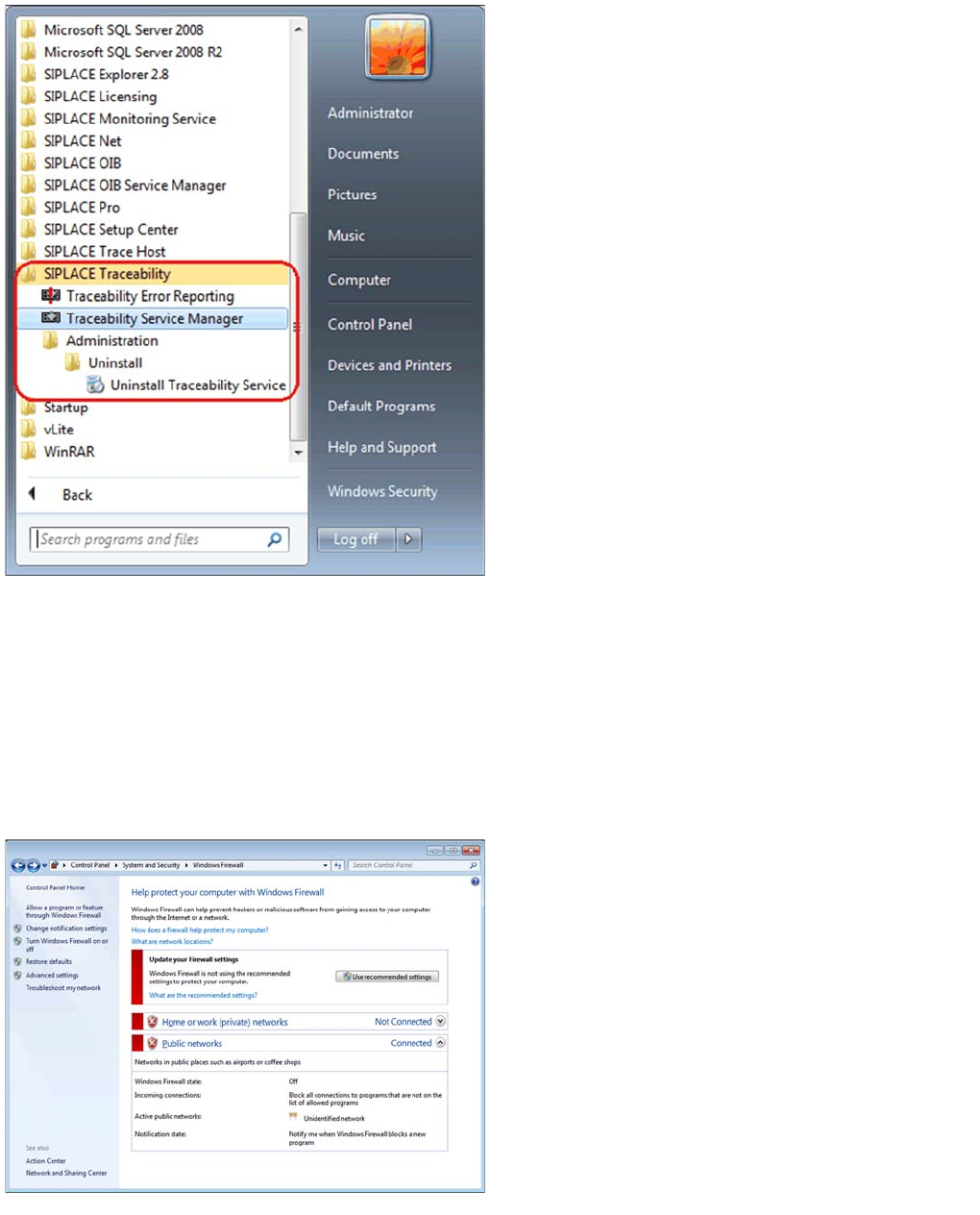
The SIPLACE Traceability program group with the pro-
grams and shortcuts was added to the Windows Start
menu:
▪ SIPLACE Traceability
– Traceability Error Reporting
– Traceability Service Manager
– Administration (shortcut)
– Uninstall (shortcut)
– Uninstall Traceability Service (shortcut)
►In Windows start menu click Start > Control Panel >
Security Center.
►Choose Windows Firewall and click Allow a program
through Windows Firewall.
►In the Windows firewall settings, click Add program.
►Type in the path where the Trace Service once will be
installed e.g.: C:\Program Files\SI-
PLACE\SIPLACE Traceability Serv-
ice\TraceService.exe
►Browse for TraceService.exe. It may not exist at that
time. Create a dummy TraceService.exe within
the future installation folder.
►Browse for it and press OK.