00196785-02_IM_Taceability_3.3_EN.pdf - 第30页
Installation of Trace Service and Trace Monitor Trace Monitor Inst allation 30 Installation Manual SIPLACE Traceability 3.3 ► Close all ot her program s and then click on Next to continu e. ► Before the SIPLACE Explorer …
Installation of Trace Service and Trace Monitor
Installation Trace Monitor
Installation Manual SIPLACE Traceability 3.3 29
5.3.1.2 Traceability Option - Installation Procedure
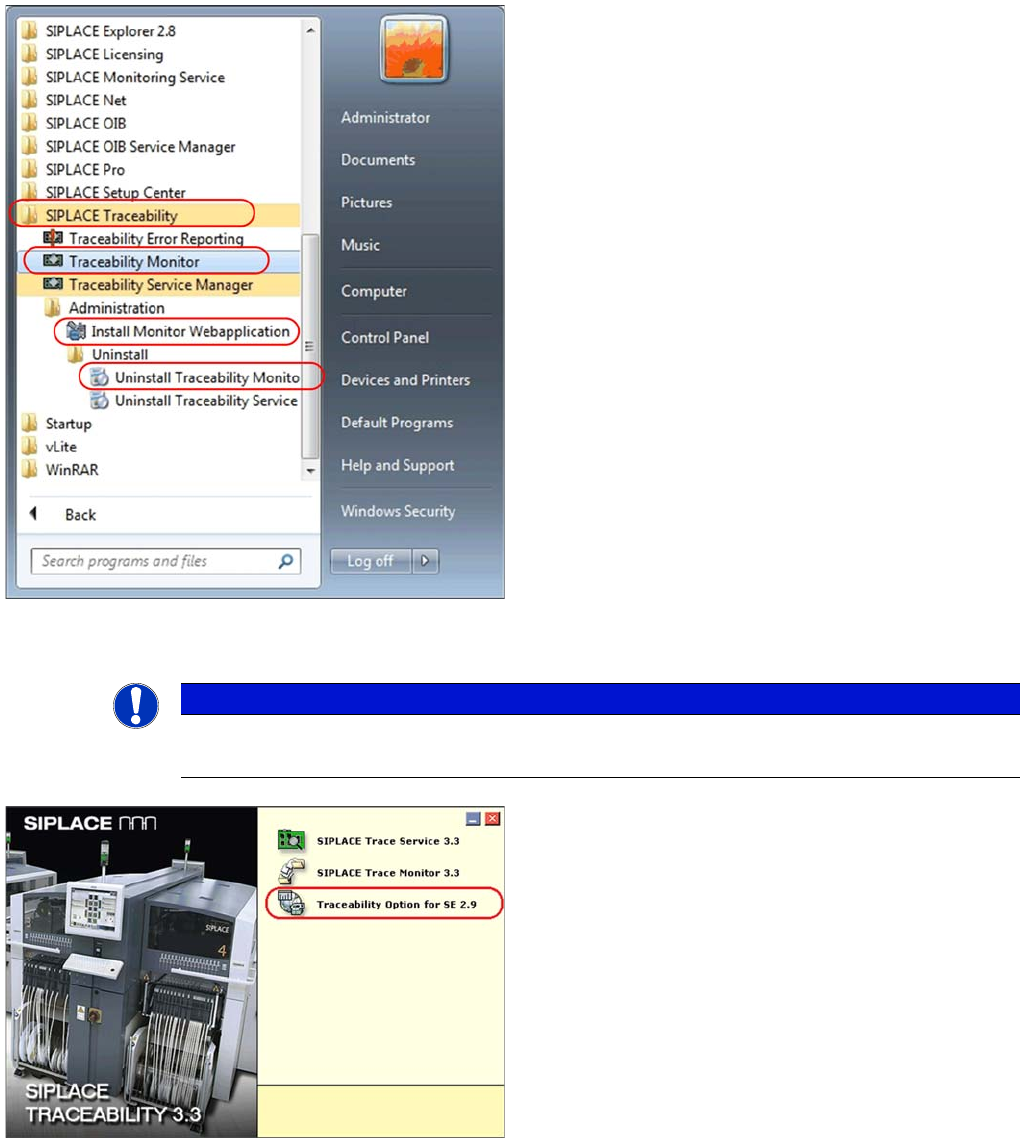
The Trace Monitor components can be started by select-
ing the SIPLACE Traceability program group -> Tracea-
bility Monitor from the Windows Start menu. The
following options are available in the SIPLACE Traceabil-
ity program group:
▪ Traceability Monitor
▪ Install Monitor Webapplication
▪ Uninstall Traceability Monitor
NOTICE
Requirement
You need administrator privilege for your operation system in order to perform this installation.
►Insert the SIPLACE Traceability CD into your CD-
ROM drive. You will see the Start screen:
►Select Traceability Option 3.3 for SE 2.9.
►You will now be guided through the installation proce-
dure for the SIPLACE Explorer Traceability option.
Installation of Trace Service and Trace Monitor
Trace Monitor Installation
30 Installation Manual SIPLACE Traceability 3.3
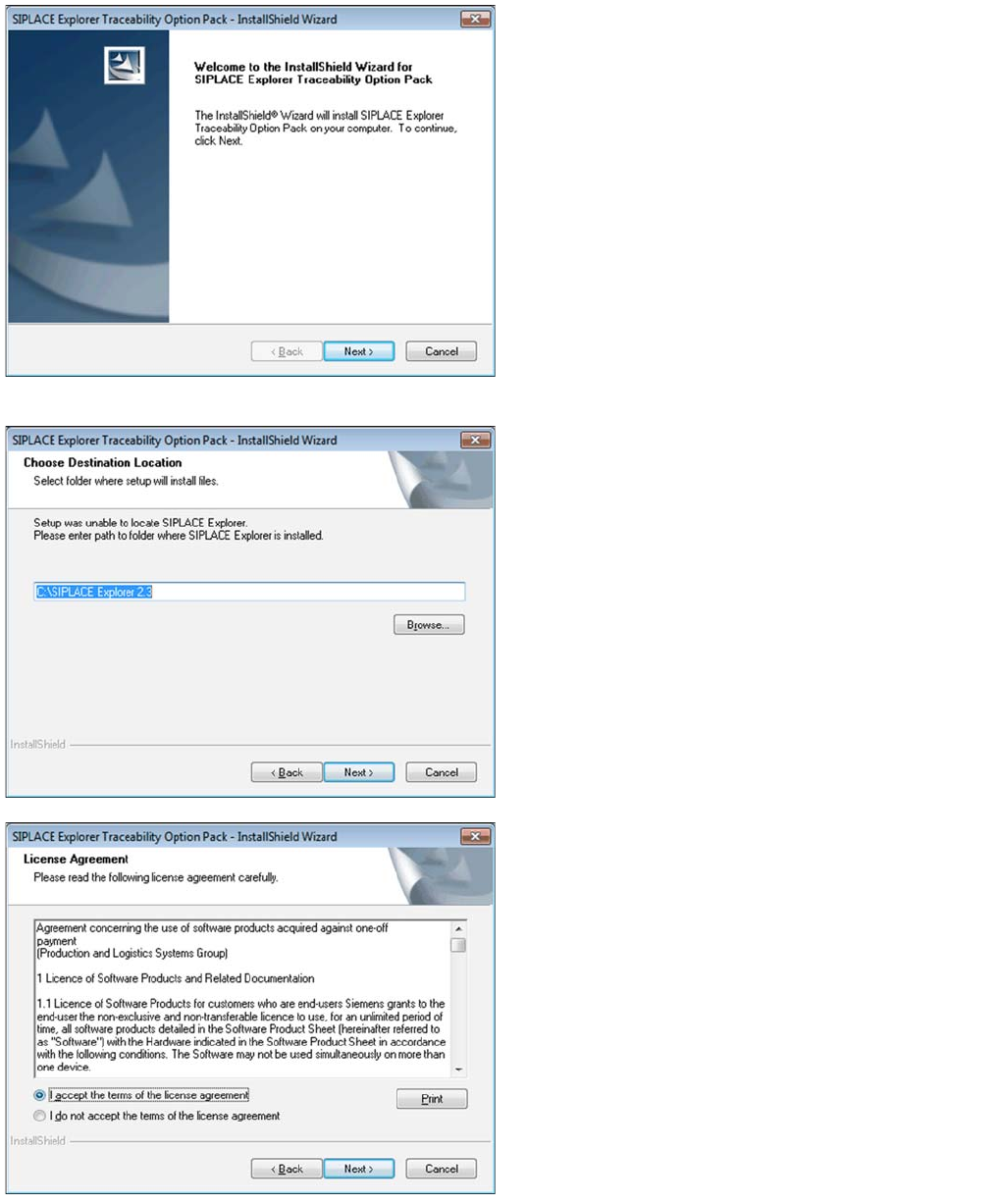
►Close all other programs and then click on Next to
continue.
►Before the SIPLACE Explorer Traceability Option can
be installed, Trace Monitor and SIPLACE Explorer
must be installed on your network environment. If
both of these applications are already installed, in-
stallation of the SIPLACE Explorer Traceability Op-
tion will begin automatically. The SIPLACE Explorer
Traceability Option must be installed on the same
computer as SIPLACE Explorer; Trace Monitor can
be installed on a different computer.
►If the SIPLACE Explorer Traceability Option installa-
tion procedure is unable to locate SIPLACE Explorer
on your computer, you will see the following dialog
box.
►Specify the SIPLACE Explorer installation folder here.
If SIPLACE Explorer has not yet been installed on
your computer, you can click on Cancel to terminate
the SIPLACE Explorer Traceability Option installation
procedure.
►Install Trace Monitor and SIPLACE Explorer on your
network environment and then restart the SIPLACE
Traceability installation procedure.
►If Trace Monitor and SIPLACE Explorer are already
installed on your system, the installation procedure
will continue.
►Read the license conditions. Click on I accept ... to ac-
cept and on I do not accept ... if you do not want to
accept. If you click on I do not accept ..., the installa-
tion procedure will be terminated.
⇨ The following dialog box will be shown:
Installation of Trace Service and Trace Monitor
Installation Trace Monitor
Installation Manual SIPLACE Traceability 3.3 31
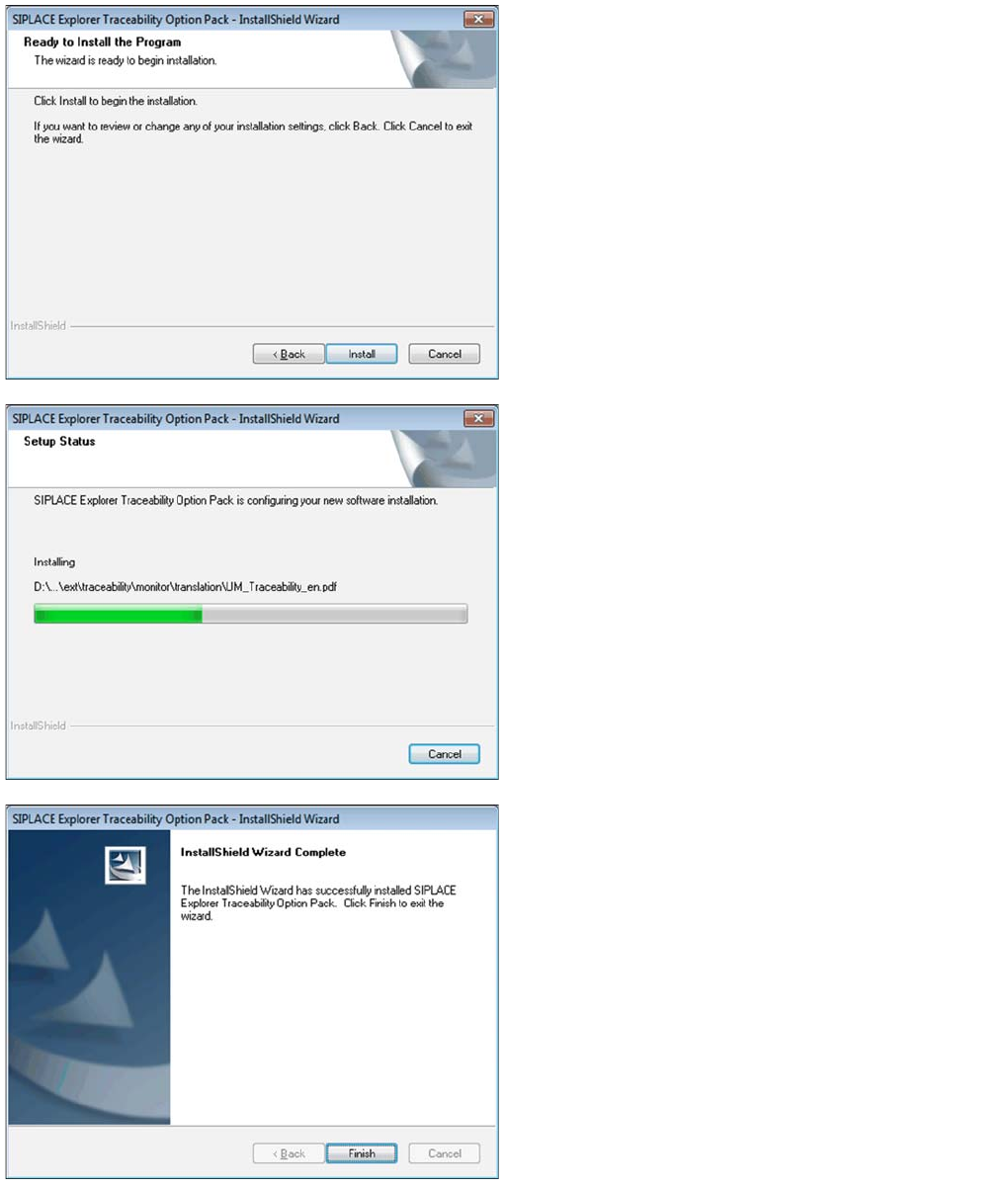
►Click on the Install button to start the actual installation
of the SIPLACE Explorer Traceability Option.
Once the installation procedure has started, the following
dialog box will open:
►Click on Finish. The SIPLACE Explorer Traceability
Option is now available on the SIPLACE Explorer fac-
tory website.