00198612-02_VD_SIPLACE_Pro_16.1_R19-1_DE_EN.pdf - 第18页
SIPLACE Pro 16.1 (R19-1) / Version Description 05/2019 Edition 18 Loader Unloader Table 4-1: List of device type i cons 4.13 OSC Package Option – Enhancements Detailed information on the OS C Package features can be foun…
SIPLACE Pro 16.1 (R19-1) / Version Description 05/2019 Edition
17
4.10 License Changes for “Whispering Down The Line”
The “Whispering Down The Line” license has been updated. With this new version, the “Whispering
Down The Line of barcode information – Machine Connection“ license is no longer required.
If previously only the “Whispering Down The Line of barcode information – Machine Connection“
license has been purchased, then the “Whispering Down The Line” license needs to be purchased
when upgrading to SIPLACE Pro 16.1.
The “Whispering Down The Line” license is only required if IPC-HERMES-9852 is not used on the
devices between the first and last placement stations.
4.11 Individual Traceability Option for Printer and Inspection Systems
It is possible to switch the generation and processing of trace data on and off for individual printers
and inspection systems. This can be done using the Traceability option in the Device Editor.
4.12 Support of 3
rd
Party Machine Types
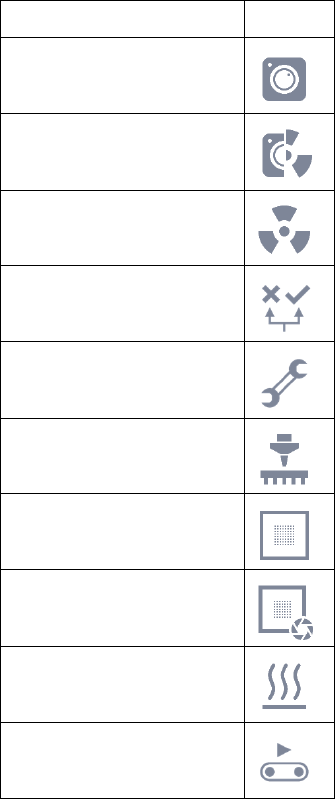
The Generic Line Device type list in the Object Properties dialog has been extended by the
device types Conveyor, Loader and Unloader to support 3
rd
party machines. Additionally, new icons
are introduced to distinguish between the device types:
Device Type
Icon
AOI
AOXI
AXI
Classification Area
Repair Area
Placement Station
Printer
Solder Paste Inspection
System
Oven
Conveyor

SIPLACE Pro 16.1 (R19-1) / Version Description 05/2019 Edition
18
Loader
Unloader
Table 4-1: List of device type icons
4.13 OSC Package Option – Enhancements
Detailed information on the OSC Package features can be found in the OSC Package User Guide,
item no. [00198374-xx].
The main enhancements made for the OSC Package Option in SIPLACE Pro are listed in the
overview below.
Placement of Critically Tall Components
The SIPLACE Pro Optimizer has been enhanced to support the placement of tall components
when the OSC package is activated. The components are placed with a CPP head in high head
position in the line’s last placement area.
By default, this feature is disabled if a job can be optimized without it.
The maximum height for components placed with a CPP head is 15.5 mm. Without the OSC
Package, the maximum height is 11.5 mm.
Restrictions
– An OSC license is available.
– The OSC package is activated for the last station of the line.
– Critically tall components are placed only at one head of the line within the last placement area.
– The Long Board Option must not be used at the last placement area.
– If a VHF TH head is used additionally to the CPP head in the last placement area, this feature
cannot be used on the CPP head.
– Component height restrictions apply to the whole job and not only to individual recipes.
– The maximum height for components can only be reached by lowering the warpage tolerance
of the board side to zero (default is 2 mm). This is done on the customer’s own risk.
Component Chipping Detection
The component chipping detection functionality checks whether the edge of a component has
larger deviations than defined. It can be enabled or disabled using the Chipping detection
checkbox in the Vision Inspection tab of the Component Shape Editor of SIPLACE Pro Desk.
Restrictions
– Only supported for vision types BareDie, BGA, CCGA, Chip, Moulded, Nonstandard.
– The OSC license must be available.
4.14 Configuring Multiple Nozzle Pockets at Once
It is possible to select multiple nozzle pockets in the nozzle magazines grid to configure them at the
same time. Any nozzle pockets not supporting the selected nozzle type are left unchanged. The
selection can be extended to more than one nozzle magazine.
SIPLACE Pro 16.1 (R19-1) / Version Description 05/2019 Edition
19
4.15 Properties of Connected Stations dialog
In the Line Control GUI, the context menu of the line graphic has been extended by the entry
Properties of connected Stations. The new entry opens the Properties of connected Stations
dialog, in which the common properties (station name, state, station type, station software,
machine ID, hostname, ID address, build number) of all connected stations of the line are
displayed.
For station software versions ≥ 712.1, the build number is also provided. For printers, the build
number equals the printer version.
4.16 Using PCB Image on Printer
During the download of a recipe, the PCB drawing in SIPLACE Pro Desk is sent to the printer V09
software, where it can be viewed on the printer GUI. The PCB drawing can be used for
programming or changing data, e.g. fiducials or HawkEye.
Further settings regarding the downloaded bitmap (with or without components, Gerber, etc.) can
be configured in Printer Programming.