00198612-02_VD_SIPLACE_Pro_16.1_R19-1_DE_EN.pdf - 第28页
SIPLACE Pro 16.1 (R19-1) / Version Description 05/2019 Edition 28 5.17 Stand-alone Data Model Import Tool The Data Model Import To ol has been established as a stand-alone executable program and renamed to SIPLACE Pro Im…

SIPLACE Pro 16.1 (R19-1) / Version Description 05/2019 Edition
27
Example
– Number of measurements; x = length of measurement cycle (default = 1) – periodic
measurement
– Restart measurement after y components (default = 1)
– Stop station after z number of cracked components
x = 5; y= 10; z = 2
The Cracked Die Inspection runs during the green phases. If two cracked components are
detected during the green phase, the feeder will be deactivated.
5.14 Measuring Barcode on Bottom Side of Component
For a component it can be specified that its barcode on the bottom side shall be read with the
component camera and stored in the Traceability data. A corresponding barcode description must
have been defined in SIPLACE Pro.
The barcode must first be created in the Component Shape Editor by using the new Barcode lead
group type to define the position and size of the barcode.
In the Component Editor, Setup Verification – Trace must be enabled and the Barcode on
bottom option selected.
5.15 Disabling Creation of LCU Number
When a component shape is created, a new unique LCU number is generated automatically
(LCU = Line Computer Unix). This number is only required in older station software versions
(4xx, 5xx and 6xx).
The creation of the LCU number can be switched off with the new Enable extended Component
Shape range (Disable automatic unique LRU number generation) option in the Global
Settings. If this option is enabled and component shapes with no unique numbers are sent to a
station using ICOS Vision or an older software version, a correspondent error message is
displayed, and the user must repair these numbers manually.
5.16 Free Nozzle Orientation
SIPLACE Pro supports free nozzle orientation for component pickup. In addition to the existing
common orientation (0°, 90°, 180°, 270°), a specific angle in the range of 0° - 360° can be specified
for single nozzles.
The Component Shape Editor has been enhanced accordingly. In the Selected Nozzles list, the
Use Specific Nozzle Orientation option can be selected for an assigned nozzle and a specific
angle value entered in the Specific Nozzle Orientation Angle column.
Restrictions
This feature is not supported in older station software versions (4xx, 5xx). If no station of the line
can set a specific nozzle orientation value, an error message is displayed.
SIPLACE Pro 16.1 (R19-1) / Version Description 05/2019 Edition
28
5.17 Stand-alone Data Model Import Tool
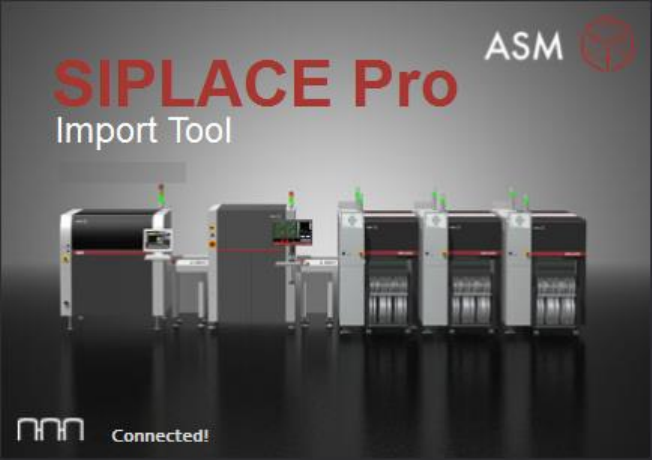
The Data Model Import Tool has been established as a stand-alone executable program and
renamed to SIPLACE Pro Import Tool.
Figure 5-5: Start screen of SIPLACE Pro Import Tool
SIPLACE Pro Import Tool will be installed with the SIPLACE Pro Desk applications during standard
installation of SIPLACE Pro and can be used within or independent of SIPLACE Pro Desk.
The program can either be started under Start Menu – SIPLACE Pro Import Tool or from the
SIPLACE Pro Desk main menu under Tools – Import – SIPLACE Pro Import Tool.
5.18 Grid Board Editor – Enhancements
The following enhancements have been introduced in the Grid Board Editor:
– The package types can now contain fiducials and inkspots.
Each package type contains an own fiducial list.
An inkspot can be added to the package type list by selecting a fiducial type under Fiducials.
The package type list contains four columns to specify an inkspot: Inkspot, Offset X, Offset Y
and Disable.
– Grid Board and Grid Panel Type can contain a board barcode fiducial.
A Barcode Fiducial can be selected in the Height Measurement field in the Board Fiducials
and Panel Type Fiducials tabs respectively.
SIPLACE Pro 16.1 (R19-1) / Version Description 05/2019 Edition
29
5.19 Line Control GUI – Improved Conveyor Lane Settings
To avoid that not intended or wrong programs are downloaded when the same recipe is used on
two asynchronous lanes, the conveyor lane settings have been improved in the Line Control GUI.
The synchronous use of one recipe on both conveyors of a dual asynchronous conveyor line can
be enforced and the program start and stop ensured for both lanes together by enabling the new
Force same Recipe on both conveyor lanes. Both conveyor lanes are to be started and
stopped at the same time setting.
This setting is available under Configuration – Line Control Server – Restrictions – Dual
Asynchronous Conveyor / I-Placement and disabled by default.
5.20 ASCII Centroid Import Wizard – Enhancements
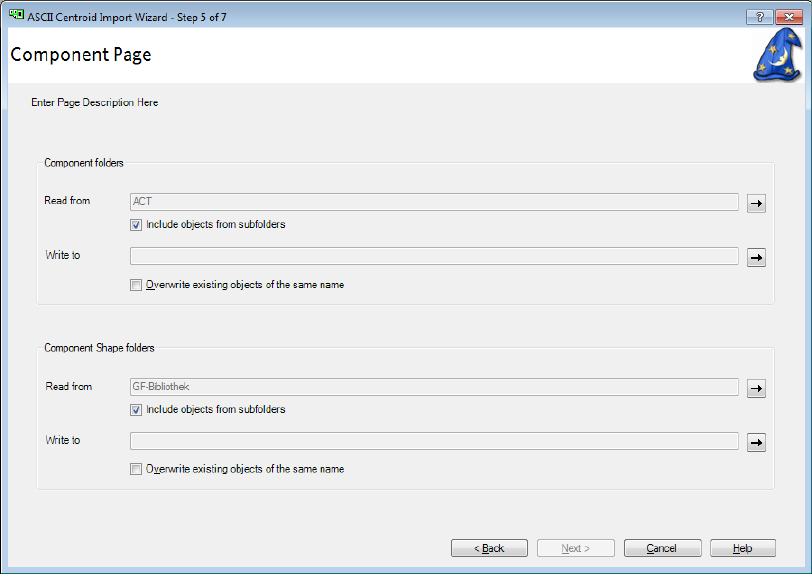
With the ASCII Centroid Import Wizard of SIPLACE Pro Desk, the user can select which folders
should be used to look for already existing components and component shapes with names that
match the data of the import. The import has been enhanced to be able to search in subfolders to
find matches.
The correspondent settings can be made by using the Include objects from subfolders option for
Component folders and Component Shape folders on the Component Page.
Figure 5-6: ASCII Centroid Import Wizard – Component Page
Multiple matches are displayed in the new Resolve Duplicate Matching Objects dialog.