sj6 uitra.pdf - 第10页
-7- 1. Press and hold the arrow mark on the battery cov er and push outward to open it. 2. Insert the battery into the compartment as shown in the diagram. 3. After the battery is fully inserted, close the battery compar…
-6-
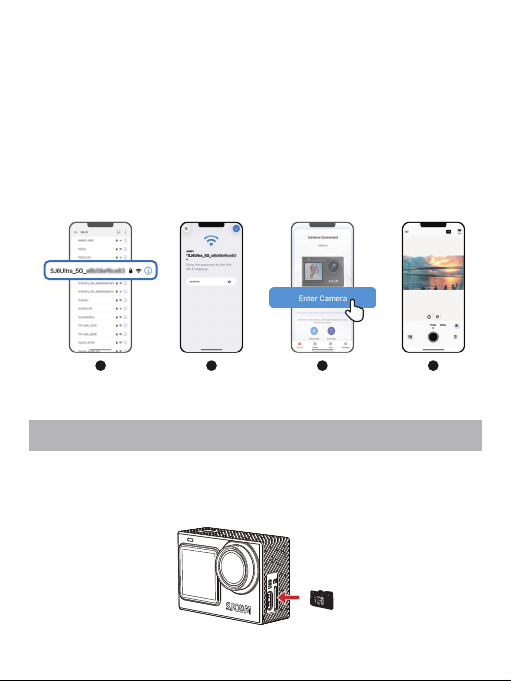
Insert the microSD card into the microSD card slot as shown. To remove the microSD
card, gently push the card inward, and it will pop out.
SD Card Installation
3. Manual Connection
3.1 Go to your smartphone’s home screen, locate and open the "Settings" app.
3.2 In the Settings menu, find and tap the Wi-Fi option.
3.3 Select the Wi-Fi network named "SJ6 Ultra_XXXX"
(e.g., "SJ6 Ultra_a8b58e410d80").
3.4 Enter the Wi-Fi password "12345678", then tap "Connect" and wait for the
connection to be established.
3.5 Once successfully connected, return to the "SJCAM X" app homepage and tap
"Manual Connection" to complete the pairing.
1 2 3 4
-7-
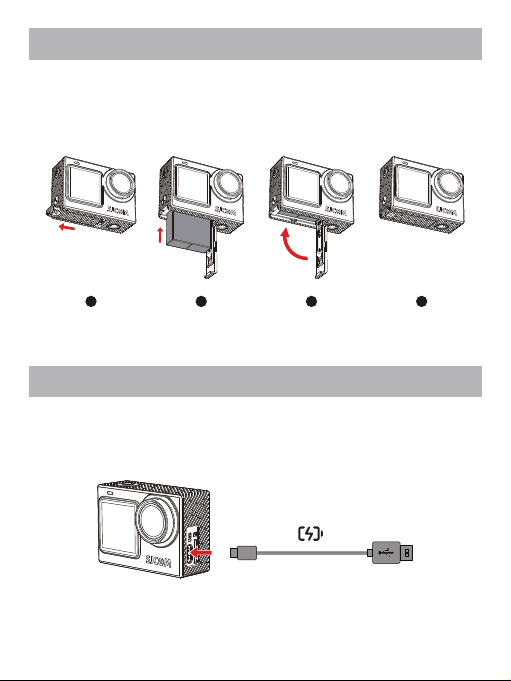
1. Press and hold the arrow mark on the battery cover and push outward to open it.
2. Insert the battery into the compartment as shown in the diagram.
3. After the battery is fully inserted, close the battery compartment cover.
Battery Installation
1 2 3 4
Use the provided USB-A to USB-C cable. Connect one end to the camera's USB-C port
and the other end to a USB-A charger to charge the camera.
Charging
-8-
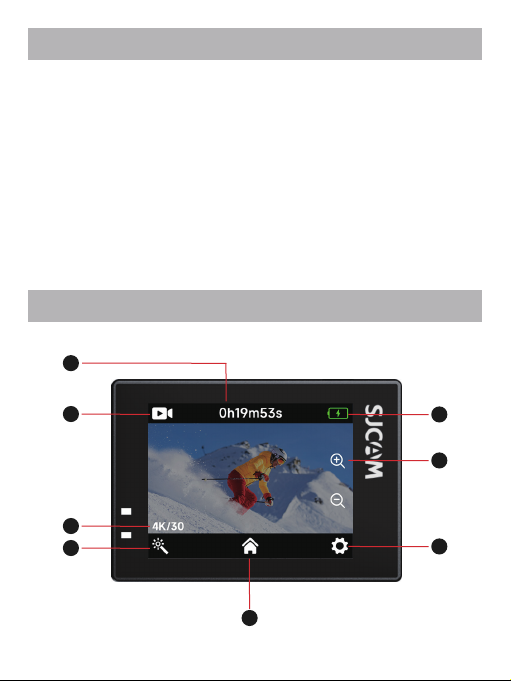
Camera Home Screen
Press the power button while the camera is off to power on.
Press and hold the power button for 2 seconds while the camera is on to power off.
Basic Operations
1. Power On/Off
Press the recording button once while the camera is on to start recording/take a photo.
Press the recording button again to stop recording.
2. Start/Stop Recording
Press and hold the record button to switch between the front and rear screen displays.
(*Not available during recording.)
3. Screen Switching
8
1
2
3
4
7
6
5