sj6 uitra.pdf - 第8页
-5- 1. Bluetooth Quick Connect 1.1 Make sure the SJ6 Ultra is powered on. 1.2 On your smartphone, go to the Settings app, find the Bluetooth option, and turn on Bluetooth. 1.3 Open the SJCAM X app and grant the necessary…
-4-
Reminder:
1. Before connecting your phone to the "SJCAM X" APP, disconnect from other
Wi-Fi networks and ensure your phone's Wi-Fi is enabled.
2. Viewing and downloading photos or videos taken by the camera through the
"SJCAM X" APP does not consume your phone's data plan.
3. If an older version of the "SJCAM Zone" APP was previously installed, Wi-Fi
connection might fail. Please scan the QR code below to download and install the
latest version before connecting.
SJ6 Ultra supports three Wi-Fi connection methods: Bluetooth Quick Connect, App
QR Code Connect, and Manual Connect.
Choose one connection method based on your actual needs.
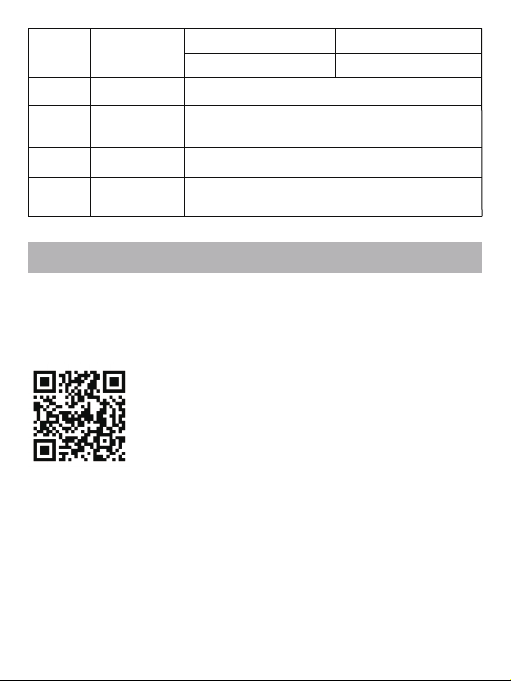
Download and Install SJCAM X APP
Scan the appropriate QR code below for your device type to download the APP.
Alternatively, search for "SJCAM X" in your phone's app store (Google Play Store
or App Store).
App Connection
TF card slot, support Max of 512 G memory card,
please choose the reputable brand
Charging / data transmission;
Voltage / current: 5V/2A, 5V/1A
SD slot
Record Audio
12
Play beep sound, recording voice playback
13
14
15
16
Charging
indicator
USB-C
connection port
Red light on
Red Light off
charging
Full charged
Microphone
Speaker
-5-
1. Bluetooth Quick Connect
1.1 Make sure the SJ6 Ultra is powered on.
1.2 On your smartphone, go to the Settings app, find the Bluetooth option, and turn
on Bluetooth.
1.3 Open the SJCAM X app and grant the necessary permissions. After following the
steps below, wait for the automatic connection.
Note: The permissions are only used to establish the connection between the app
and the camera and will not be used for any other purposes.
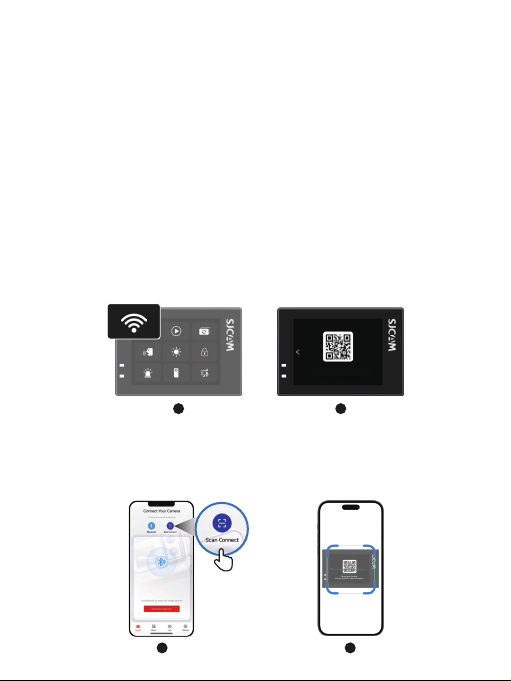
2. Scan QR code to connect
2.1 Turn on the SJ6 Ultra. Swipe down from the top edge of the screen to access the
Control Center menu. Tap the Wi-Fi icon and wait for the QR code to appear on the
camera screen.
2.2 Open the "SJCAM X" APP. Tap the "Scan QR Code" button on the homepage,
then use your phone to scan the QR code displayed on the camera screen to
connect automatically.
Note: The SJ6 Ultra's indicator light blinking green indicates that the camera's Wi-Fi
is successfully enabled and awaiting connection.
1 2
Please use the app
to scan the QR code to connect.
Please use the app
to scan the QR code to connect.
1 2
-6-
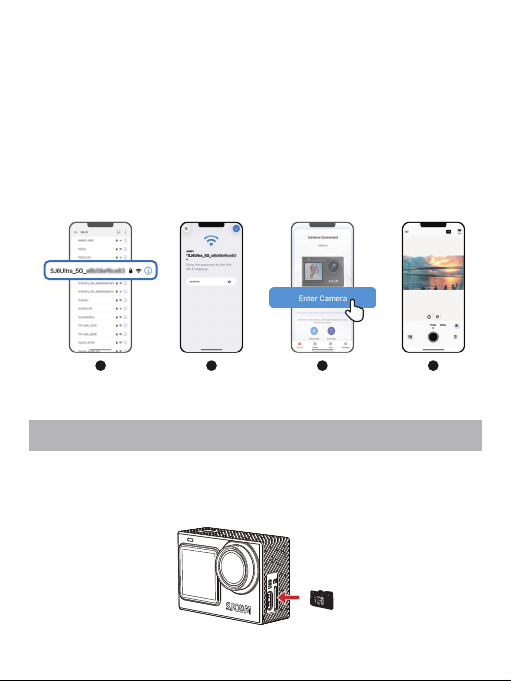
Insert the microSD card into the microSD card slot as shown. To remove the microSD
card, gently push the card inward, and it will pop out.
SD Card Installation
3. Manual Connection
3.1 Go to your smartphone’s home screen, locate and open the "Settings" app.
3.2 In the Settings menu, find and tap the Wi-Fi option.
3.3 Select the Wi-Fi network named "SJ6 Ultra_XXXX"
(e.g., "SJ6 Ultra_a8b58e410d80").
3.4 Enter the Wi-Fi password "12345678", then tap "Connect" and wait for the
connection to be established.
3.5 Once successfully connected, return to the "SJCAM X" app homepage and tap
"Manual Connection" to complete the pairing.
1 2 3 4