sj6 uitra.pdf - 第11页
-8- Camera Home Screen Press the power button while the camera is off to po wer on. Press and hold the power button for 2 seconds while the camera is on to po wer off. Basic Operations 1. Power On/Off Press the recording…
-7-
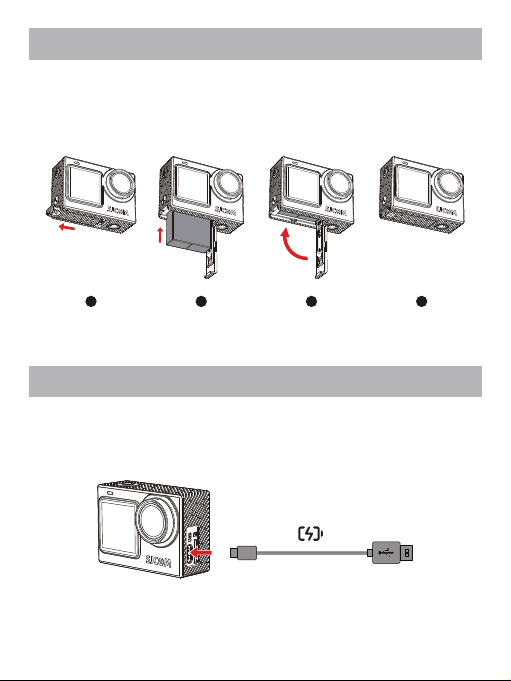
1. Press and hold the arrow mark on the battery cover and push outward to open it.
2. Insert the battery into the compartment as shown in the diagram.
3. After the battery is fully inserted, close the battery compartment cover.
Battery Installation
1 2 3 4
Use the provided USB-A to USB-C cable. Connect one end to the camera's USB-C port
and the other end to a USB-A charger to charge the camera.
Charging
-8-
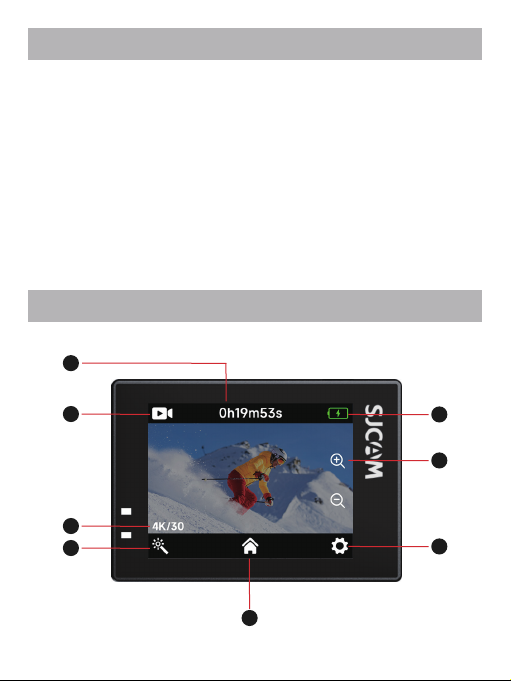
Camera Home Screen
Press the power button while the camera is off to power on.
Press and hold the power button for 2 seconds while the camera is on to power off.
Basic Operations
1. Power On/Off
Press the recording button once while the camera is on to start recording/take a photo.
Press the recording button again to stop recording.
2. Start/Stop Recording
Press and hold the record button to switch between the front and rear screen displays.
(*Not available during recording.)
3. Screen Switching
8
1
2
3
4
7
6
5
-9-
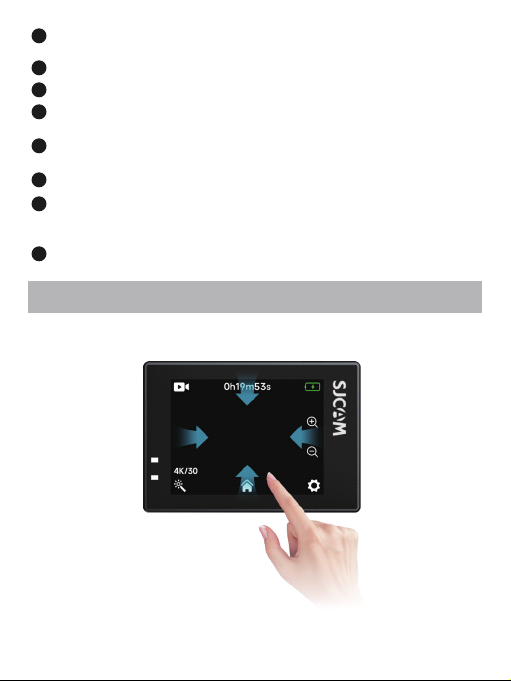
The SJ6 Ultra's main screen is a touchscreen. Perform operations by tapping or sliding
on the screen.
Touchscreen Operations
Remaining Storage Capacity: Shows the remaining number of photos or recording
time available on the microSD card.
1
2
Shooting Mode Info: Displays the current shooting mode.
3
Shooting Specification: Shows the current image/video resolution.
6
System Settings: Tap the icon to configure camera system parameters.
8
Battery Level: Displays the current remaining battery power.
Mode Parameter Settings: Tap the icon to set parameters for the current shooting
mode.
4
Shooting Mode: Tap the icon to select and switch between different shooting
modes.
5
Press and hold “+” to zoom in, and hold “−” to zoom out.
Note: For Digital Zoom to function, Image Stabilization (IS) and Distortion
Correction must be turned off, and the View Angle must be set to "Wide".
7
Swipe down from the top edge: Opens the Control Center.
Swipe inward from the left or right edge: Switches between Photo/Video mode.
Swipe up from the bottom edge: Selects shooting mode.