4OM-1064-001.pdf - 第157页
Tg0249-PM-MM 6.1 1 COMPONENT DA T A (VIB. STICK) OFFSET Display • This display allows the teaching operations on the pick-up position of fset of the component to be supplied from the vibratory stick feeder . When the [CO…
Tg0249-PM-MM
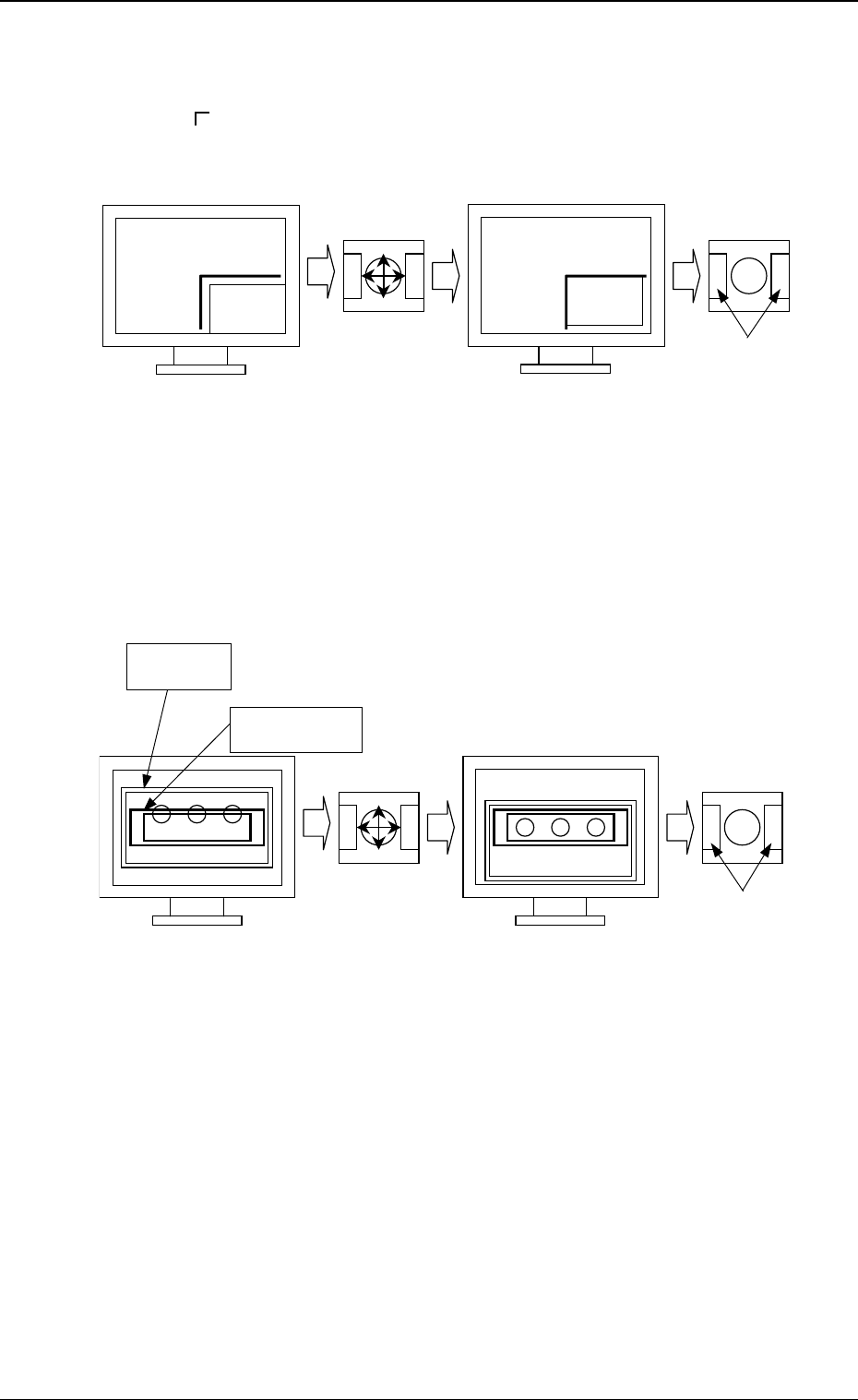
(3) When the [2POINT] key is selected and the [MOVE] button is pressed,
the P.E.C. recognition camera moves to the designated feeder No. posi-
tion.
“ (second point)” appears on the recognition monitor.
(4) Make an alignment with the trackball and press the right and left buttons
simultaneously.
[TEACH ECC. PICKUP POS [PICKUP LOC. ADJ]] Key
(1) When the [ECCENTRIC PT.] key is selected and the [MOVE] button is
pressed, the P.E.C. recognition camera moves to the designated feeder
No. position.
The graphic of the nozzle appears on the recognition monitor.
(2) Make an alignment with the trackball and press the right and left buttons
simultaneously.
9910-001 3-110
Fig. 3.73
Fig. 3.74
Press the buttons
simultaneously.
Roll the ball
for alignment.
TrackballTrackball
Press the buttons
simultaneously.
Roll the ball
for alignment.
Trackball
Trackball
Nozzle Graphic
Component
Tg0249-PM-MM
6.11 COMPONENT DATA (VIB. STICK) OFFSET
Display
• This display allows the teaching operations on the pick-up position offset of
the component to be supplied from the vibratory stick feeder.
When the [COMPONENT DATA (VIB. STICK) OFFSET] key is pressed at
the “PICK-UP LOCATION (TAPE
VIB. STICK)” display, the following dis-
play appears on the screen.
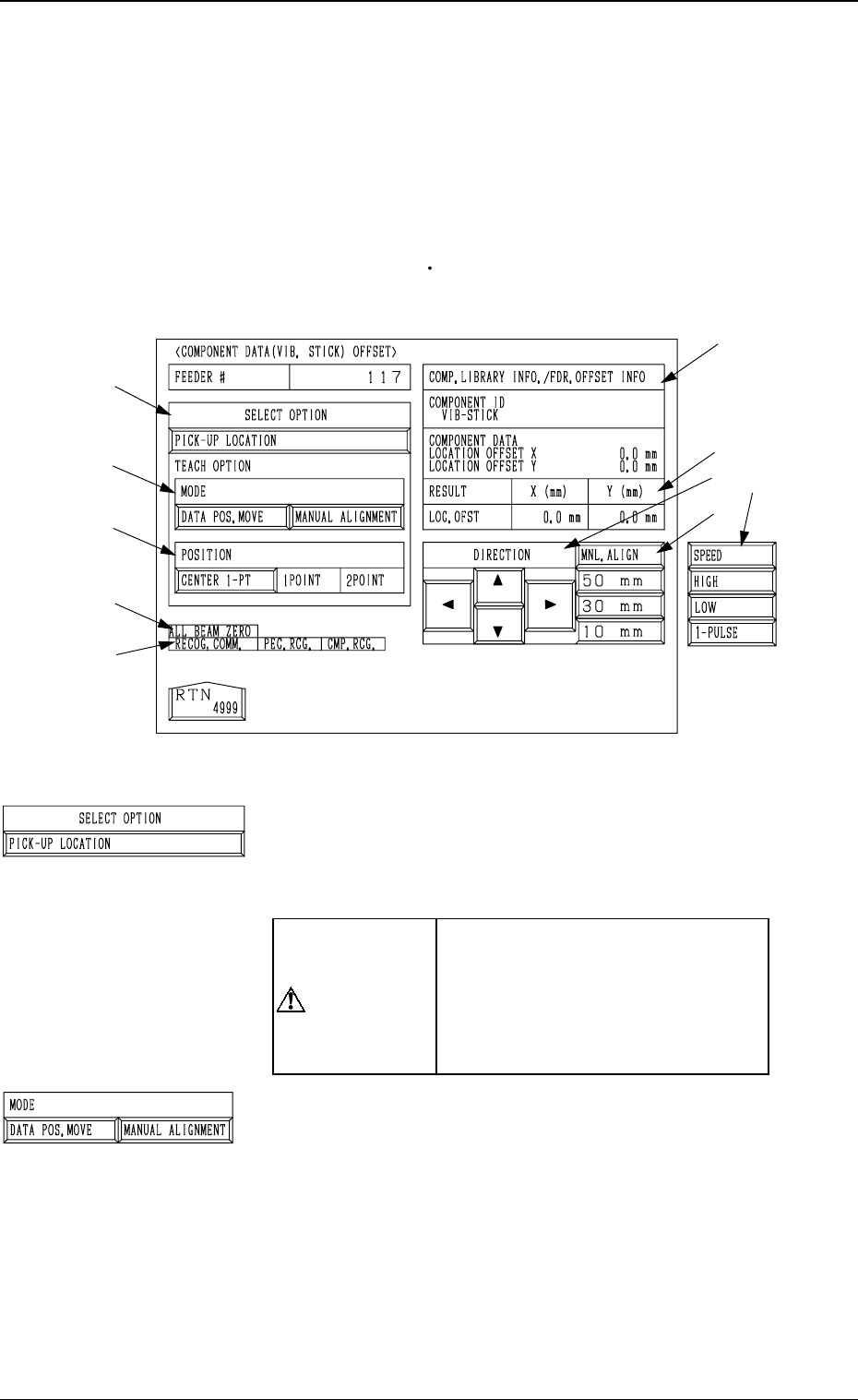
*1 “SELECT OPTION” [PICK-UP LOCATION] Key
When this key is selected and the [MOVE] button is pressed,
the machine performs the teaching operation on the com-
ponent data offset.
CAUTION
“OFFSET X (mm), Y (mm)” in the
component data of the pattern pro-
gram is modified additionally.
Incorrect teaching operation will
cause the pick-up rate to deterio-
rate.
*2 “MODE”
[DATA POS. MOVE] Key
When one of the “POSITION” keys *3 is selected and
the [MOVE] button is pressed after this key is selected,
the X/Y beam (center of P.E.C. recognition camera)
moves to the position where the parameters set in the
“X (mm)” and “Y (mm)” data fields of the label “OFF-
SET” in the component library data and the component
data are referred to.
[MANUAL ALIGNMENT] Key
When one of the “POSITION” keys *3 is selected and
the [MOVE] button is pressed after this key is selected,
the trackball operation becomes accessible.
9910-001 3-111
6. TEACH OFFSET Display
*2
*3
*9
*7
*10
*8
*5
*4
*6
Fig. 3.75
*1
Tg0249-PM-MM
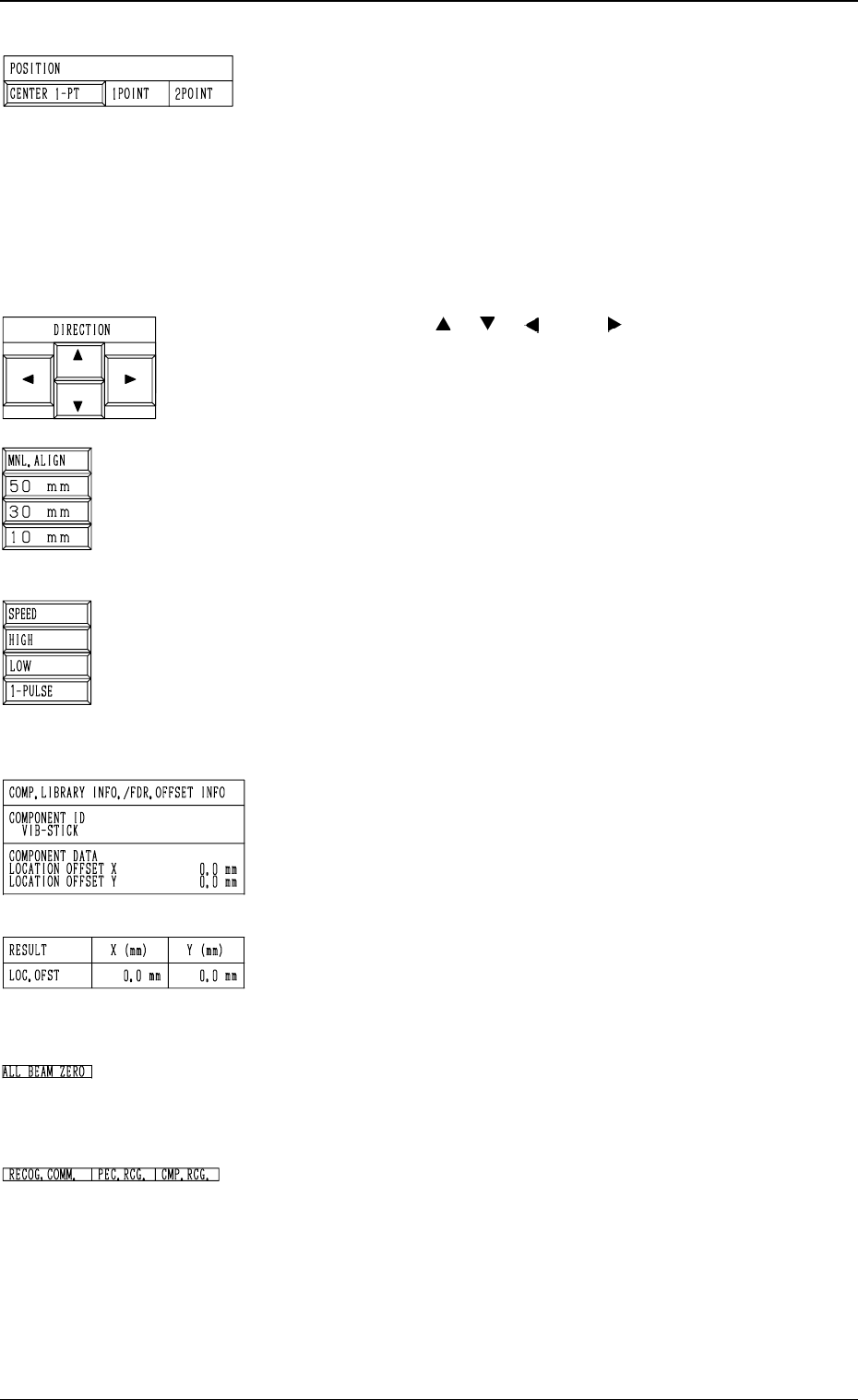
*3 “POSITION”
[CENTER 1-PT] Key
When this key is pressed, the X/Y beam moves to the
center of the component.
“1POINT” and “2POINT”
These labels are used to align the component with two
diagonally-located points.
When the maximum outside dimensions of the compo-
nent is “10 × 10 mm”, use these keys.
*4 “DIRECTION” [
], [ ], [ ], and [ ] Keys
Use these keys to specify the direction in which the X/Y
beam is manually aligned.
*5 [MNL. ALIGN], [10 mm], [30 mm], and [50 mm] Keys
Use these keys to select the distance by which the X/Y
beam is manually aligned.
When the [MNL. ALIGN] key is pressed, the [SPEED] and
the related keys appear in place.
*6 [SPEED], [HIGH], [LOW], and [1 PULSE] Keys
Use these keys to specify the speed at which the X/Y beam
is manually and smoothly aligned (smooth manual align-
ment).
When the [SPEED] key is pressed, the [MNL. ALIGN] and
the related keys appear in place.
*7 “COMP. LIBRARY INFO./FDR. OFFSET INFO”
Displayed are the component library data and the compo-
nent data offset of the selected feeder No.
*8 “RESULT X (mm), Y (mm)”
When the teaching operation is completed, the results are
displayed.
*9 “ALL BEAM ZERO”
When all beams are zeroed completely, the background turns
green. Otherwise, the background has no color.
*10 “RECOG. COMM.”
When “DISABLE” is set in the “P.E.C.” and “COMPO
NENT RECOGNITION” data boxes at the “TEST
MODE” display, the background color of “P.E.C. RECOG.”
and “COMP. RECOG.” becomes light red. (No background
color in normal cases)
9910-001 3-112
6. TEACH OFFSET Display