00197400-02_VD_SIPLACE_Pro_11.2_DE_EN.pdf - 第29页
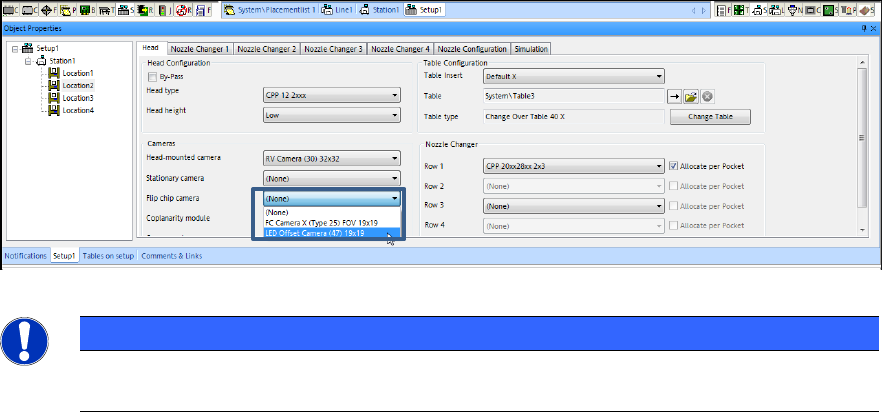
SIPLACE Pro V11. 2 / Soft ware Ver sion Desc ription A usga be 05/2014 Edit ion 29 The LED O ffset Cam era (47) 19x19 f lip chip cam era has to be se lected in the Setup Editor . Figure 4- 20 : Sel ecting camera type NOT…
SIPLACE Pro V11.2 / Software Version Description Ausgabe 05/2014 Edition
28
A warning will be displayed if the placement list contains component placement positions for which
no matching reference designator can be found in the BOM file. Either the concerned placement
list can then be corrected in SIPLACE Pro Desk or the concerned component placement positions
can be omitted.
By clicking the Reevaluate button, the corrected entries will be transferred and checked by the
BOM Merger.
Before the new data gets inserted into the placement list via the Import button, a copy of the
placement list may be optionally created by clicking the Make a back-up copy of Placement List
button.
4.18 Aligning (LED) Components
If the corresponding hardware has been installed, components can be aligned with the new LED
Offset Camera (47) 19x19 camera type. Surface features such as e.g. illuminated areas of LED
components, can then be centered corresponding to the placement position. This function is
supported together with the CPP placement head as of this SIPLACE Pro version.
Example Process with LED component:
The LED component is picked up and put on a glass plate on camera 47. First, it will be measured
from the bottom by this camera and then from the top by the PCB camera. The result of the
measurement from the bottom is starting basis for the measurement from the top. Thus, an offset
of the illuminated area to the component connections is determined. After that, the LED component
will be picked up from the glass plate and be placed with the determined offset so that the
illuminated area is centered corresponding to the placement position and not, as usual, aligned to
the connection leads.
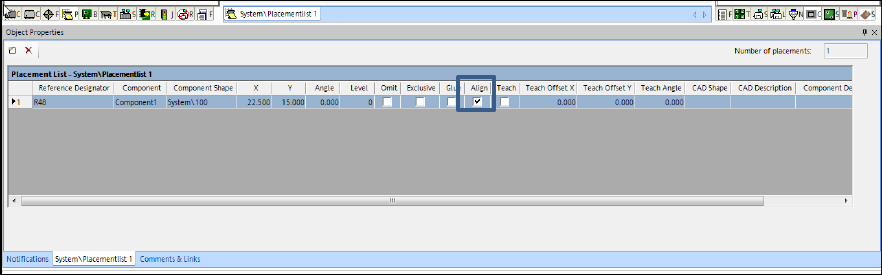
The function can be enabled in the Align column under the Placement List – Placements tab in
the Placement List Editor.
Figure 4-19: Enabling alignment
SIPLACE Pro V11.2 / Software Version Description Ausgabe 05/2014 Edition
29
The LED Offset Camera (47) 19x19 flip chip camera has to be selected in the Setup Editor.
Figure 4-20: Selecting camera type
NOTICE
Camera types 47 and 25 have to be installed at the same place. I.e., these camera types
cannot be installed at the same location simultaneously.
SIPLACE Pro V11.2 / Software Version Description Ausgabe 05/2014 Edition
30
5 Restrictions
In the following, existing restrictions in SIPLACE Pro are described.
Miscellaneous
– A complete import of customer data from the line computer can sometimes be very time-
consuming, depending on the volume of data involved and the computing system used for the
process (may take up to several hours).
– 10-fold and 15-fold stick magazines can not be combined on the same line feeder.
– When importing setup files (.rt files) from the line computer, you can not import more than one
tray per level. If you import more than one tray per level, you need to create them manually in
SIPLACE Pro.
– SIPLACE Pro object names (e.g., recipe) must not exceed 125 ASCII characters (including
folder names). If the station software is 504 or older, these names are shortened to 20 ASCII
characters.
– If various users optimize the same job at the same time, the job which was most recently
completed successfully will overwrite all corresponding recipes
– The operator must manually place manual tray carriers (carrier 30, carrier 51, carrier X and
carrier SX) in the initial setup.
– If you work with reduced acceleration for a component shape, this is seen as a "special case"
and the accuracy of 5% for the simulated Optimizer production time will not be achieved.
– The Optimizer does not check if the tray size is bigger than the carrier.
– The WPC can take up to 10 different component types per level. This restriction does not apply
for machines from station software version 70x.
Station-wise Download
– When the line control server is rebooted, station-wise downloading will be canceled. After
rebooting, you will need to perform a complete line download to restart production.
– Station-wise downloading supports setup changes in asynchronous dual operation only when
you have the same definition for both lanes.
– Station-wise downloading supports synchronous dual operation as of station software version
704.