00196737-07_IM_eWinXP_DE_EN.pdf - 第16页
W indows XP Em bedded / I nstallat ion Ma nual Ausgabe 06/2013 Ed ition 16 The operat ing s ystem is installed and the com puter is autom atic ally rebo oted. After a s hort tim e, the m essage Restore completed is disp …

Windows XP Embedded / Installation Manual Ausgabe 06/2013 Edition
15
4.3 Installing the Windows XP Embedded Operating System
NOTICE
Before you start work, ensure that the DVD drive is set as the first boot device in the
BIOS to allow the computer to be booted from CD/DVD.
► If necessary, back up the machine data manually.
If you install Windows XP Embedded on a Vision computer in two-computer operation, the
following steps have to be performed:
► Disconnect the keyboard from the machine computer and connect it to the Vision computer.
► Switch the video multiplexer to the Vision computer.
► Unplug the USB cable for the DVD drive from the machine computer and plug it into the Vision
computer.
4.3.1 Installing the Installation CD/DVD
► Insert the suitable installation CD/DVD into the DVD drive.
WARNING
After the I-Base ABP102-A Restore CD has been started, the Restore Image will be
installed on the hard disk without any further queries. All data get lost and the
installation cannot be canceled!
► Switch on the computer to start it from the CD/DVD or reboot the computer, if it was already
switched on.
► Press any key, when the message "Press any key to boot from CD Rom" is displayed.
► Follow the instructions of the Restore Installation procedure (screen in text mode).
An automatic inspection of the system is carried out and then the screen for selecting the language
appears (not applicable for the I-Base PC):
1. Deutsch
2. English
► Select the required language.
Selection of Restore options:
1. Restore system partition only (partition C will be overridden, D remains unchanged) or
Restore existing system partition only (computer type "C")
2. Restore entire target drive (always select this option for initial installation) or
Restore complete system disk (computer type "C")
3. Cancel / Exit
► Select an option and confirm your selection.
Windows XP Embedded / Installation Manual Ausgabe 06/2013 Edition
16
The operating system is installed and the computer is automatically rebooted.
After a short time, the message Restore completed is displayed and you are prompted to
remove the data medium and restart the computer (or after having pressed the Exit button).
► Remove the CD/DVD from the DVD drive and press any key (or the OK button).
The computer starts and the Windows login window is displayed (the first reboot may take some
minutes).
► Insert the "SIPLACE XP embedded Configurator" software CD into the DVD drive.
► Log on as Administrator without entering a password.
4.3.2 Choosing the Computer Configuration
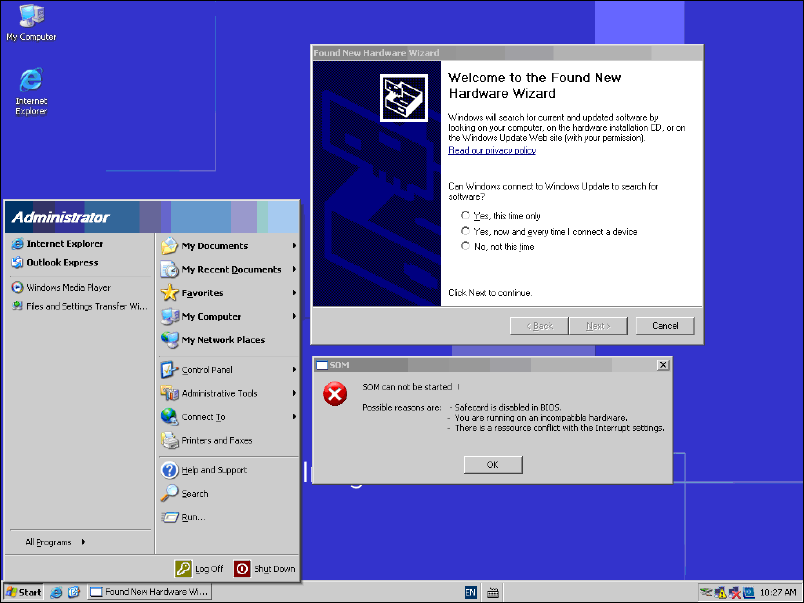
After the reboot dialogs are displayed for hardware that has not been installed, e.g.:
Figure 4-1: Not installed hardware
► Shut all windows with Cancel or OK.
► Open Windows Explorer (e.g. via "My Computer" on the desktop) and navigate to the DVD
drive.
► Double-click on the XPeConfigurator.hta file from the software CD to start the "SIPLACE XP
embedded Configurator".
Windows XP Embedded / Installation Manual Ausgabe 06/2013 Edition
17
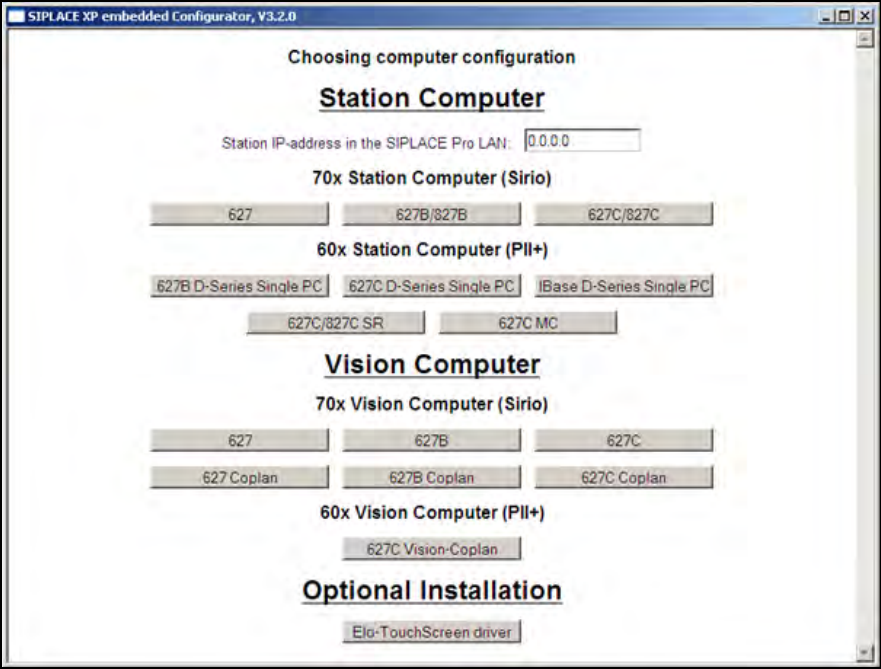
The following window is displayed:
Figure 4-2: Window SIPLACE XP embedded Configurator
► Enter the station IP-address for SIPLACE Pro LAN (required for a station computer only) and
choose the suitable computer configuration.
The SIPLACE settings are automatically performed and the computer reboots.
After the reboot, you are logged on as Operator.
► If no touch screen is used (Vision or MC computer), remove the software CD from the DVD
drive.