00197455-01_IM_TX150SS8_en.pdf - 第31页
Installing Prim ergy TX 150 S8 with W indows S erver 20 12 07/2012 Edit ion 31 After a while, the s ystem asks f or the o perat ing s yst em i nsta ll ation m edia. Figure 3- 19 : Insta l lation Manager asking for o pera…
Installing Primergy TX150 S8 with Windows Server 2012 07/2012 Edition
30
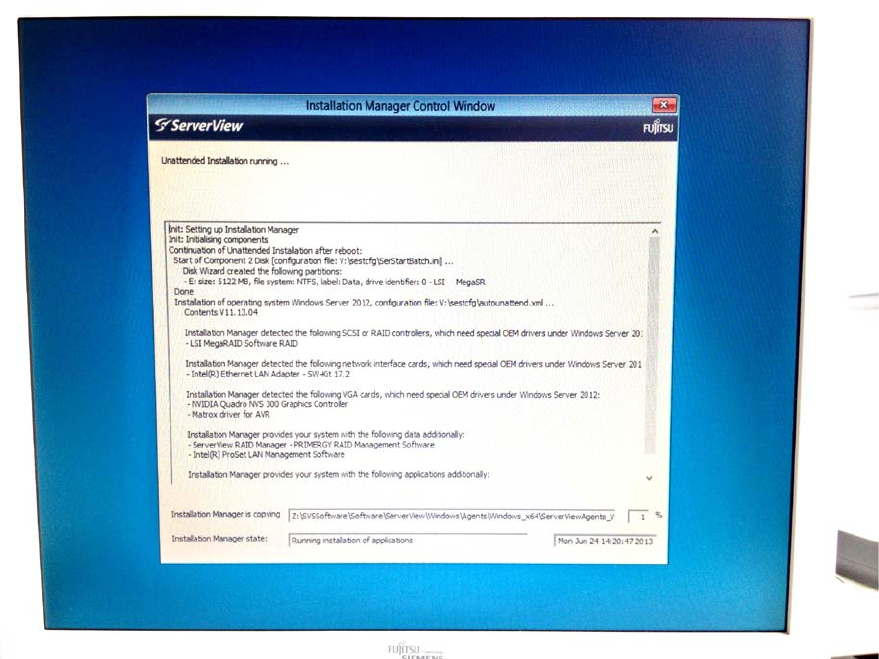
Figure 3-18: Boot process picture #3
Installing Primergy TX150 S8 with Windows Server 2012 07/2012 Edition
31
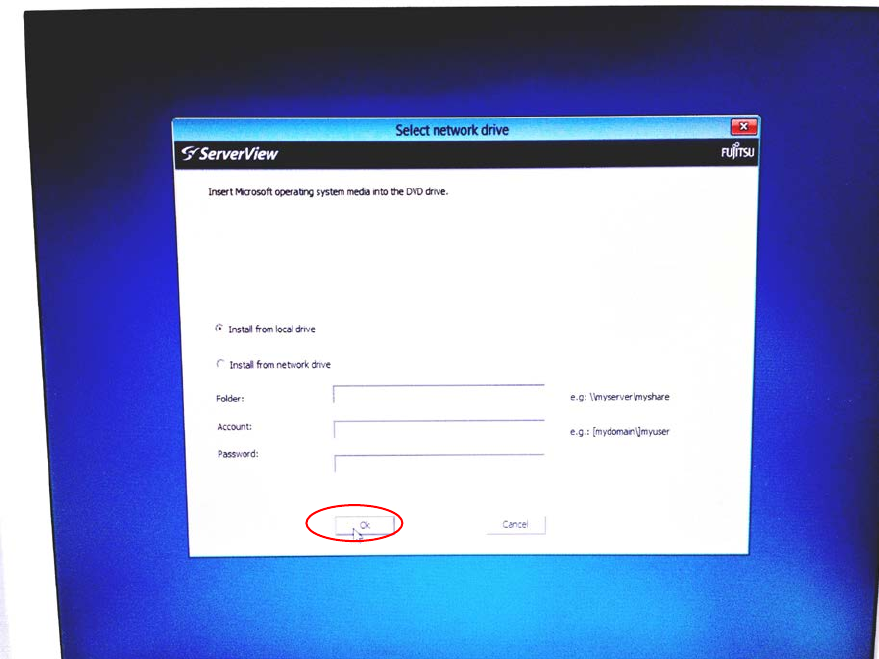
After a while, the system asks for the operating system installation media.
Figure 3-19: Installation Manager asking for operating system Installation media
► Insert the delivered Windows Server 2012 installation media into the DVD drive and click the
OK button.
Installing Primergy TX150 S8 with Windows Server 2012 07/2012 Edition
32
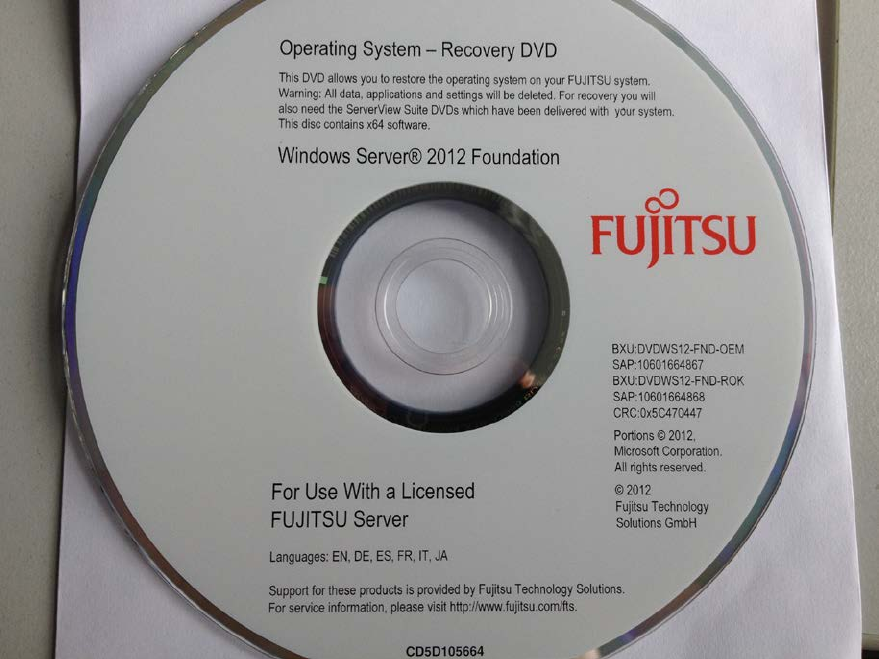
The installation media should look like this:
Figure 3-20: Windows Server 2012 Installation Media for TX150
The Installation Manager continues preparing the installation.