00197455-01_IM_TX150SS8_en.pdf - 第38页
Installing Prim ergy TX 150 S8 with W indows S erver 20 12 07/2012 Edit ion 38 Thereaf ter the logo n screen will appear . Figure 3- 26 : Windows Logon S creen ► Press CTRL + AL T + D EL to log on and l og i n wit h the …
Installing Primergy TX150 S8 with Windows Server 2012 07/2012 Edition
37
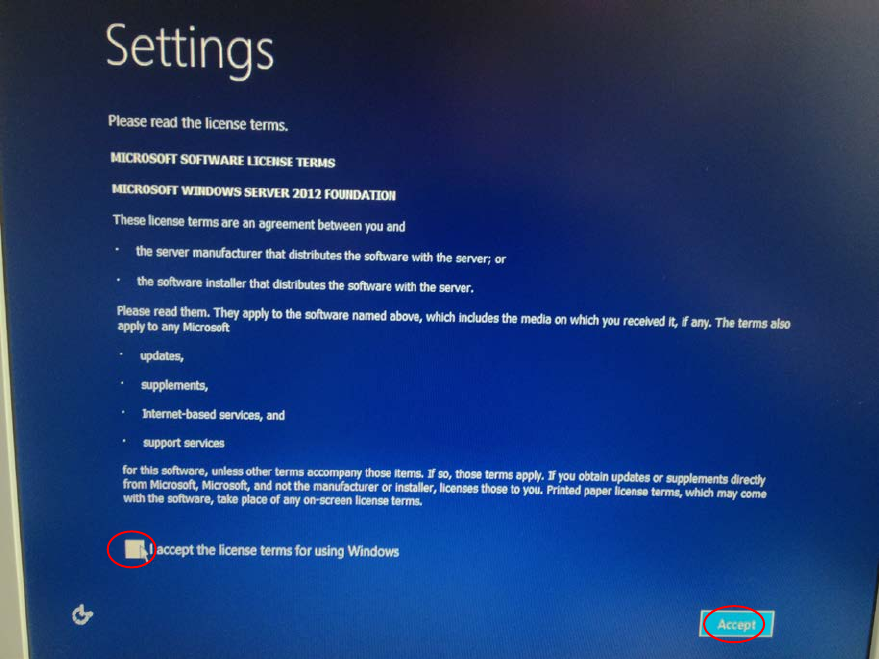
After the main part of the Windows Setup is completed, the following screen will appear.
Figure 3-25: Windows Setup waiting to agree the license terms
► Read the license terms and click the checkbox besides I accept the license terms for using
Windows.
► Click the Accept button.
► Wait while Windows finalizes.
Installing Primergy TX150 S8 with Windows Server 2012 07/2012 Edition
38
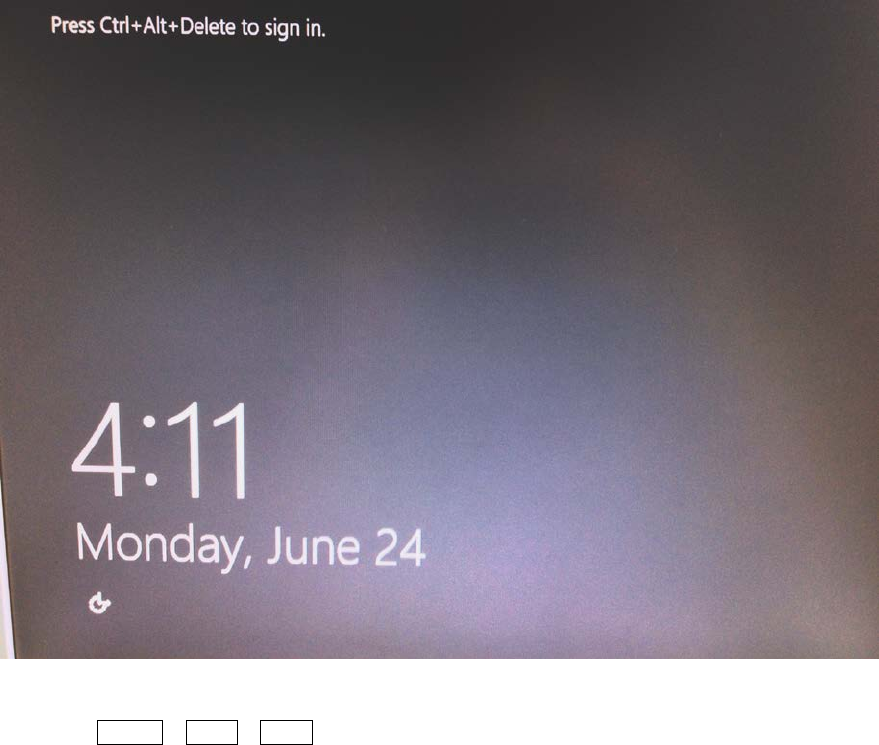
Thereafter the logon screen will appear.
Figure 3-26: Windows Logon Screen
► Press CTRL + ALT + DEL to log on and log in with the administrator account and the
password you have configured.
Installing Primergy TX150 S8 with Windows Server 2012 07/2012 Edition
39
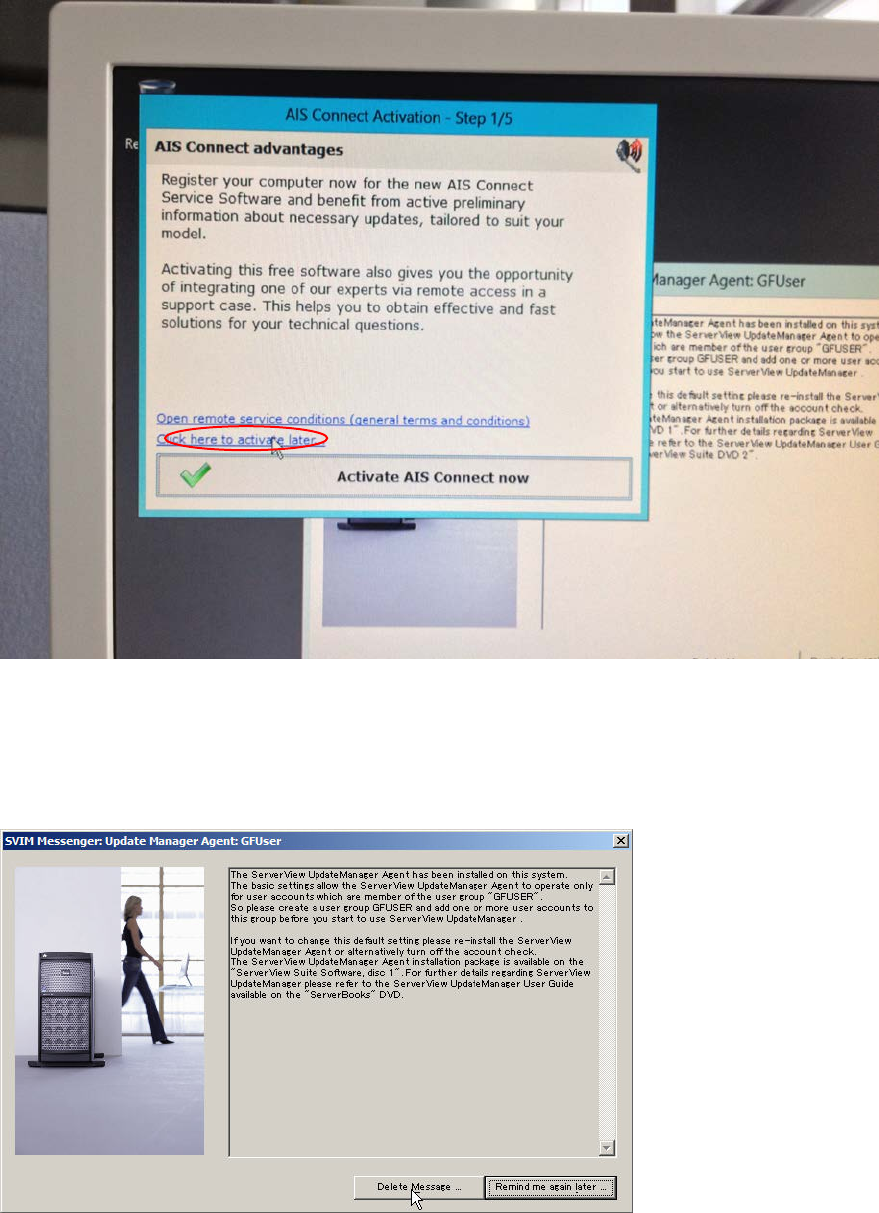
After login and some preparation, the following screens will appear (random order).
Figure 3-27: Reminder messages
► Click at the Click here to activate later… line to close the window.
The following window might appear.
Figure 3-28: SVIM Messanger message
► Click the Delete Message button.
The basic installation steps are now completed. Continue with the following chapter.