00197455-01_IM_TX150SS8_en.pdf - 第47页
Installing Prim ergy TX 150 S8 with W indows S erver 20 12 07/2012 Edit ion 47 Figure 4- 13 : Server Manager – Adding a s ec ond partition ► On the lef t side, s elect Stor age – Dis k Managem ent . ► In the m iddle area…
Installing Primergy TX150 S8 with Windows Server 2012 07/2012 Edition
46
4.3 Adding a Second Partition
In most cases, a second partition is appropriate.
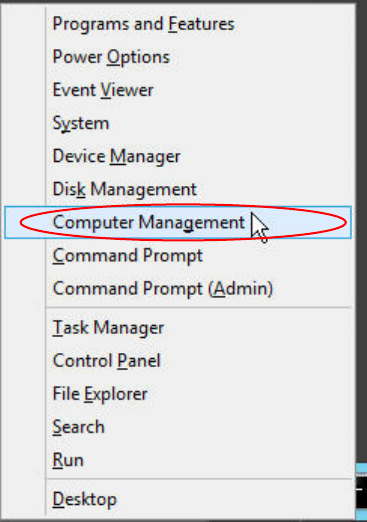
Figure 4-12: Starting Computer Management
► Press the Windows key on your keyboard and the “x” key. Click on Computer Management.
The Computer Management opens.
Installing Primergy TX150 S8 with Windows Server 2012 07/2012 Edition
47
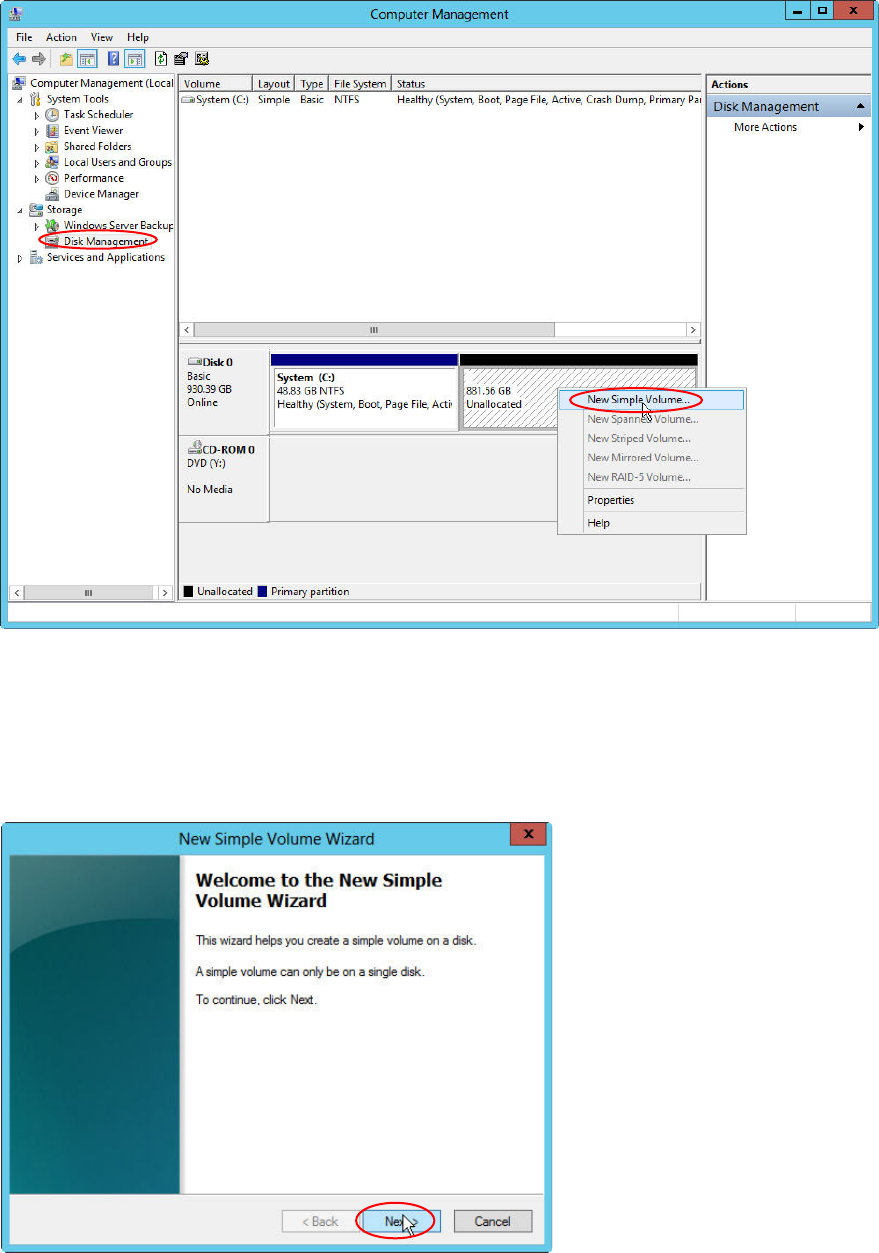
Figure 4-13: Server Manager – Adding a second partition
► On the left side, select Storage – Disk Management.
► In the middle area besides Disk 0, right-click in the unassigned, empty disk space (the shaded
area) and select New Simple Volume.
The New Simple Volume Wizard opens.
Figure 4-14: New Simple Volume Wizard – Welcome
► Click the Next > button.
Installing Primergy TX150 S8 with Windows Server 2012 07/2012 Edition
48
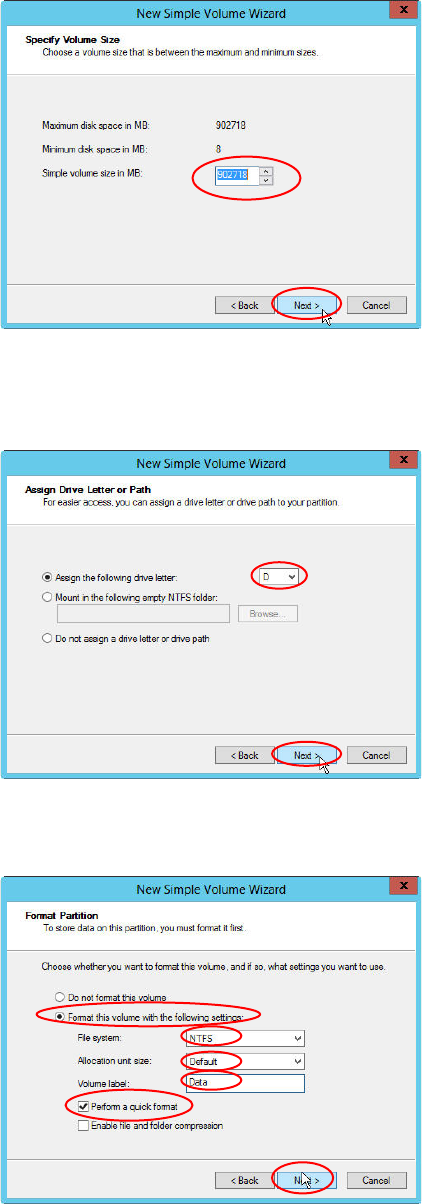
Figure 4-15: New Simple Volume Wizard – Specify Volume Size
► Leave the value for the simple volume size (using all remaining space) and click the Next >
button.
Figure 4-16: New Simple Volume Wizard – Assign Drive Letter or Path
► Ensure that drive D is selected in the dropdown menu and click the Next > button.
Figure 4-17: New Simple Volume Wizard – Format Partition
► Select the radio button besides Format this volume with the following settings.
► Select NTFS besides File system.
► Leave the default allocation unit size and enter a name for the new volume, e.g. “Data”.
► Select the Perform a quick format checkbox and click the Next > button.