00197455-01_IM_TX150SS8_en.pdf - 第44页
Installing Prim ergy TX 150 S8 with W indows S erver 20 12 07/2012 Edit ion 44 4.2 Changing DV D D rive L etter To be read y for add itional partitions and other new drives, it is r ecomm ended to ch ange the letter of t…
Installing Primergy TX150 S8 with Windows Server 2012 07/2012 Edition
43
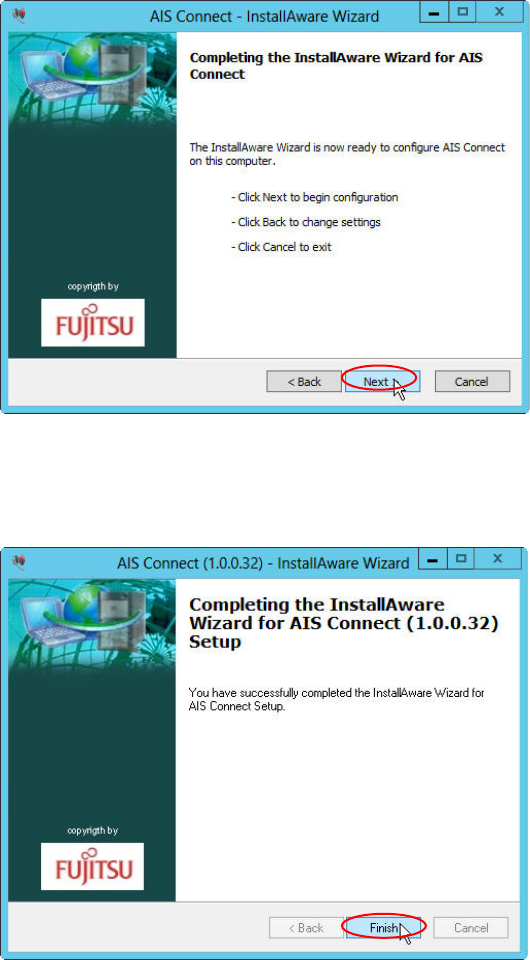
The following window appears.
Figure 4-5: Uninstalling AIS – ready to configure window
► Click the Next > button to continue.
After some seconds, the following window appears.
Figure 4-6:Uninstalling AIS – Setup completed
► Click the Finish button to complete the setup.
Installing Primergy TX150 S8 with Windows Server 2012 07/2012 Edition
44
4.2 Changing DVD Drive Letter
To be ready for additional partitions and other new drives, it is recommended to change the letter of
the DVD drive.
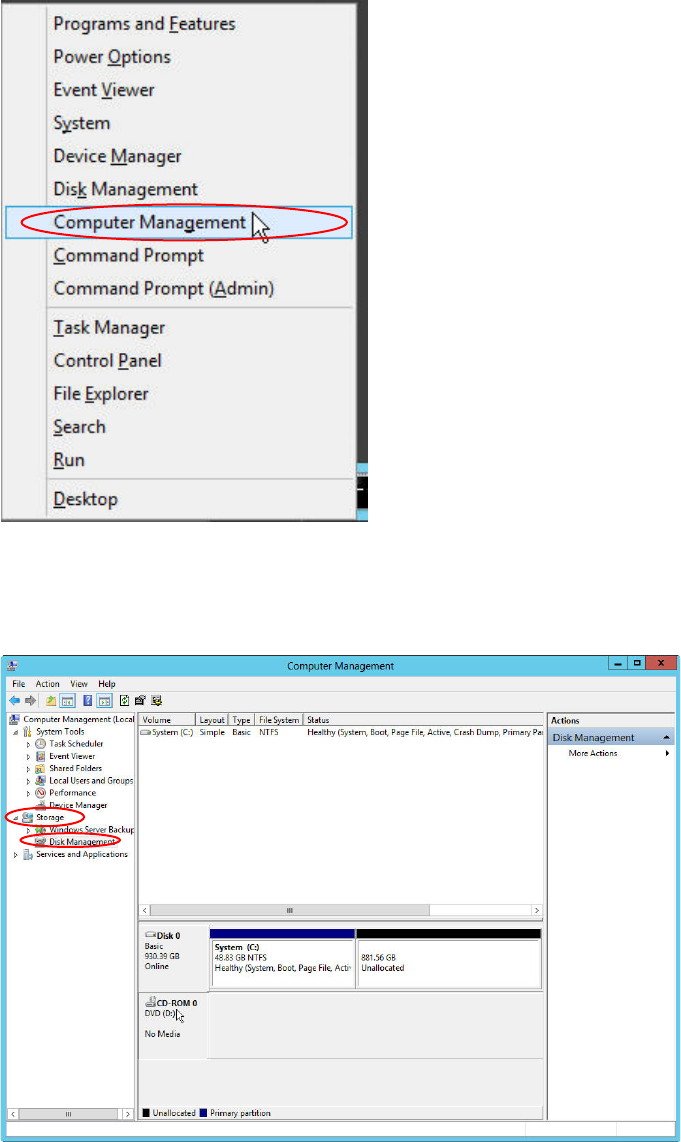
Figure 4-7: Starting Computer Management
► Press the Windows key on your keyboard and the “x” key. Click on Computer Management.
The Computer Management opens.
Figure 4-8: Server Manager – Starting Disk Management
► On the left side, select Storage – Disk Management.
Installing Primergy TX150 S8 with Windows Server 2012 07/2012 Edition
45
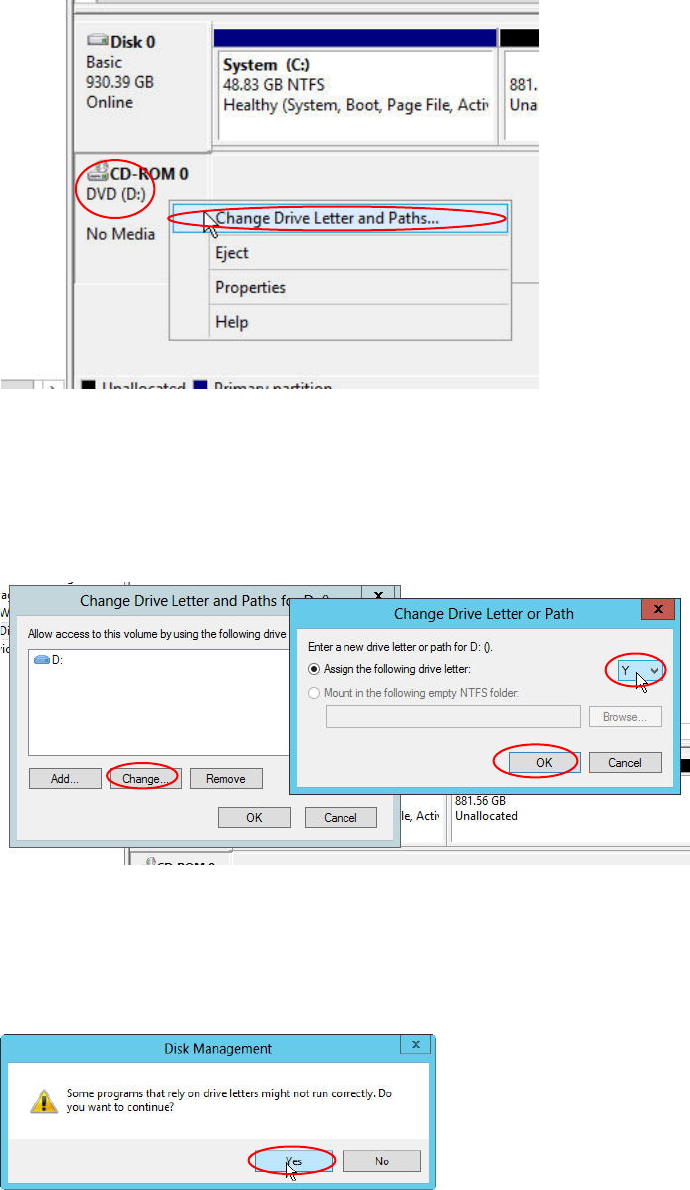
Figure 4-9: Server Manager – Changing DVD drive letter
► Right-click on the DVD drive in the lower middle of the window and select Change Drive Letter
and Paths….
Figure 4-10: Changing DVD drive letter to Y
► In the appearing window, click the Change… button.
► Select the drive letter Y from the dropdown menu and click the OK button.
A warning message will appear.
Figure 4-11: Disk Management warning
► Accept the warning message by clicking the Yes button.