00197455-01_IM_TX150SS8_en.pdf - 第53页
Installing Prim ergy TX 150 S8 with W indows S erver 20 12 07/2012 Edit ion 53 Figure 4- 25 : IP Configuration of the SIPLACE LAN adapter before removing the default gateway ► Rem ove the defau lt gatewa y entr y from th…
Installing Primergy TX150 S8 with Windows Server 2012 07/2012 Edition
52
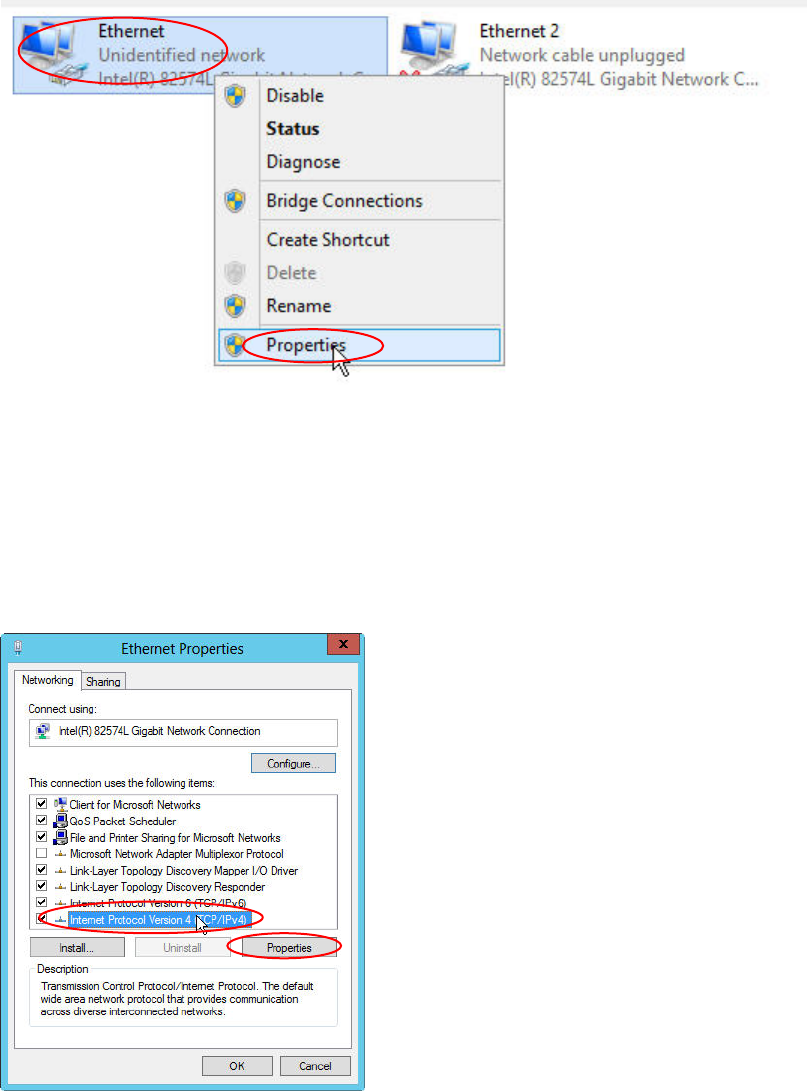
Figure 4-23: Selecting Properties of the connected SIPLACE LAN adapter
► Right-click on the connected SIPLACE LAN network adapter (the other adapter has the state
“Network cable unplugged”)
► Select Properties.
Figure 4-24: Ethernet Properties
► Click the Internet Protocol Version 4 (TCP/IPv4) text (not the checkbox!) and select Properties.
Installing Primergy TX150 S8 with Windows Server 2012 07/2012 Edition
53
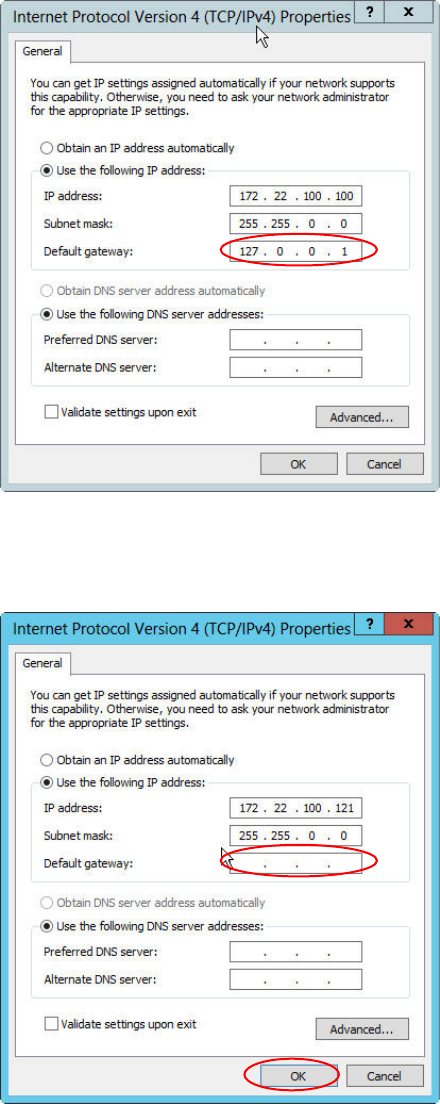
Figure 4-25: IP Configuration of the SIPLACE LAN adapter before removing the default gateway
► Remove the default gateway entry from the IP configuration, as shown in the following picture.
Figure 4-26: IP Configuration of the SIPLACE LAN adapter after removing the default gateway
► Click the OK to close the window and apply the setting.
Installing Primergy TX150 S8 with Windows Server 2012 07/2012 Edition
54
4.5 Further Preparation Steps
Before applying the Support Media, you must check a couple of settings.
These further preparation steps are described in the document "Required Steps before using
Support Media".