OperatorManual.pdf - 第7页
Icons If configured, this icon indicates the N2 valve status when the machin e is running. If edit online is active, clicking th e icon can toggle the va lve status. The machine is in alarm. Click the ic on to show the a…
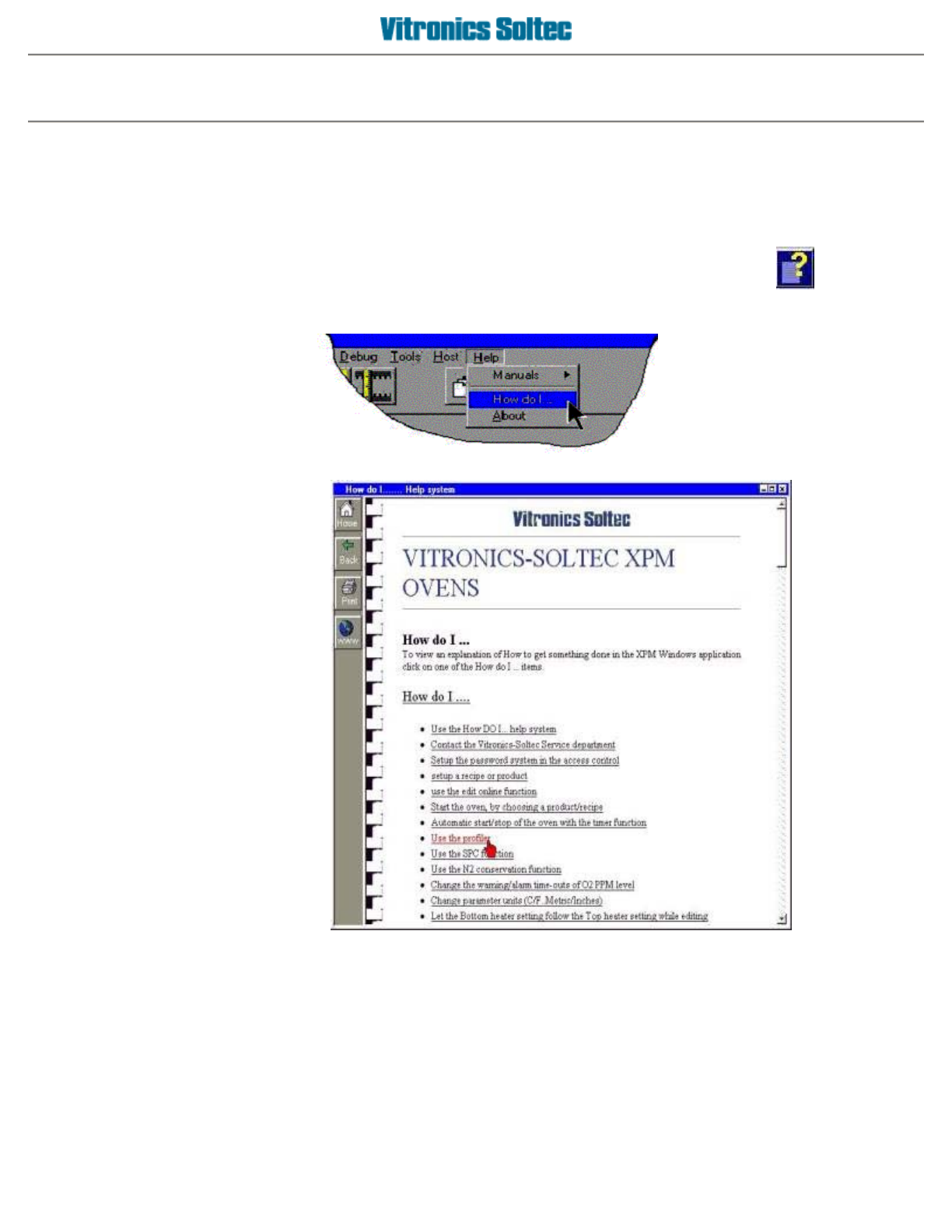
Use of How do I.. help system
The XPM software includes a help system that can be activated in two ways.
If the part of the program you are in has help available, the
How DO I...
help menu item will be present
If the part of the program you are in has no menu system and has help available a
Help Icon
will show.
Select
HELP
from the
Pull-down Menu, and
choose "How do I"
Then choose the topic of
interest
Operator manual 6 August 2003
Icons
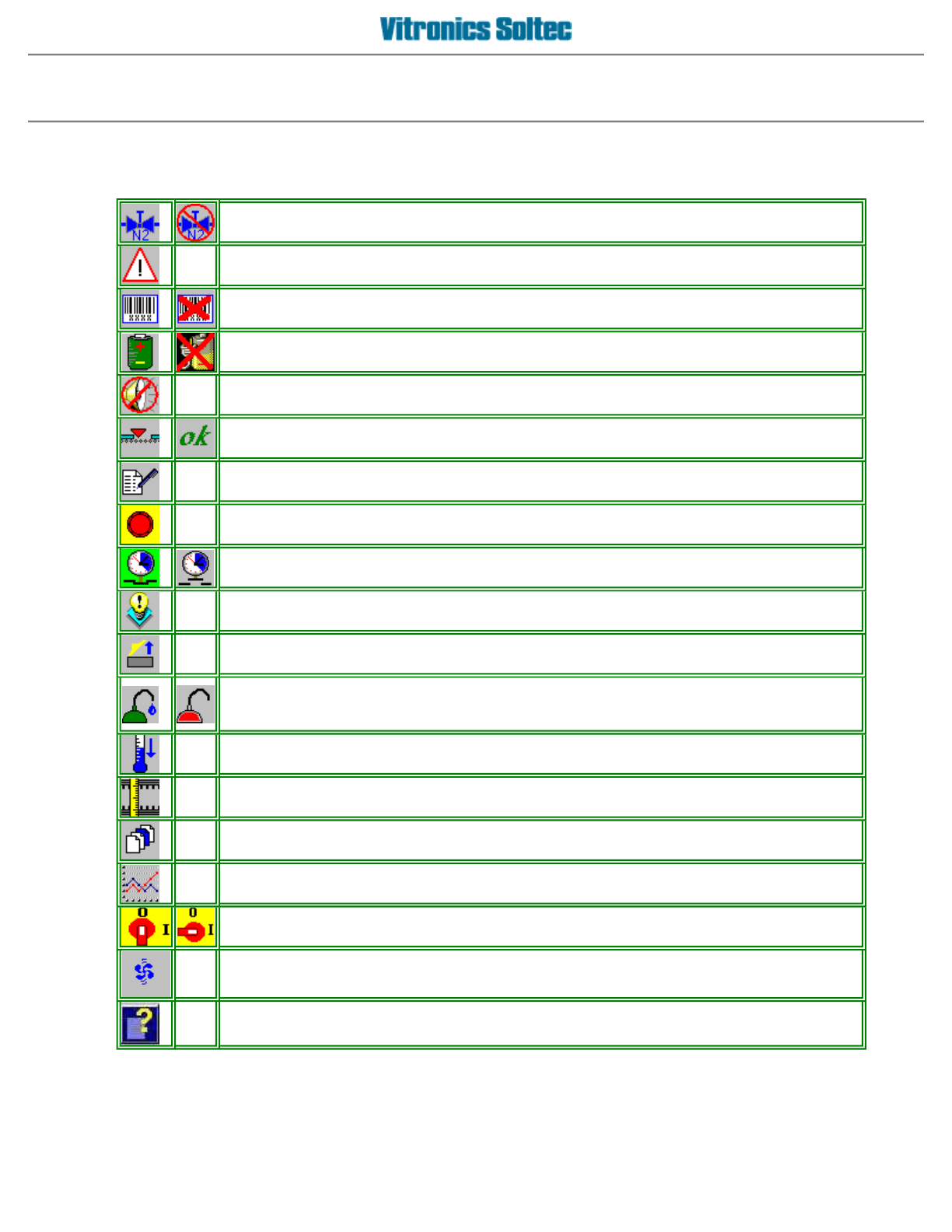
If configured, this icon indicates the N2 valve status when the machine is running.
If edit online is active, clicking the icon can toggle the valve status.
The machine is in alarm. Click the icon to show the alarm list.
If configured, the barcode reader status (active or not). Click the icon to show the barcode
dialog box.
If configured, the UPS status (enabled or not). Click on the icon to show the UPS dialog
box.
Displayed when the alarm buzzer sounds. Silence it by clicking the icon.
Machine ready status. Machine is not ready or ready to accept boards.
Edit online. The button status (pressed/depressed) indicates the online status.
Indicates that the machine is in E-stop.
By clicking the icon an attempt is made to reset the E-stop situation.
If timer function is activated, this icon indicates the timer mode (active or standby).
By clicking the icon the timer/calendar dialog box will show in read-only mode.
Indicates that there is a message. By clicking the icon the message is displayed.
Indicates the oven hood is open.
If configured, clicking this icon shows the lubrication dialog. A red oil can indicates a low
tank
Level.
If the machine is stopped and the oven is hotter then 100 C, this icon will show.
Click this icon to access the quick cooldown function.
Manual rail adjustment.
Start a (new) recipe.
Activates the trending function.
Indicates machine status. Machine is off or on. Click this icon to turn the machine off or on.
Indicates that the cell fans are running.
How Do I on-line help icon. Clicking on this icon opens the on-line help function.
Operator manual 7 August 2003
Access control
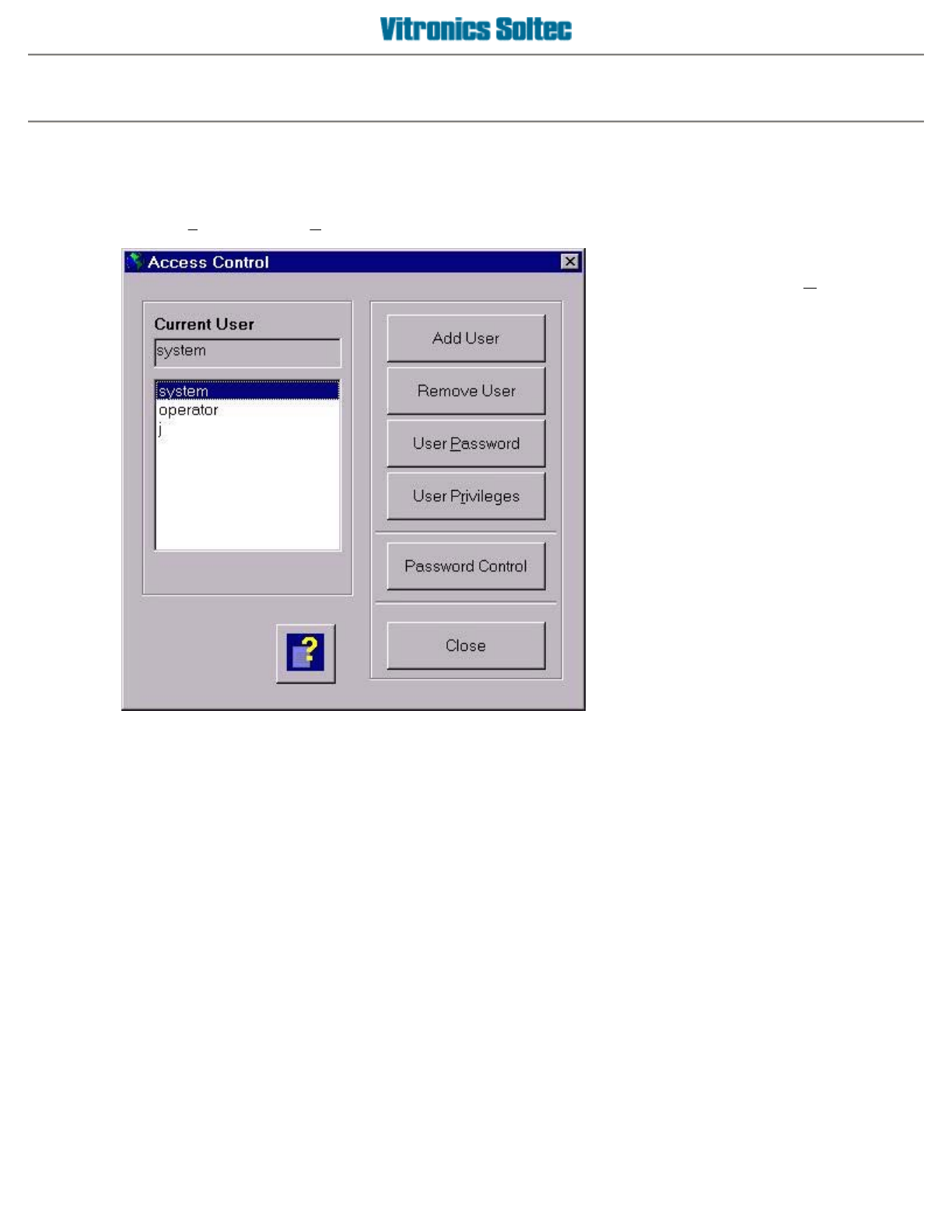
Setup the password system in the access control
From the
F
ile menu, select
A
ccess Control
z
Add User
- Select this option to
create a new user name
along with
entering a password for the user
name.
z
Password Control
- This option
contains a list of program functions
with a corresponding password
yes/no setting for each program
function. The password yes/no
setting determines if password entry
is required prior to entering each
corresponding function and applies to
all of the user names. Also the
password yes/no setting takes
precedence over user privilege
settings. When a password is set to
no, all user's are allowed to access
the program function without a
password even if a user privilege is
set to no. The list of program
functions is factory preset.
z
Close
- Close the Access Control
menu
Operator manual 8 August 2003