2OM-1086-002.pdf - 第158页
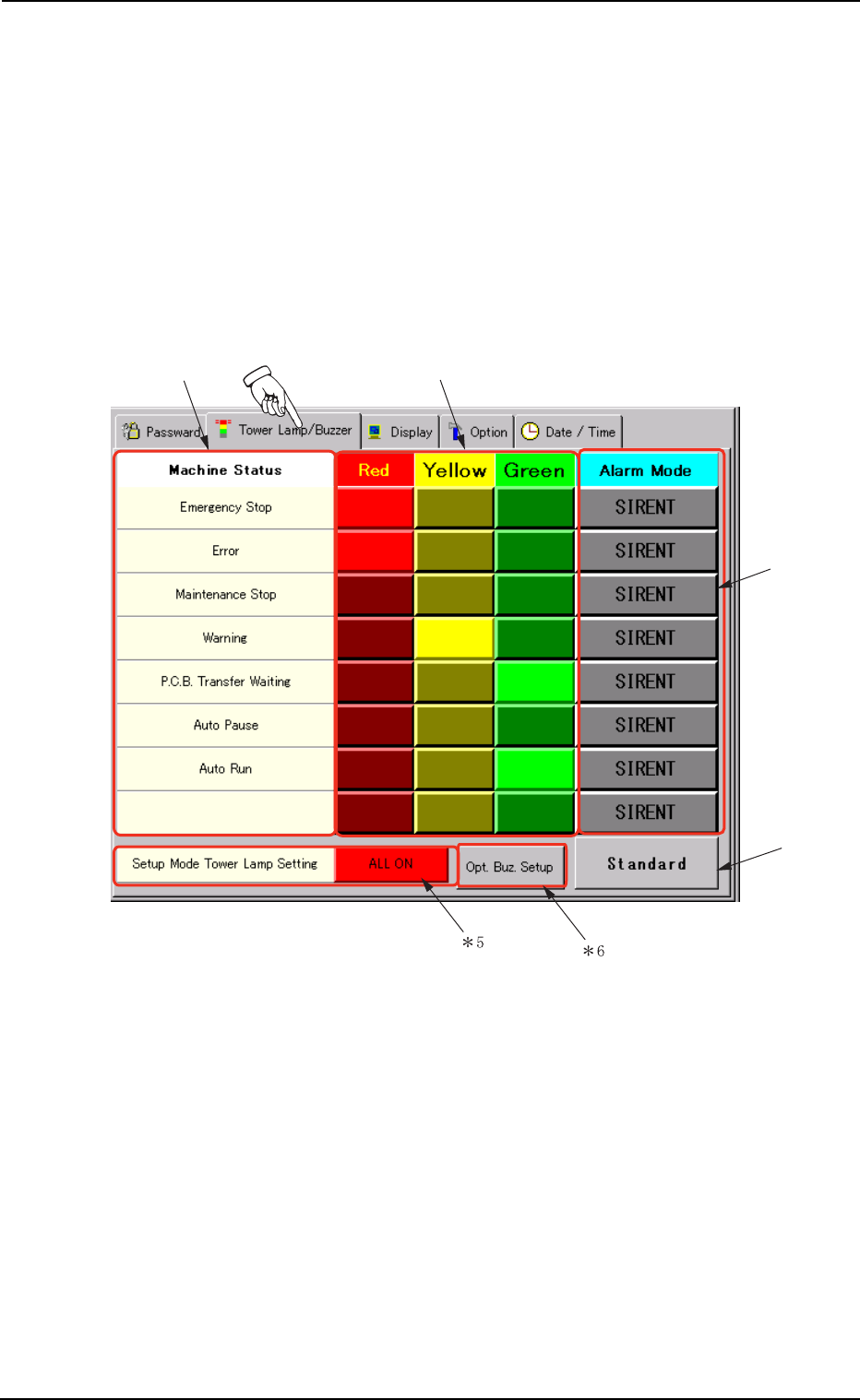
*2 T ower Light Mode Buttons These buttons can be classified by colors, indicating that the tower lights can illuminate in the specified colors in accordance with each machine status. Every time a button is pressed, it i…
2.2 "Tower Lamp
//
//
/Buzzer" Tab
This tab sheet enables the operator to allocate the colors (red, yellow,
and green) of the tower lights and set alarm modes according to the
machine status.
• Sheet Layout
When the "Tower Lamp/Buzzer" tab is pressed in the "MAC. SET-UP"
window (submenu), the following tab sheet appears.
Fig. 3D8 "Tower Lamp
//
//
/Buzzer" Tab Sheet
• Sheet Composition
*1 Classification of Machine Status
Each label indicates the condition of the machine in which the cor-
responding tower light illuminates and the buzzer sounds.
The labels are displayed in high order of emergency according to
the degree of danger.
*1
*4
*2
*3
0211-005 Chapter 1 4-11 Tg0583-PM-D2
2.2
"
Tower Lamp/Buzzer
"
Tab
*2 Tower Light Mode Buttons
These buttons can be classified by colors, indicating that the tower
lights can illuminate in the specified colors in accordance with each
machine status.
Every time a button is pressed, it is set in the order - "OFF" → "ON"
→ "ON and OFF".
When "ON and OFF" is set, the light flashes in the cycle
of 1 second (ON and OFF each for 0.5 seconds).
*3 Alarm Mode Buttons
These buttons are used to set alarm modes in accordance with
each machine status.
Every time a button is pressed, the label changes in the order -
"SILENT" → "CONTINUOUS" → "ON AND OFF". The background
color also changes in the order - "Gray" → "Red" → "Yellow".
*4 [Standard] Button
When this button is pressed, the standard modes are set for each
tower light and buzzer sound.
*5 [Setup Mode Tower Lamp Setting] Button
This button specifies the lighting mode of the tower lamps when
the [OPERATION/SET UP] switch set to the "SET UP" side.
Every time this button is pressed, the label "ALL ON" is changed to
"ALL OFF" or vice versa.
ALL ON : All lamps are turned ON.
ALL OFF : All lamps are turned OFF.
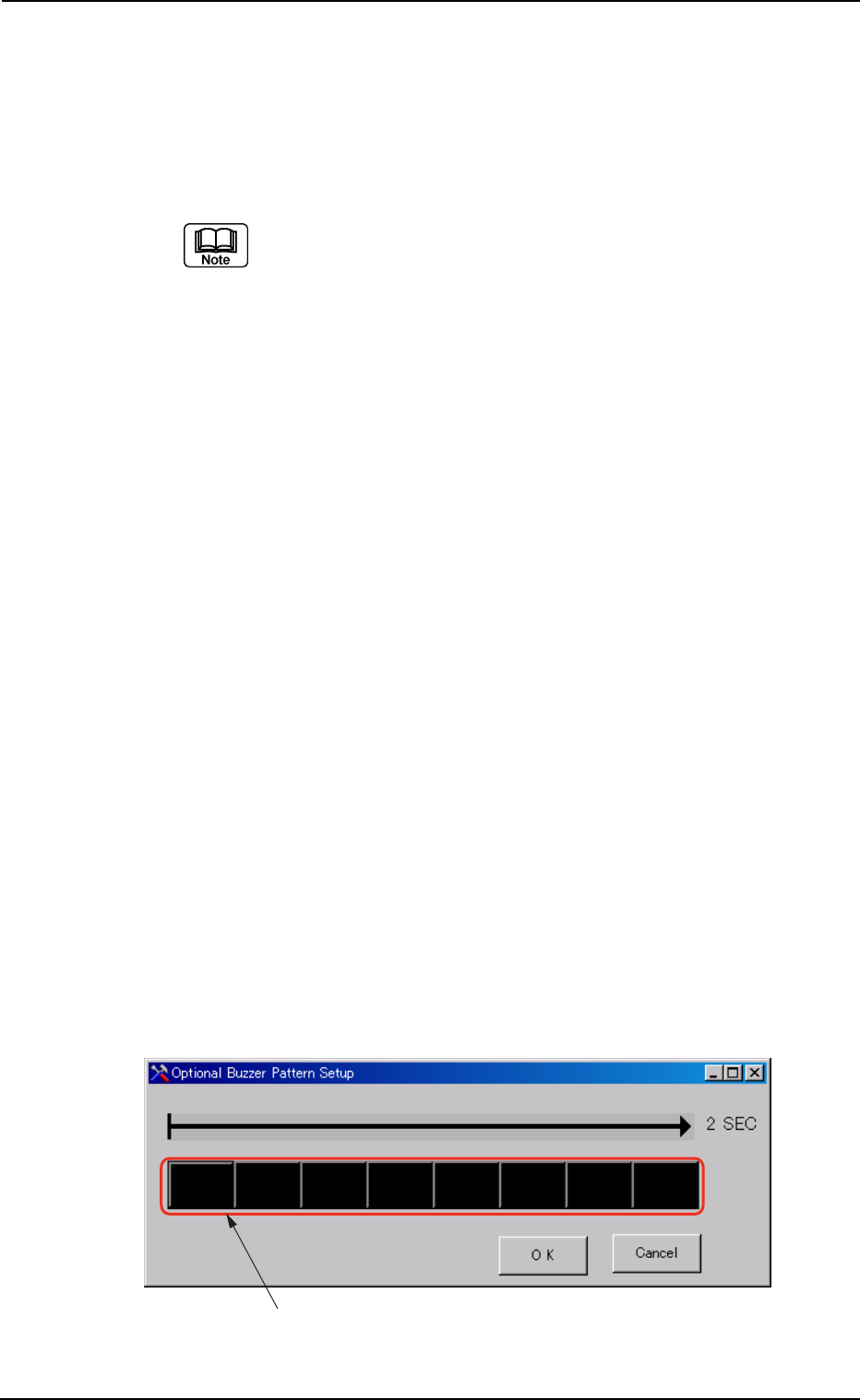
*6 [Opt. Buz. Setup] Button
When pressed, this button opens the window for designation of
optional buzzer sounds.
"ON" and "OFF" can be specified in a cycle of two seconds as a
buzzer sound.
"ON" can be changed over to "OFF" or vice versa by pressing one
block (unit: 0.25 seconds).
Fig. 3D8-1 "Optional Buzzer Pattern Setup" Window
0211-005 Chapter 1 4-12 Tg0583-PM-D2
2.2
"
Tower Lamp/Buzzer
"
Tab
Block
2.3 "Display" Tab
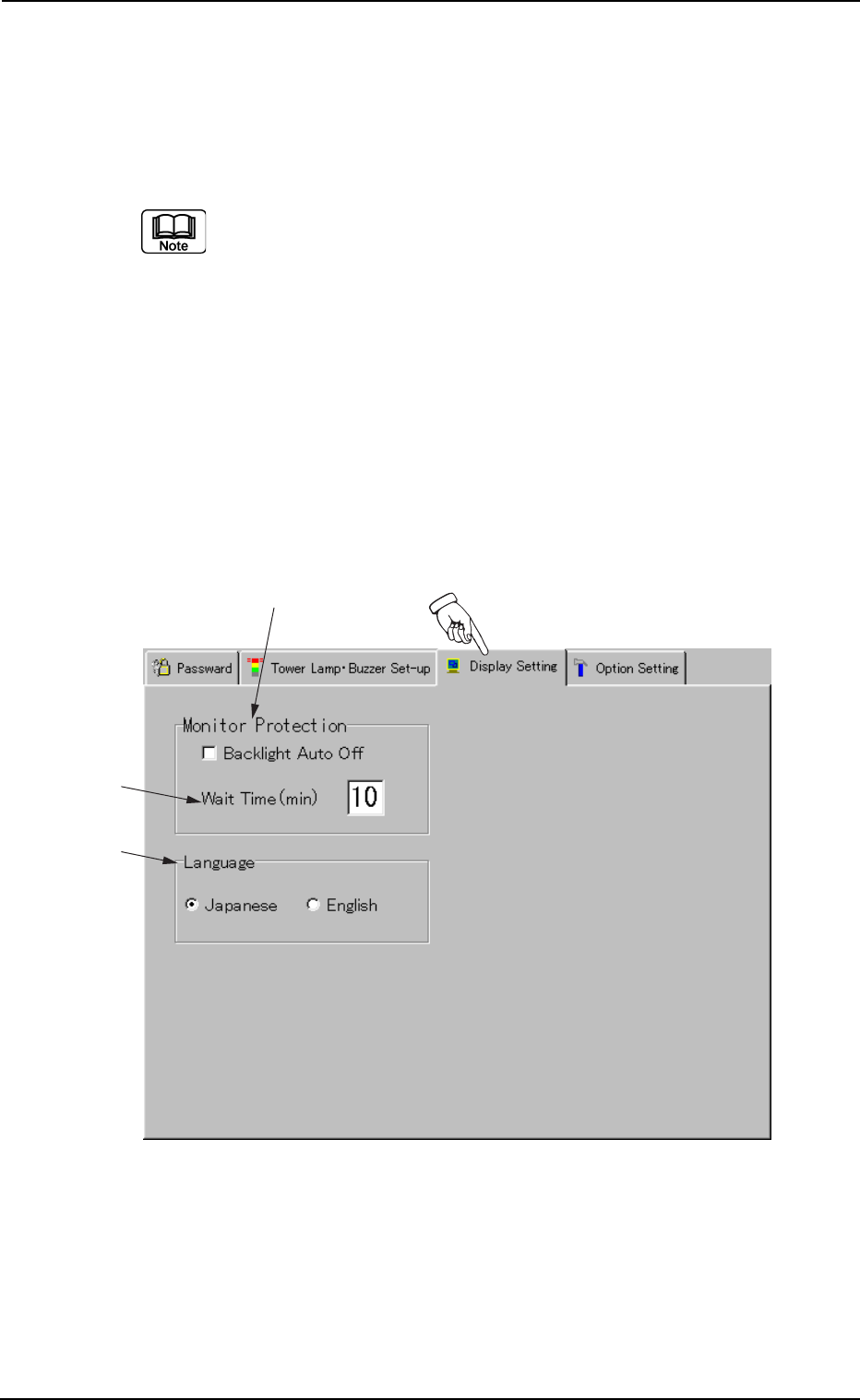
When no operation on the touch screen is needed for a long period of
time, the monitor protection function can be activated to avoid burning
the screen.
(a) When you touch the surface of the touch screen or press
the [POWER OFF] button on the front operation panel, the
monitor protection mode is canceled and a window ap-
pears on the screen.
(b) When an error occurs or a management information mes-
sage should be issued, the monitor protection mode is
automatically canceled and a window appears on the
screen.
• Sheet Layout
When the "Display" tab is pressed in the "MAC. SET-UP" window
(submenu), the following tab sheet appears.
Fig. 3D9 "Display" Tab Sheet
*1
*2
*3
0211-005 Chapter 1 4-13 Tg0583-PM-D2
2.3
"
Display
"
Tab