00194313-03.pdf - 第75页
SIPLACE S-25 HM / S-27 HM 2 Assembly Inst ructions for PCB Camera, Multicolor 02/2007 Edition 2.3 Configuration PCB Camera Multicolor on L C 75 2.3 Configuration PCB Came ra Multicolor on LC The softwa re version 502.01 …
2 Assembly Instructions for PCB Camera, Multicolor SIPLACE S-25 HM / S-27 HM
2.2 Installing PCB Camera Board and PCB Camera Multicolor 02/2007 Edition
74
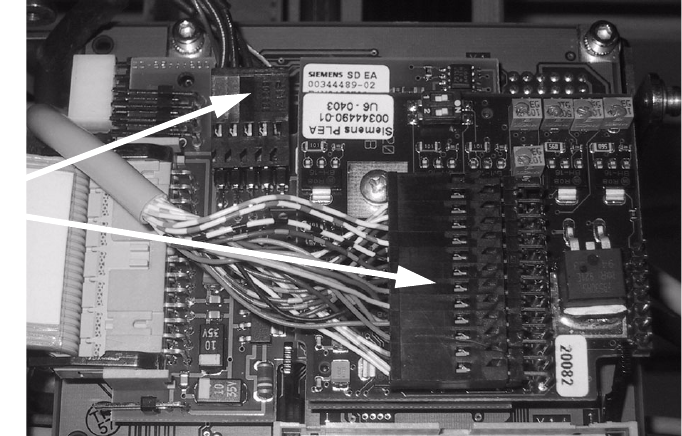
2.2.4 Laying Cables, Plugging into PCB Camera Board and Vision Board
: Run the two cables from the PCB camera Multicolor up to the head PCBs.
: Plug the connectors of the PCB camera Multicolor into the "Vision board modular" and into the
"PCB camera, modular" located above it.
2
: Fasten the cables running upward such that the strain on the connectors is relieved.
: Plug the ribbon cables.
2.2.5 Assembling the Placement Head and the Machine
: Place the covers previously removed back on the placement heads. Fasten the covers with 5
screws each.
: Place the covers on to cable pits.
: Re-install the servo unit (socket hex head cap screw M5).
: Apply screw-locking compound to the screw.
: Remove all of the tools, etc., from the machine’s working area.
: Mount the feeder covers.
: Turn the machine on at the main switch. The compressed air must be connected.
: Dock all movable component changeover tables with the previous allocation.
: Close the safety doors and safety hoods.
Connect
camera cables
SIPLACE S-25 HM / S-27 HM 2 Assembly Instructions for PCB Camera, Multicolor
02/2007 Edition 2.3 Configuration PCB Camera Multicolor on LC
75
2.3 Configuration PCB Camera Multicolor on LC
The software version 502.01 or later is a prerequisite for using the PCB camera Multicolor. 2
The optional PCB camera Multicolor is selected for SIPLACE 80 S-25 HM or HS-50 in the station
configurator of the UNIX line computer (LC). Insofar as this operation is concerned it can occur
before or after the PCB camera Multicolor is selected at the station in question, in the SITEST pro-
gram 502.xx. 2
: In the menu bar at the top, select "Services".
: In the pull-down menu that opens, select the option: "Station configuration".
: The window from which the machine is selected opens:
Select the machine on which the optional PCB camera Multicolor was installed.
: The "Main view of "Structure editor" is displayed automatically.
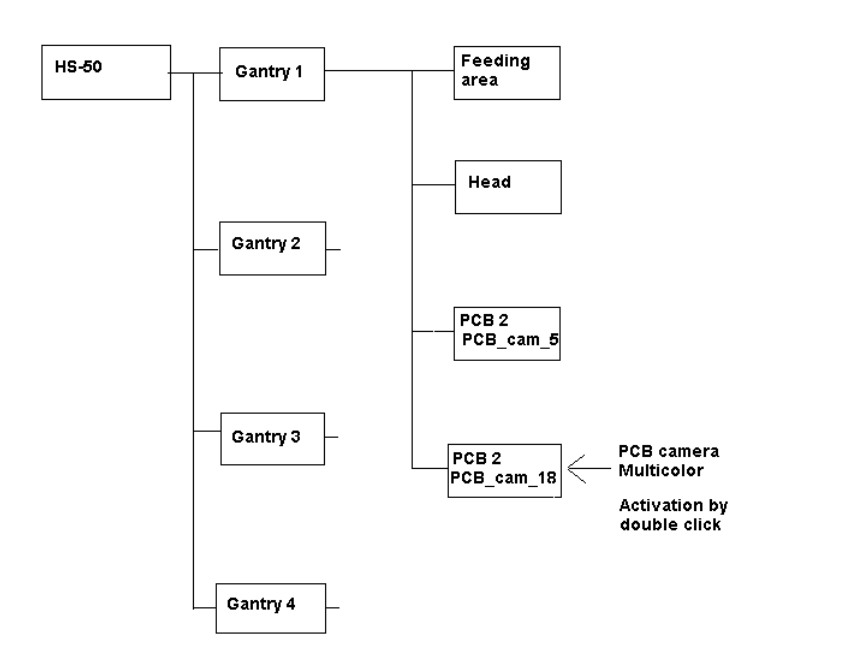
The selected machine is displayed graphically, arranged by gantries (1 to 2 or 4), and with the
pertinent substructures (component feeding areas, placement heads, PCB cameras, options,
etc.).
Abb. 2.3.1 Structural Overview, Example Using HS-50
2 Assembly Instructions for PCB Camera, Multicolor SIPLACE S-25 HM / S-27 HM
2.3 Configuration PCB Camera Multicolor on LC 02/2007 Edition
76
: The field "PCB camera Multicolor" is deactivated. Activate the optional PCB camera Multicolor
with a double click on "LP PC_cam _18", as illustrated above.
: Do this for all 4 / 2 gantries (HS-50 / S-25 HM).
: In the menu bar at top, in the Station Editor, select "File" -> "Save" - END".
: Then select: "File" -> "Data manager".
: Double click on the ICONs for "Master data".
: In the window that opens, double click on "Stations".
: Click once on the "Double click" field that opens and click once on "Compiler" to select it
and
: continue with a double click to select the pertinent station at which the PCB camera Multicolor
is used / was assemblied.
: In the "Data manager" window select the field "OK".
All of the windows are closed.
This concludes the work on the line computer for the configuration of the PCB camera Multi-
color. If you have not done so already, carry out the check "Camera Focus.... Substrate thick-
ness" as described in Abschn. 2.3.1. After this step continue with the activation/ configuration
and the illumination check (see Abschn. 2.4).
2
2
2
2
2
2
2
2
2
2
2
2
2
2
2