JUKI FX-3R MAINTENANCE GUIDE.pdf - 第144页
FX-3R Maintenance Guide 12-15 4) The folder named “ machine ” is then created under the D drive. In the same manner as described above, create “ prg ” folder under the machine folder. 5) Click the created “ Prg ” folder …
FX-3R Maintenance Guide
12-14
12-2-3-2. Setting Up a Shared Folder
You may set up a shared folder for the network communication.
Create a folder named “D:¥
machine¥Prg” under the D drive and make this Prg folder shared.
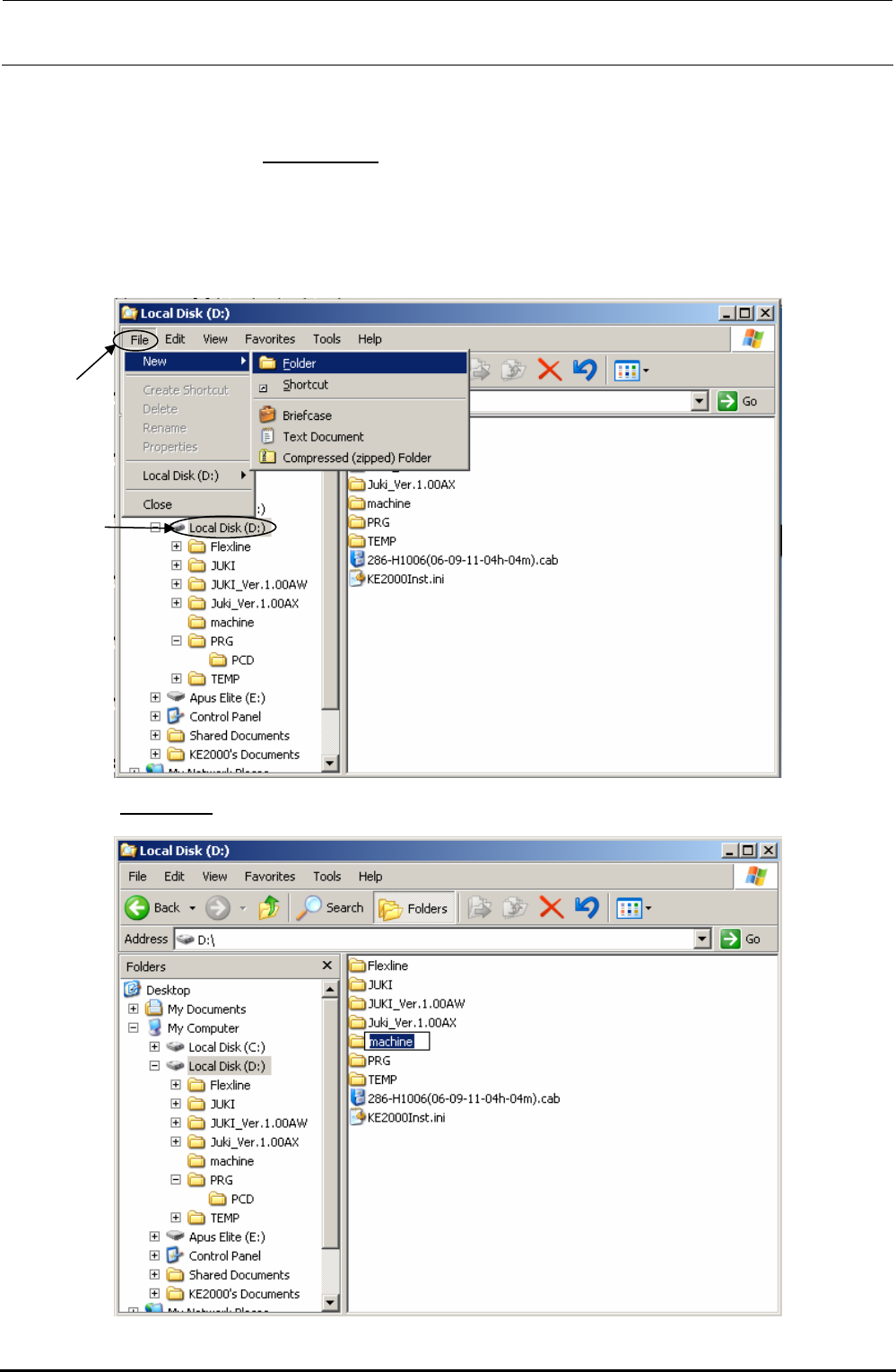
1) Start up Explorer.
2) Select the [drive D], and select the commands from the menu bar; [File], [New] and
[Folder] commands.
3) Enter “machine” as the folder name.
Rev. 1.00
FX-3R Maintenance Guide
12-15
4) The folder named “machine” is then created under the D drive. In the same manner as
described above, create “prg” folder under the machine folder.
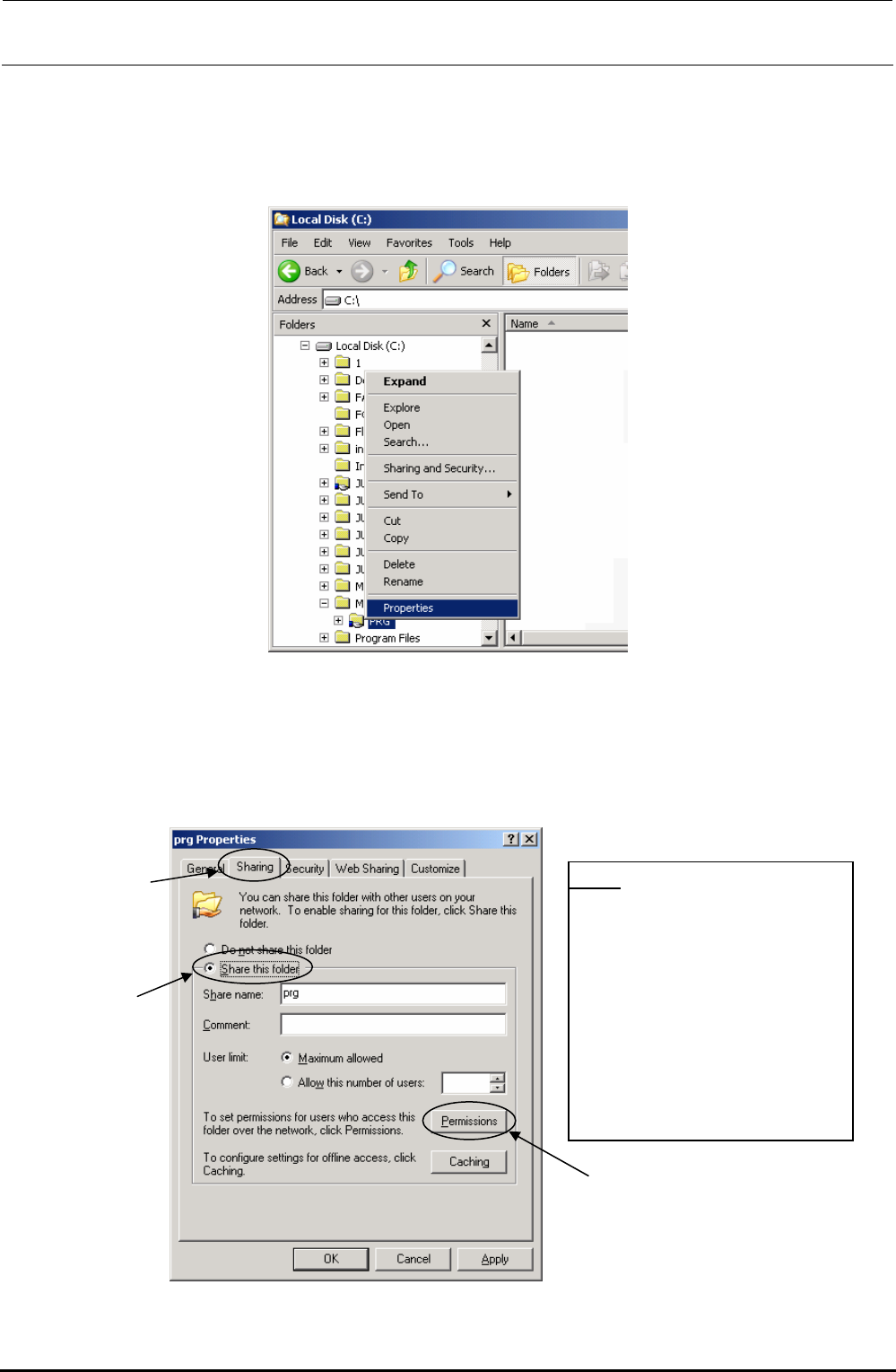
5) Click the created “Prg” folder with the right button, and select the [Sharing and Security] or
[Properties] command.
6) The “Prg Properties” dialog box appears on the screen. Click the “Sharing” tab from this
dialog box, and select the “Share this folder” radio button to check to see if “Prg” is entered
as the “Share Name.”
• If “Prg” is not entered in the “Shared Name” field, change the entered name to “Prg.”
• If any name is not entered, select the “Maximum Allowed” radio button for the “User Limit”
item.
*Note
Set up a shared folder so
that the shared folder name
“prg” is not duplicated in the
computer.
If a shared folder named
“prg” already exists, change
the name of the previously
existing folder name to that
other than “prg”.
Rev. 1.00
FX-3R Maintenance Guide
12-16
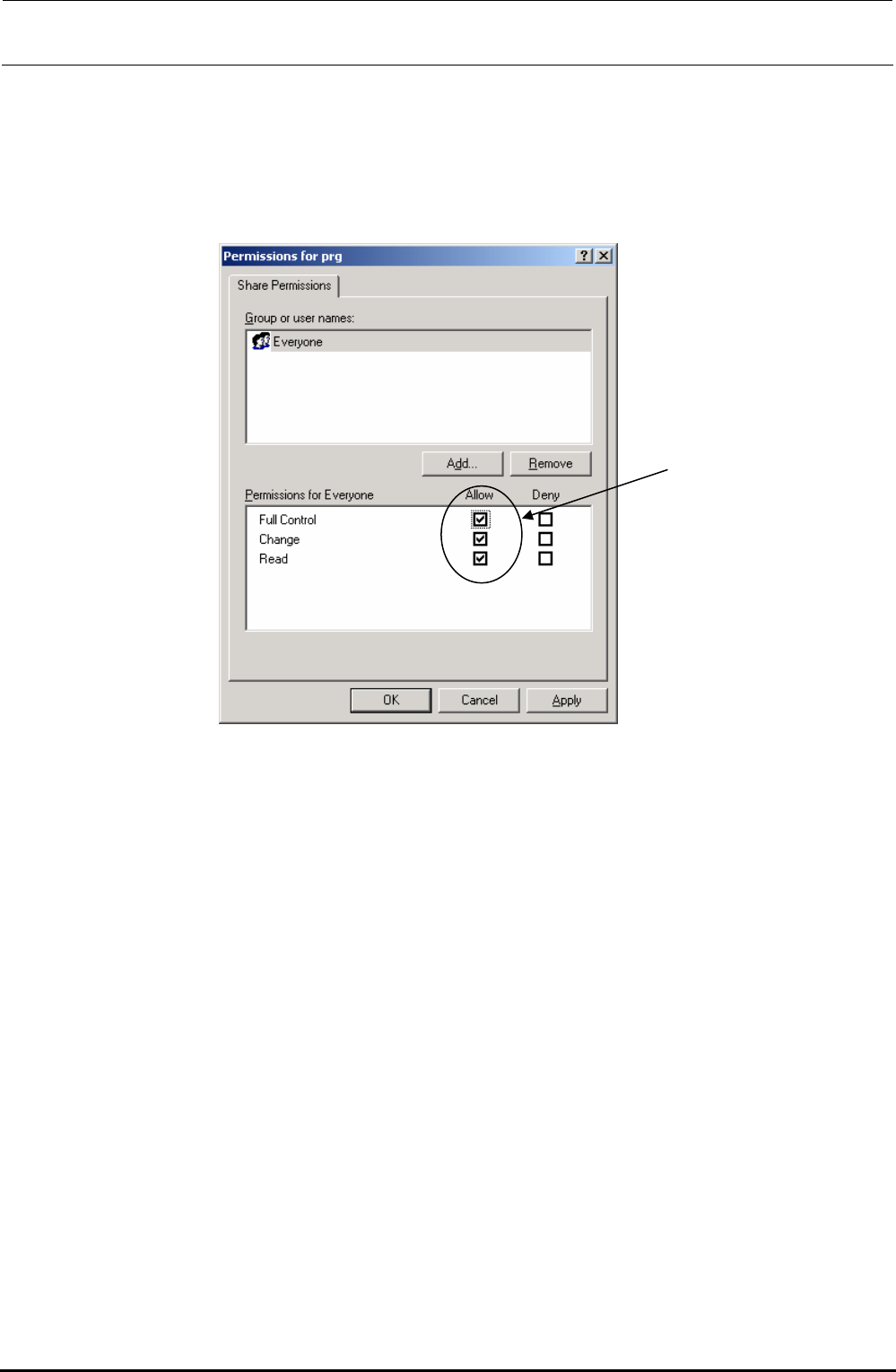
7) Click the [Permissions] button on the screen above to display the “Permissions for prg” dialog
box. Check to see if “Everyone” is set to “Full Control” by checking its check box.
Note) “Full Control” is allowed for the access privilege described above by default when
the network is shared on Windows NT. However, this privilege is not allowed on
XP-E, so you have to make the settings by yourself.
Rev. 1.00