JUKI FX-3R MAINTENANCE GUIDE.pdf - 第153页
FX-3R Maintenance Guide 12-24 10) When the installation is completed, the “ InstallS hield Wizard Completed ” screen will appear. Click the [Finish] button to complete the installation. Rev. 1.00
FX-3R Maintenance Guide
12-23
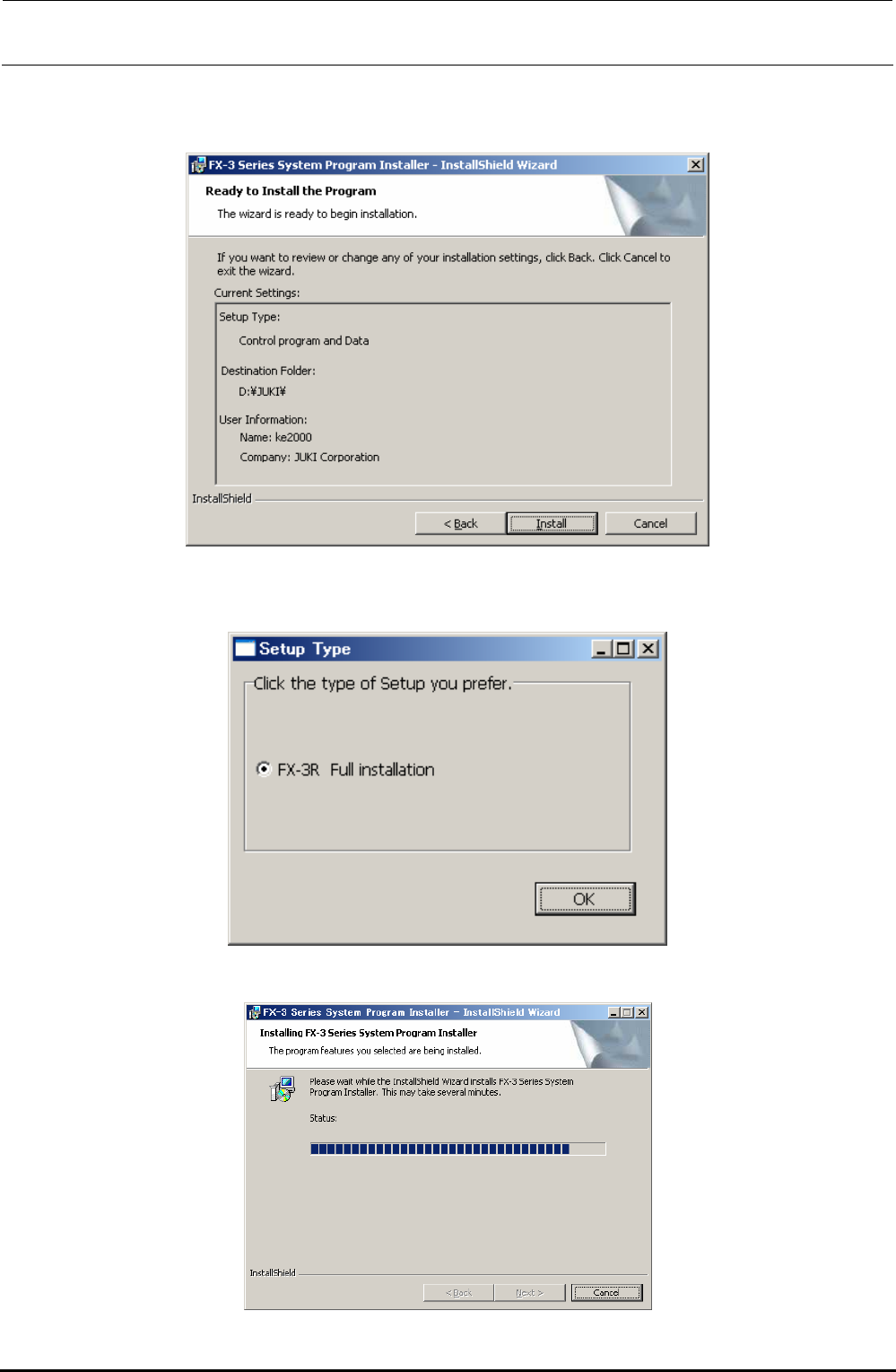
7) The “START INSTALLATION” confirmation dialog box will appear.
Click the [Install] button to move to step 8).
8) The “Setup Type” selection screen will appear.
Clicking the [OK] button will start the installation.
9) The progress status is shown using the progress bar during installation.
Rev. 1.00
FX-3R Maintenance Guide
12-24
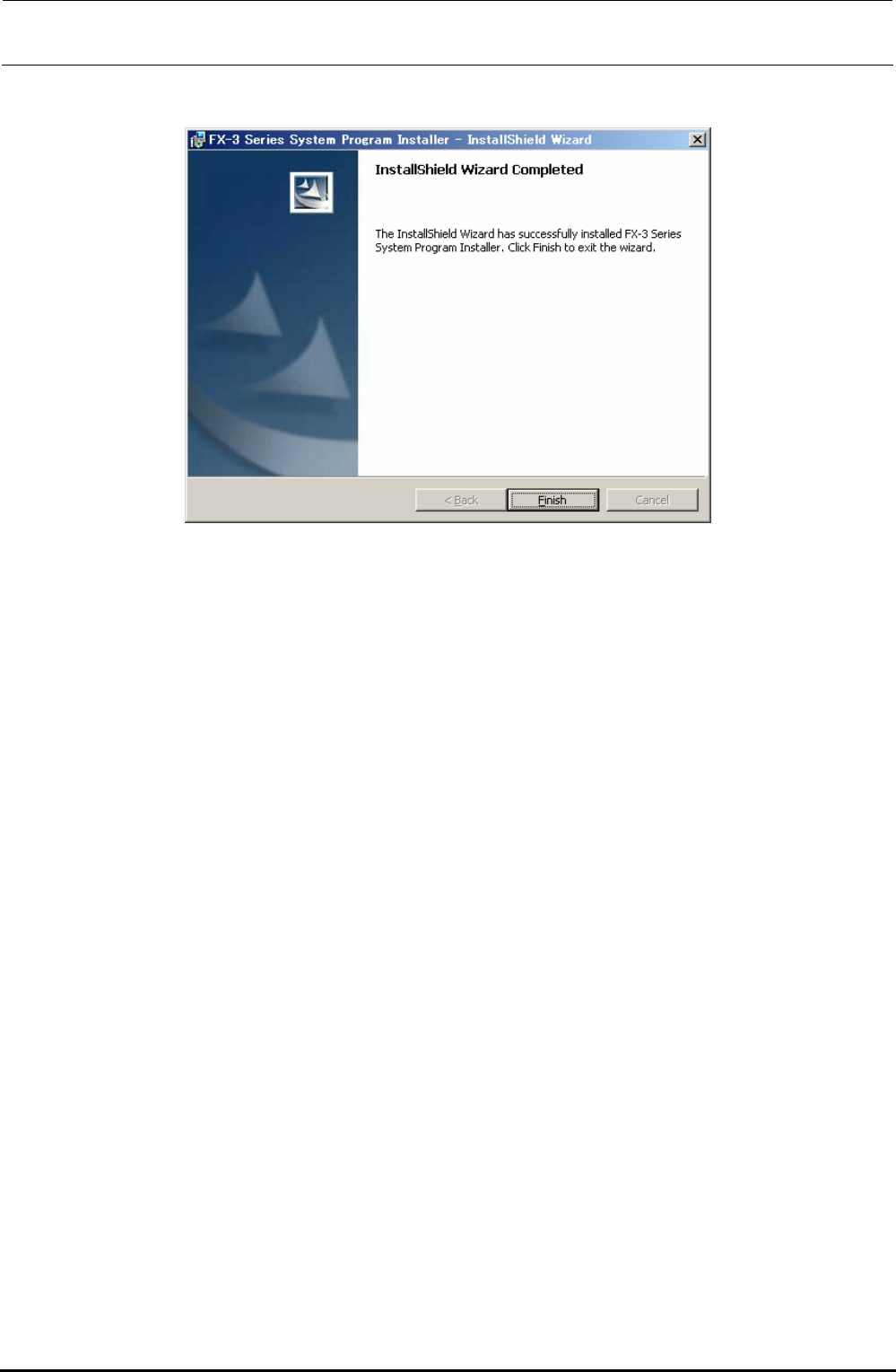
10) When the installation is completed, the “InstallShield Wizard Completed” screen will appear.
Click the [Finish] button to complete the installation.
Rev. 1.00
FX-3R Maintenance Guide
12-25
12-2-4-2. Installing the FlexlineDB
1) Prepare the USB or other media containing the FlexlineDB installation files.
2) Click the [Start] button of Windows and run Explorer from Programs in the Start menu.
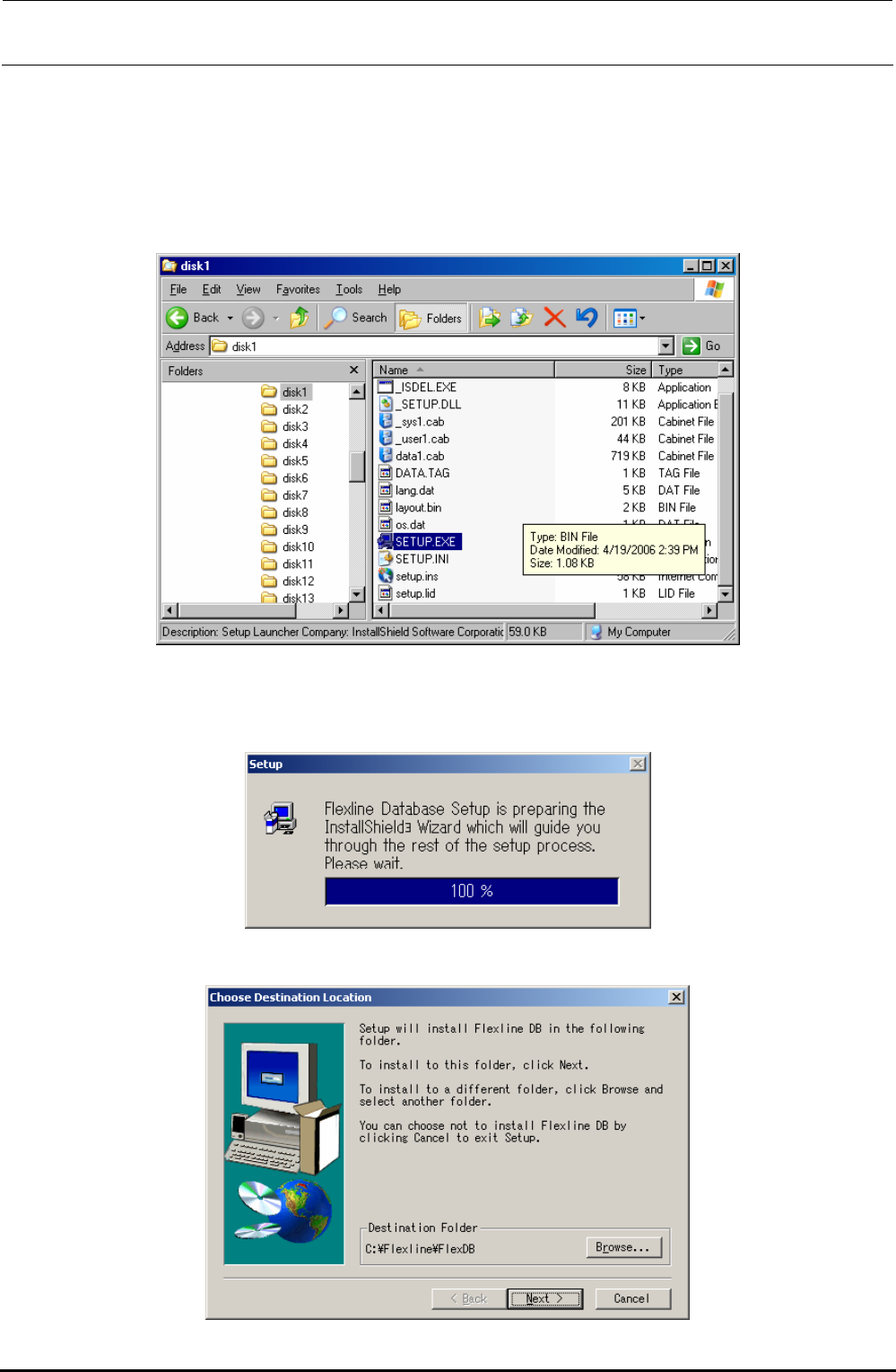
3) Select “Setup.exe” from the FlexlineDB installation disk prepared in step 1).
In the Explorer window, double-click “Setup.exe” you have selected to start the installation.
4) As “Setup.Exe” is started up, the “Setup” screen will appear to make the preparations for
installation.
This screen will disappear quickly and the operation automatically moves to step 5).
5) The “Choose Destination Location” screen will appear.
Rev. 1.00