KE2010.Instruction Manual.Ver.2.01,Rev.08.pdf - 第317页
4 – 210 (4) W hen continuous measurement f inishes W hen t he system f inishes measuring all components which satisfy the specif ied conditions, the f ollowing dialog box appears on the scr een. Figure 4.12.2. 4.3.7 “Inf…
4 – 209
3) <OK/NEXT> button (<START> button)
This button validates the result of measurement, then saves the measured
values into Component data. Then, the system starts measuring the next
component.
4) <STOP> button (ESC key)
This button cancels the result of measurement, then stops the current
continuous measurement operation to return to the previous “Continuation
measurement” dialog box.
5) <MEAS.> button (F7 key)
This button allows the system to enter Single Measurement mode.
6) Short-cut keys
On the “Result of continuation measurement” dialog box, the following
short-cut keys are provided.
Keyboard
key
Operation
panel key
HOD key Operation
START Validates the result, then measures the next
component.
ESC STOP Aborts the continuous measurement
operation.
F7 Enters Single Measurement mode.
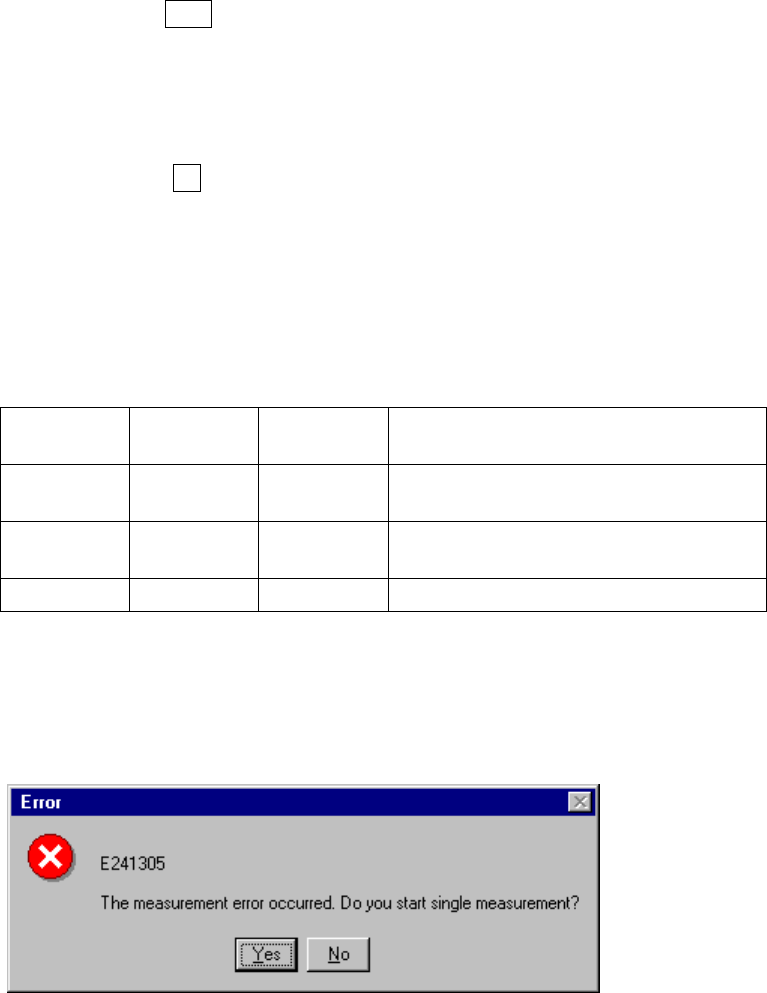
7) If a measurement error occurs
If a measurement error occurs for any reason, the following dialog box
appears on the screen to allow you to enter Single Measurement mode.
Figure 4.12.2.4.3.6 Continuous measurement error dialog box
4 – 210
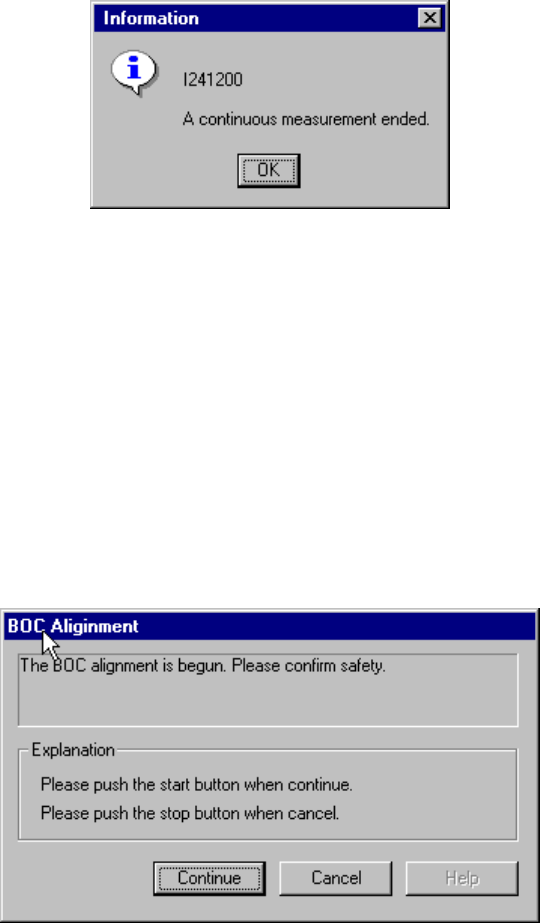
(4) When continuous measurement finishes
When the system finishes measuring all components which satisfy the specified
conditions, the following dialog box appears on the screen.
Figure 4.12.2.4.3.7 “Information” - End of continuous measurement dialog box
4.12.3 Confirmation
4.12.3.1 Mark - BOC
This command recognizes a BOC mark, then saves the measured coordinates of the
recognized BOC mark to the main unit. These measured coordinates are used to
correct coordinates during teaching of Placement data.
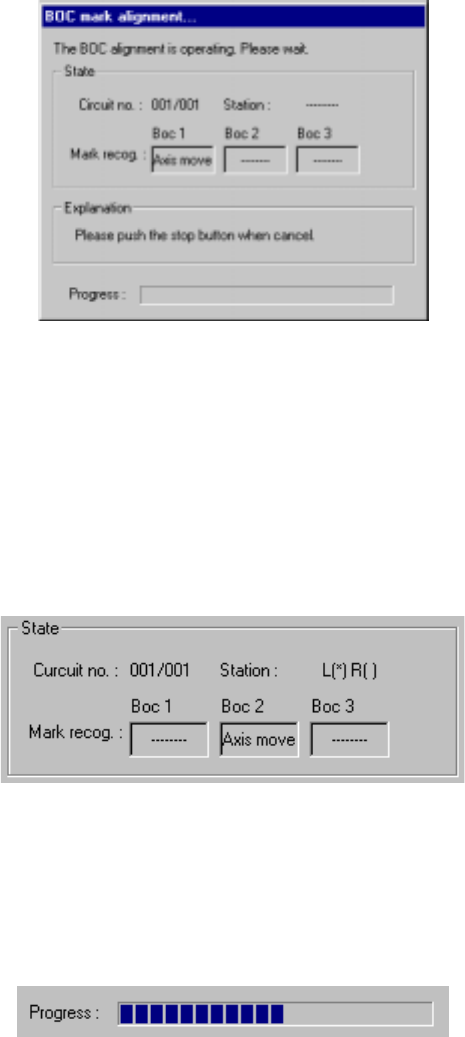
If the safety cover opens after you select the BOC command, the following dialog box
appears on the screen because the function to be invoked operates the axis.
Check the safety of the machine and yourself, then press the <Start> button.
Figure 4.12.3.1.1 BOC alignment - safety confirmation dialog box
4 – 211
When you press the <Start> button, the following dialog box appears on the screen
during BOC alignment operation.
To abort the operation for some reason, press the <Stop> button.
Figure 4.12.3.1.2 “BOC mark alignment” dialog box
1) State
① Circuit no
The number of circuit being recognized is displayed here. This number is
indicated in the format: “current circuit number”/”total number of circuits”.
(Normally, only a BOC of the reference circuit is recognized.)
② Station (available to a KE-2030 only)
The station which is recognizing a BOC mark is displayed here.
2) Progress
The progress bar indicates the progress of the current operation.