00195342-01_InstallationGuide_SiPro_4.1.pdf - 第27页
Installation manual SIPLACE Pro 4 Installati on of SIPLACE Pro and possible Setup Types Edition 12/2006 US 25 Note After a fr esh MSDE inst allation, the p asswor d is the Siemens Service default password. 4 Æ Choose you…
4 Installation of SIPLACE Pro and possible Setup Types Installation manual SIPLACE Pro
Edition 12/2006 US
24
Hint
Make sure that the properties for the user account are set to "Password never expires". Otherwise,
as soon as the password has expired, the system will not be operable until the COM+ package
SIPLACE Pro has been reconfigured. This can be done using the script COM+ServerAdmin.vbs,
which is located in the Start Menu (Start -->Programs --> SIPLACE Pro-->Administration -->
COM+Server Administration). For more details please contact your system administrator. 4
After SIPLACE Pro has successfully checked the user account and its administrator rights, the
SQL Server window opens. 4
Step 4
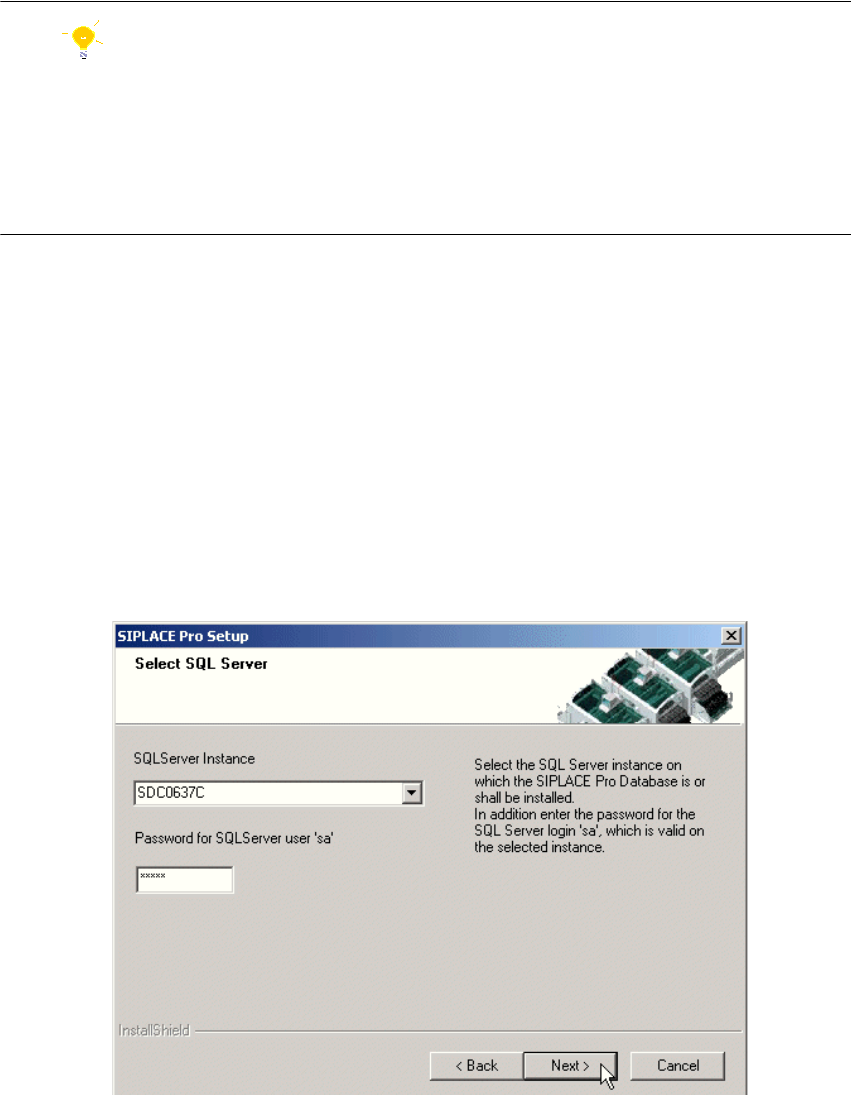
In the "Select SQL-Server" dialog box you enter the information required to connect to the SQL
Server and database. 4
In case a SIPLACE Pro database already exists, the integrity of the database will be checked now.
If the check results in error messages, these messages will be displayed and the setup cannot
continue with this database. Only after selecting another database by choosing another SQL
server instance or after restoring the database in an error-free state setup can continue. 4
4
Fig. 4 - 11 "Select SQL-Server" dialog box - in case a database exists
Æ Enter the "Password for the SQL Server user "sa", i.e. the SQL server system administrator.
Installation manual SIPLACE Pro 4 Installation of SIPLACE Pro and possible Setup Types
Edition 12/2006 US
25
Note
After a fresh MSDE installation, the password is the Siemens Service default password. 4
Æ Choose your SQL Server Instance from the drop-down menu.
Æ Click Next
Step 5
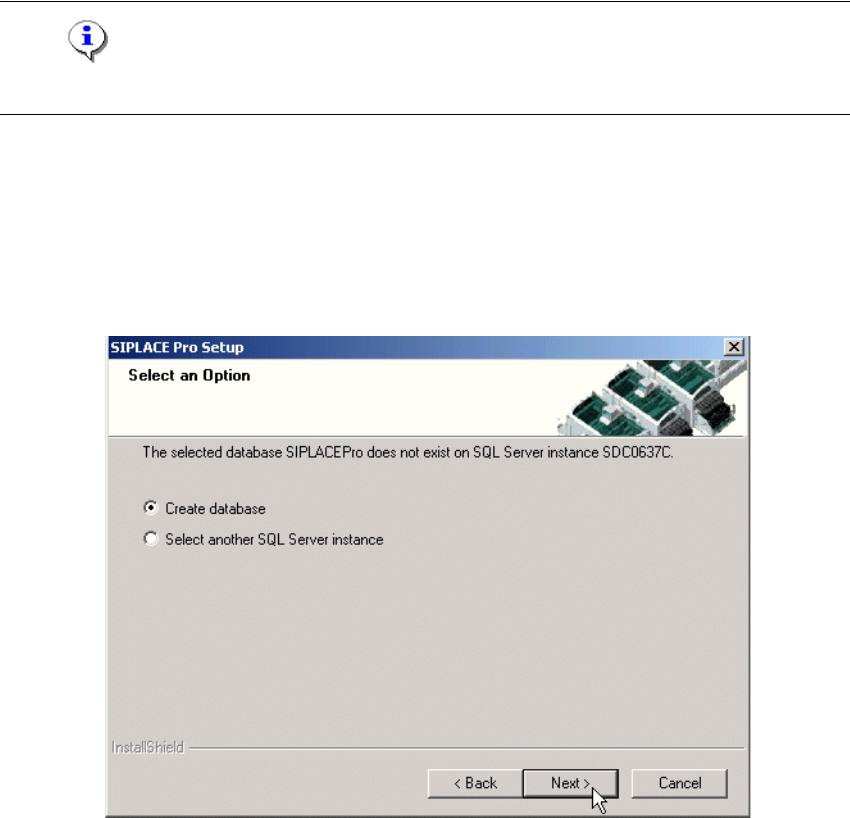
In case no database with the name SIPLACE Pro exists, the following dialog will appear: 4
4
Fig. 4 - 12 "Create database" dialog box - in case no database exists
Æ If you choose Select another SQL Server instance you will be returned to the previous
dialog.
Æ Click Next to create a new database
4 Installation of SIPLACE Pro and possible Setup Types Installation manual SIPLACE Pro
Edition 12/2006 US
26
.
4
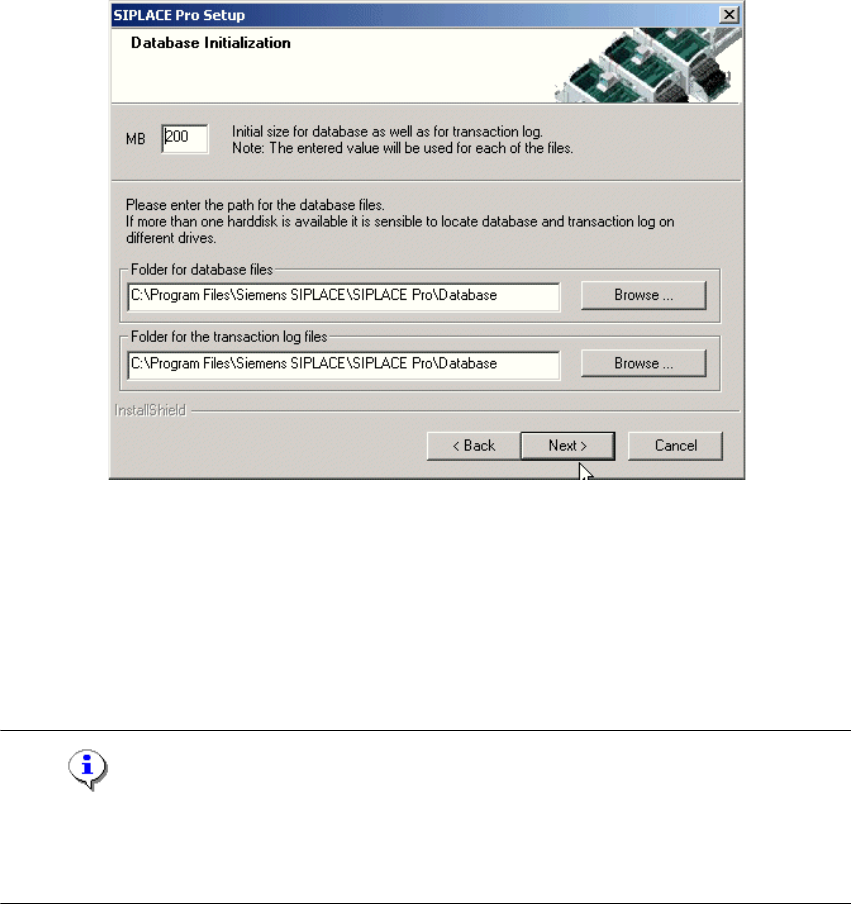
Fig. 4 - 13 "Database initialization" dialog box
The figure you enter in the MB text box defines the size of the SIPLACE Pro database files
(SIPLACE Pro Data.dat and SIPLACE Pro Log.dat) which are to be created during the
installation. 4
Æ Confirm the default value or
Æ enter the size you want in the MB text box.
Note
The specified size is only an initial value. The database will grow automatically as required.
However, only intervention by the database administrator is capable of freeing up unused disk
space. 4
Æ In the "database files" field, enter the directory in which the SIPLACE Pro Data.dat file is to be
created.
Æ In the transaction log files field, enter the name of the directory in which the
SIPLACE Pro Log.dat database file is to be created.
Æ Click Next.