00195342-01_InstallationGuide_SiPro_4.1.pdf - 第31页
Installation manual SIPLACE Pro 4 Installati on of SIPLACE Pro and possible Setup Types Edition 12/2006 US 29 Æ If you want to alter one or more details, click the Back button until you get back to the dial og box in que…
4 Installation of SIPLACE Pro and possible Setup Types Installation manual SIPLACE Pro
Edition 12/2006 US
28
4
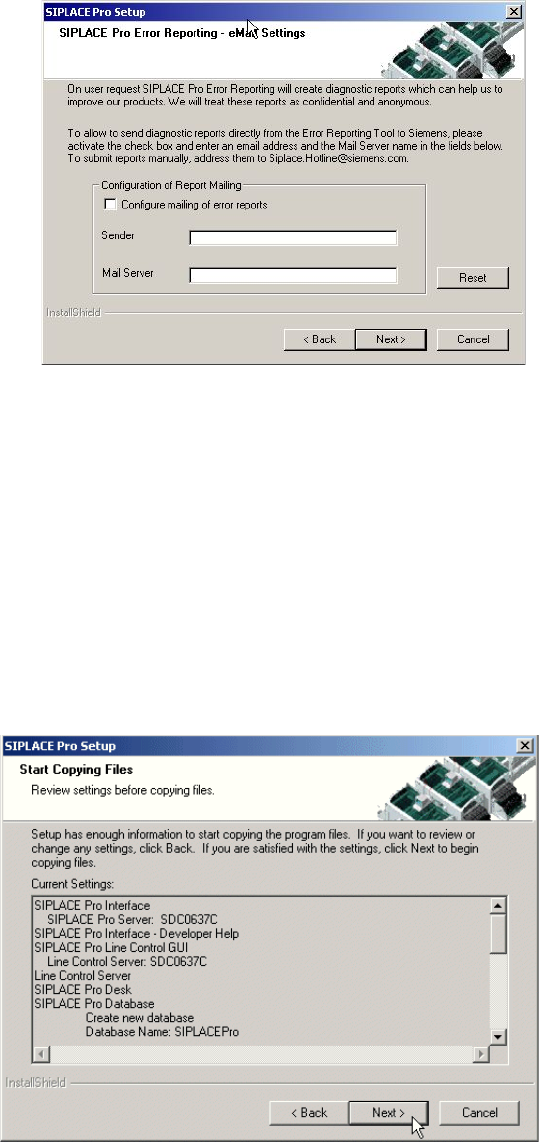
Fig. 4 - 15 Error Reporting
If mailing is configured, the SIPLACE Pro Error Reporting Tool will create diagnostic reports and
will mail these reports to Siemens. 4
The settings are used to configure the SIPLACE Pro Error Reporting Tool. Depending on your set-
tings these reports are automatically mailed to Siemens support personnel or are available for you
to be sent later on. 4
Step 8
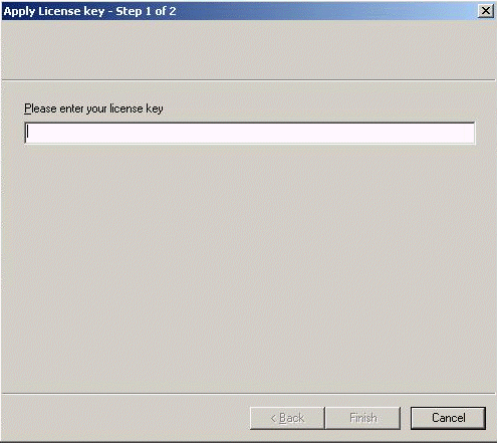
The "Start Copying Files" dialog box gives you a last chance to check the information you have
entered during the previous steps. 4
4
Fig. 4 - 16 The "Start Copying Files" dialog box
Æ Click Next if you accept all the information entered so far.
Installation manual SIPLACE Pro 4 Installation of SIPLACE Pro and possible Setup Types
Edition 12/2006 US
29
Æ If you want to alter one or more details, click the Back button until you get back to the dialog
box in question.
Æ There, enter your changes and click Next to continue as usual.
Step 9
The installation routine is now started. If SIPLACE Pro Server is selected for installation, one of
the installation steps requires a valid licence of SIPLACE Pro on this computer. If no such licence
is dectected, the Licence Manger application is started automatically during setup to enter a li-
cence key. The Licence Manger displays following dialogs as described below. 4
4
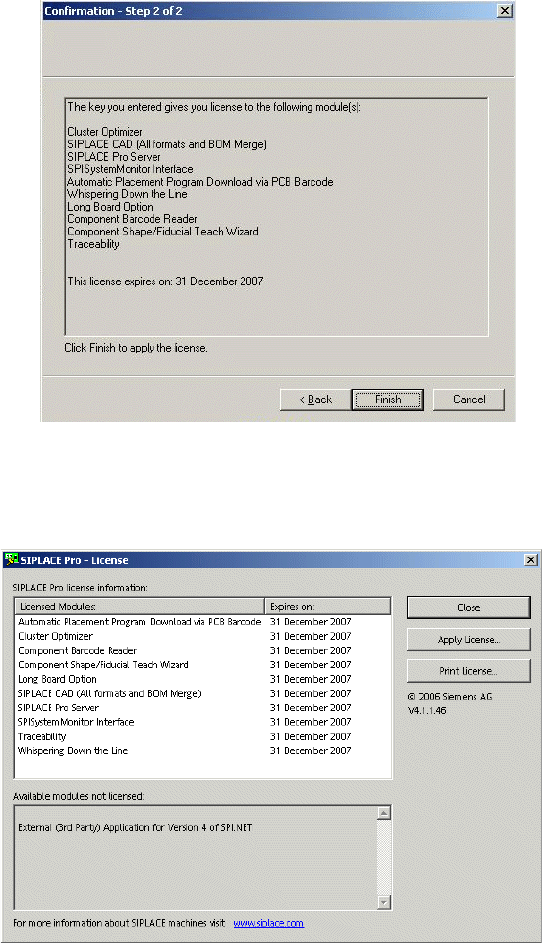
Fig. 4 - 17 Enter and apply licence key
– Enter the licence key (Step 1 of 2).
– Click Finish to continue.
4 Installation of SIPLACE Pro and possible Setup Types Installation manual SIPLACE Pro
Edition 12/2006 US
30
4
Fig. 4 - 18 Finish licence key
– Click Finish to apply the licence(s) (Step 2 of 2). All licensed modules are listed.
4
Fig. 4 - 19 List licence key C
– Click Close to finish.
Step 10
– The "Setup Complete" window confirms that the installation has been completed successfully.
– If you are prompted to reboot the computer, be sure the CD is still in the drive and leave it there
until the computer has completely rebooted.