00195342-01_InstallationGuide_SiPro_4.1.pdf - 第30页
4 Installation of SIPLACE Pro and possible Setup Types Installation manual SIPLACE Pro Edition 12/2006 US 28 4 Fig. 4 - 15 Error Reporting If mailing is configured, the SI PLACE Pro Error Reporting T ool will create diag…
Installation manual SIPLACE Pro 4 Installation of SIPLACE Pro and possible Setup Types
Edition 12/2006 US
27
Note
You can specify a different folder for each of the database files. Indeed, having the files on different
hard disks can improve disk access performance. 4
Step 6
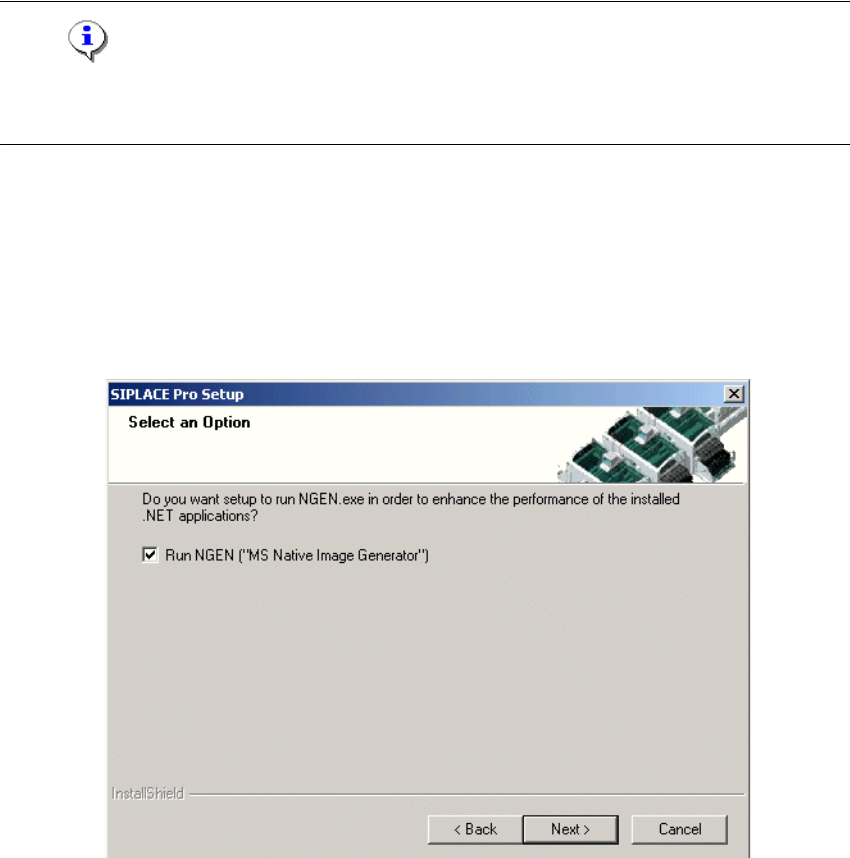
In the "Select an Option" dialog box the Native Image Generator (NGEN) may be configured. By
default this option is activated. In case the Native Image Generator is activated, this tool performs
some time-consuming optimization steps during installation. This results later on in much higher
performance each time SIPLACE Pro applications (Desk, LC GUI, LC Server) are started 4
4
Fig. 4 - 14 Native Image Generator setup
Æ Click Next to start the setup.
Step 7
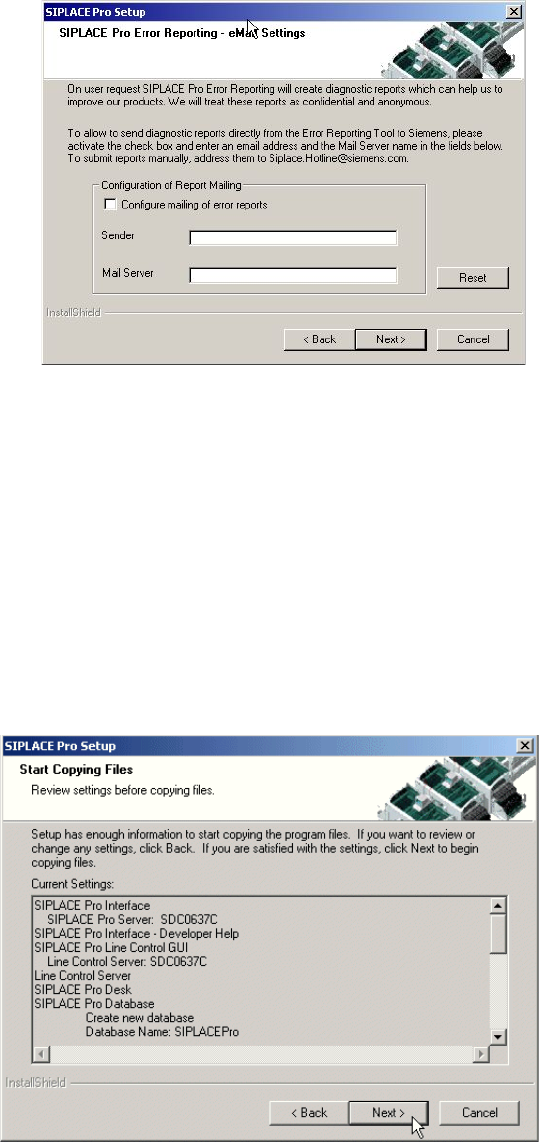
Æ If you wish for Error Reports to be sent automatically to Siemens, fill in your email address, Mail
Server name and choose "Configure mailing of reports". The mail server field is preset to a
valid name as found in your domain if you have chosen "Configure mailing of reports".
Æ If you do not wish for any Error reports to be sent make sure that "Configure mailing of re-
ports" is deactivated.
Æ Click Next.
4 Installation of SIPLACE Pro and possible Setup Types Installation manual SIPLACE Pro
Edition 12/2006 US
28
4
Fig. 4 - 15 Error Reporting
If mailing is configured, the SIPLACE Pro Error Reporting Tool will create diagnostic reports and
will mail these reports to Siemens. 4
The settings are used to configure the SIPLACE Pro Error Reporting Tool. Depending on your set-
tings these reports are automatically mailed to Siemens support personnel or are available for you
to be sent later on. 4
Step 8
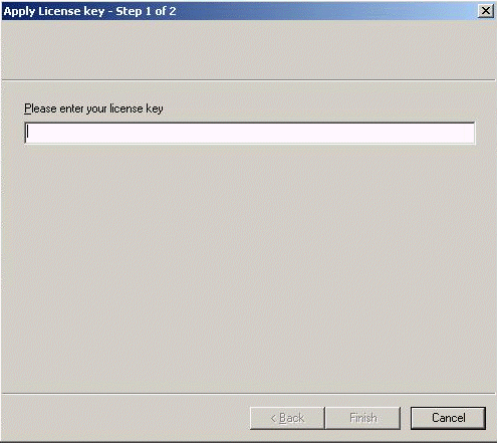
The "Start Copying Files" dialog box gives you a last chance to check the information you have
entered during the previous steps. 4
4
Fig. 4 - 16 The "Start Copying Files" dialog box
Æ Click Next if you accept all the information entered so far.
Installation manual SIPLACE Pro 4 Installation of SIPLACE Pro and possible Setup Types
Edition 12/2006 US
29
Æ If you want to alter one or more details, click the Back button until you get back to the dialog
box in question.
Æ There, enter your changes and click Next to continue as usual.
Step 9
The installation routine is now started. If SIPLACE Pro Server is selected for installation, one of
the installation steps requires a valid licence of SIPLACE Pro on this computer. If no such licence
is dectected, the Licence Manger application is started automatically during setup to enter a li-
cence key. The Licence Manger displays following dialogs as described below. 4
4
Fig. 4 - 17 Enter and apply licence key
– Enter the licence key (Step 1 of 2).
– Click Finish to continue.