00195342-01_InstallationGuide_SiPro_4.1.pdf - 第58页
7 Troubleshooting Installation manual SIPLACE Pro Edition 12/2006 US 56 Æ Check for entries of type "Error" from Source "Msi lnstaller" at the correc t time. If you find such entries with a time stamp…
Installation manual SIPLACE Pro 7 Troubleshooting
Edition 12/2006 US
55
Æ Expand the database node and see that the database "SIPLACEPro" is shown with "(Single
User)".
Æ Right-click on the database node "SIPLACEPro".
Æ From the context menu select "Properties".
Æ In the property dialog select the "options" pane.
Æ Uncheck the checkbox "restricted access".
Æ Close the properties dialog.
Æ Check that the database name is now shown without option in brackets.
Æ Close SQLServer EnterpriseManager
Æ and start the SIPLACE Pro application as required.
7.2.2 System feature (e.g. creating a report) not usable right after installation
Error description: 7
In rare cases it is possible that parts of the system are only installed when a specific feature (e.g.
reporting) is used for the first time after installation. If the SetupCD is available in the drive from
where the software has been installed, this post-installation is automatically performed. 7
If the SetupCD is not in the drive (which is most likely the case), invocation of that feature will fail
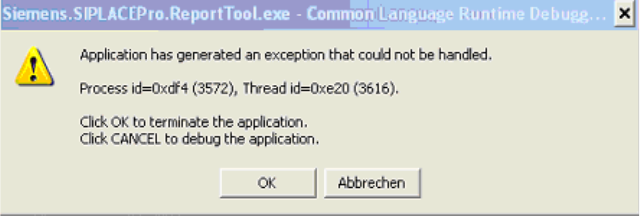
and produce error messages like "could not load DLL" or even more cryptic like in the following
screenshot. 7
7
Fig. 7 - 6 Error message
Solution: 7
If you experience such messages after installation, please check in the Event Log to see if the
error message is in fact caused by a failed post-installation. Plese follow these steps to to this: 7
Æ To open the Event Viewer, go to Start Menu ->Run, enter "eventvwr" and click OK.
Æ Select "Application Log".
All logged application events will be displayed. The latest is at the top of the list.
7 Troubleshooting Installation manual SIPLACE Pro
Edition 12/2006 US
56
Æ Check for entries of type "Error" from Source "Msilnstaller" at the correct time. If you find such
entries with a timestamp matching the time when you received the error, it is likely that a post-
installation has been invoked and failed due to the missing Setup CD.
Æ If no such entries are found in the eventlog, the error message has another unknown reason.
7
If the above check has had a positive result (point 3 above), the problem can be solved by: 7
Æ inserting the SetupCD in the drive from where you installed the software. If you installed from
a network drive, be sure that you use the same share with the same drive letter.
Æ or by trying to reinvoke the feature which just failed. As soon as the post-installation has been
performed (with or without user feedback), the feature should start as expected. If it doesn‘t,
the error message has another unknown reason.
Note
Make sure that you log in using an account with administrator rights. 7
7.2.3 Error message when upgrading to SIPLACE Pro 4.1
Error Description: 7
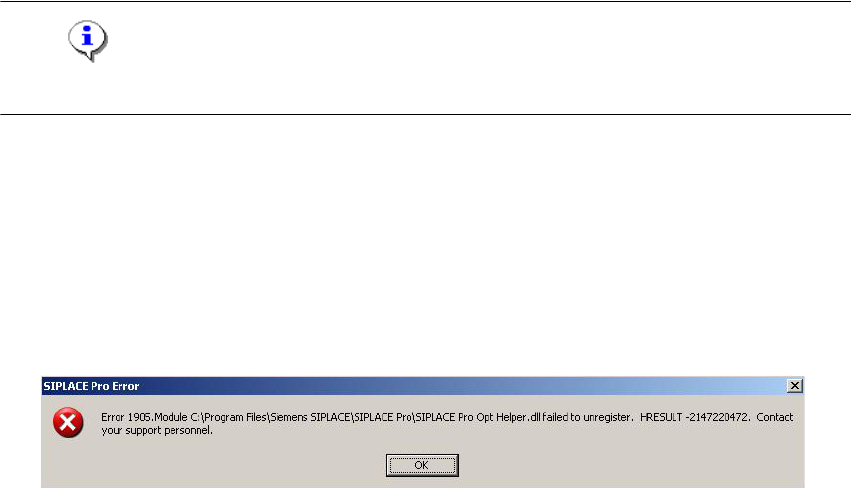
When upgrading SIPLACE Pro 4.0 to SIPLACE Pro 4.1 following error message "SIplace Pro Opt
Helper.dll failed to unregister" is displayed. 7
7
Solution: 7
The error message may be ignored since it does not influence the function of the application. 7

Installation manual SIPLACE Pro 8 Uninstalling
Edition 12/2006 US
57
8 Uninstalling
8.1 Uninstalling the software
Uninstalling SIPLACE Pro deletes all SIPLACE Pro software components from the system except
for the SIPLACE Pro Database. 8
The SIPLACE Pro Database is not automatically uninstalled in order to prevent possible data
loss. 8
Step 1
Uninstall SIPLACE Pro via the Control Panel. 8
You require the uninstall window in Windows for uninstalling. 8
Æ Click Start in the Windows start menu.
Æ Click Settings.
Æ Click Control Panel.
Æ Double-click Add / Remove Programs.
A list appears with the names of the software packages installed on the computer. 8
Æ Select SIPLACE Pro.
Æ Click the Change/Remove components button.
Æ Select Remove to remove all installed features.
Æ In the "Confirm File Deletion" dialog box, click OK if you wish to proceed or Cancel if you wish
to cancel the uninstall process.
Æ Click Next to continue.
Æ In the "Confirm Uninstall" dialog box, click OK if you wish to proceed or Cancel if you wish to
cancel the uninstall process.
Æ In the license dialog box you could choose if you want to keep the license on this computer for
future installations or if you want to remove the license from this computer.