00195342-01_InstallationGuide_SiPro_4.1.pdf - 第56页
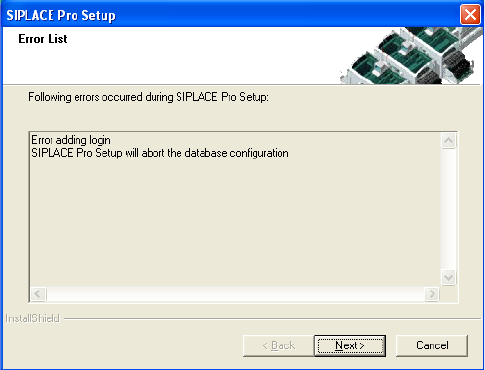
7 Troubleshooting Installation manual SIPLACE Pro Edition 12/2006 US 54 – Solution: If these or other generic error mess ages are disp layed during in stallation of SIPLACE Pro , please refer to the InstallShi eld Custo …
Installation manual SIPLACE Pro 7 Troubleshooting
Edition 12/2006 US
53
7
Cause: 7
When a database is restored but the repair security script hasn’t completed successfully. 7
Solution: 7
Click on Next. Setup will return the database to it’s state at the beginning of the Installation. The
database administrator should start the Query Analyser (or equivalent) and run the script
RepairSecurity.tsq, which can be found in the SIPLACE Pro Installation directory in the folder
DBSkripts. Now restart Setup.exe. The database should now be processed correctly. 7
7.1.7 Error - 16xx...
Error description: 7
Message with unspecific error message "Error -16xx ..." is displayed during setup. 7
Cause: 7
SIPLACE Pro's installation program is made up of several programs running simultaneously, and
in this case, the runtime system of the installation may detect errors, which cannot be caught or
handled by the installation program. Therefore the native error messages as provided by the
runtime system are displayed. Examples for such errors are: 7
– Error -1601 The Windows InstallerService could not be accessed.
– Error -1603: Fatal Error During Installation
– Error -1607: Unable to Install InstallShield Scripting Runtime
– Error -1608: Unable to create InstallDriver instance
– Error -1628: Failed to complete script based install
7
7
7 Troubleshooting Installation manual SIPLACE Pro
Edition 12/2006 US
54
– Solution:
If these or other generic error messages are displayed during installation of SIPLACE Pro, please
refer to the InstallShield Customer Central (http://consumer.installshield.com/common.asp
) for in-
formation on how to handle this case. 7
7.2 After installation
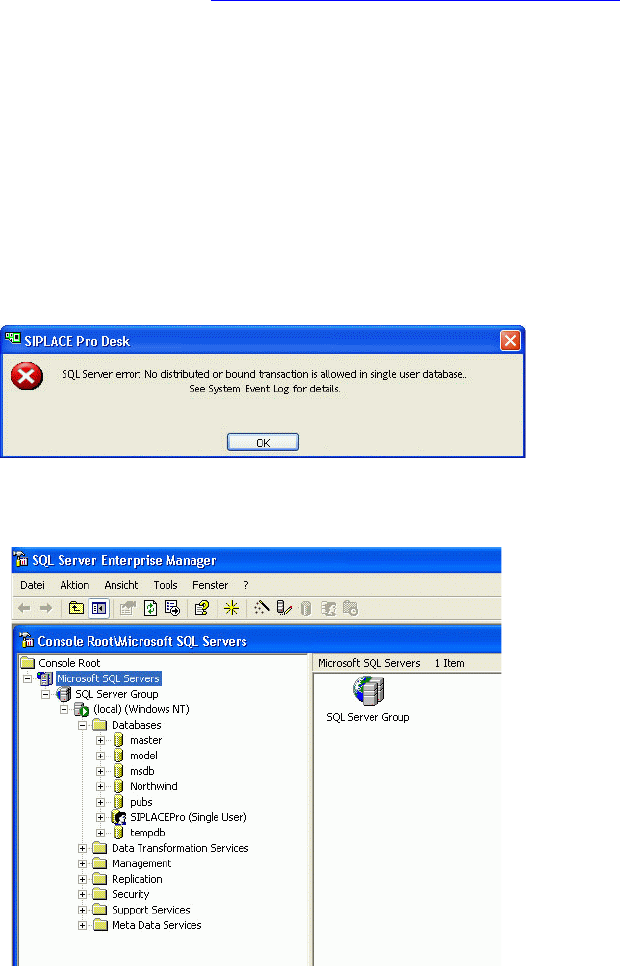
7.2.1 Database in single user mode after installation of SIPLACE Pro
Error description: 7
After the installation, the database is in single user mode and SIPLACE Pro can not be started 7
. 7
Fig. 7 - 4 Single user mode - error message
7
Fig. 7 - 5 Single user mode - SQL Server
Solution: 7
Æ Open SQLServer EnterpriseManager.
Æ In the tree view locate the server where the SIPLACE Pro database is installed.
Installation manual SIPLACE Pro 7 Troubleshooting
Edition 12/2006 US
55
Æ Expand the database node and see that the database "SIPLACEPro" is shown with "(Single
User)".
Æ Right-click on the database node "SIPLACEPro".
Æ From the context menu select "Properties".
Æ In the property dialog select the "options" pane.
Æ Uncheck the checkbox "restricted access".
Æ Close the properties dialog.
Æ Check that the database name is now shown without option in brackets.
Æ Close SQLServer EnterpriseManager
Æ and start the SIPLACE Pro application as required.
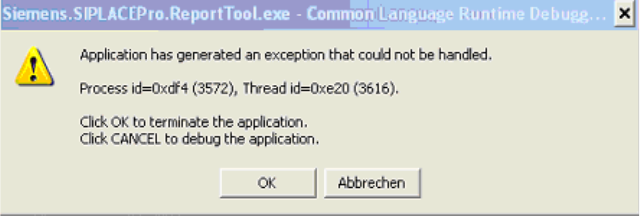
7.2.2 System feature (e.g. creating a report) not usable right after installation
Error description: 7
In rare cases it is possible that parts of the system are only installed when a specific feature (e.g.
reporting) is used for the first time after installation. If the SetupCD is available in the drive from
where the software has been installed, this post-installation is automatically performed. 7
If the SetupCD is not in the drive (which is most likely the case), invocation of that feature will fail
and produce error messages like "could not load DLL" or even more cryptic like in the following
screenshot. 7
7
Fig. 7 - 6 Error message
Solution: 7
If you experience such messages after installation, please check in the Event Log to see if the
error message is in fact caused by a failed post-installation. Plese follow these steps to to this: 7
Æ To open the Event Viewer, go to Start Menu ->Run, enter "eventvwr" and click OK.
Æ Select "Application Log".
All logged application events will be displayed. The latest is at the top of the list.