00195342-01_InstallationGuide_SiPro_4.1.pdf - 第32页
4 Installation of SIPLACE Pro and possible Setup Types Installation manual SIPLACE Pro Edition 12/2006 US 30 4 Fig. 4 - 18 Finish licence key – Click Finis h to apply the licence(s) (S tep 2 of 2). All licensed modules a…
Installation manual SIPLACE Pro 4 Installation of SIPLACE Pro and possible Setup Types
Edition 12/2006 US
29
Æ If you want to alter one or more details, click the Back button until you get back to the dialog
box in question.
Æ There, enter your changes and click Next to continue as usual.
Step 9
The installation routine is now started. If SIPLACE Pro Server is selected for installation, one of
the installation steps requires a valid licence of SIPLACE Pro on this computer. If no such licence
is dectected, the Licence Manger application is started automatically during setup to enter a li-
cence key. The Licence Manger displays following dialogs as described below. 4
4
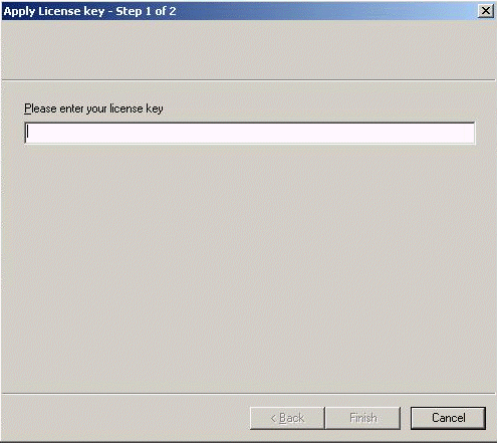
Fig. 4 - 17 Enter and apply licence key
– Enter the licence key (Step 1 of 2).
– Click Finish to continue.
4 Installation of SIPLACE Pro and possible Setup Types Installation manual SIPLACE Pro
Edition 12/2006 US
30
4
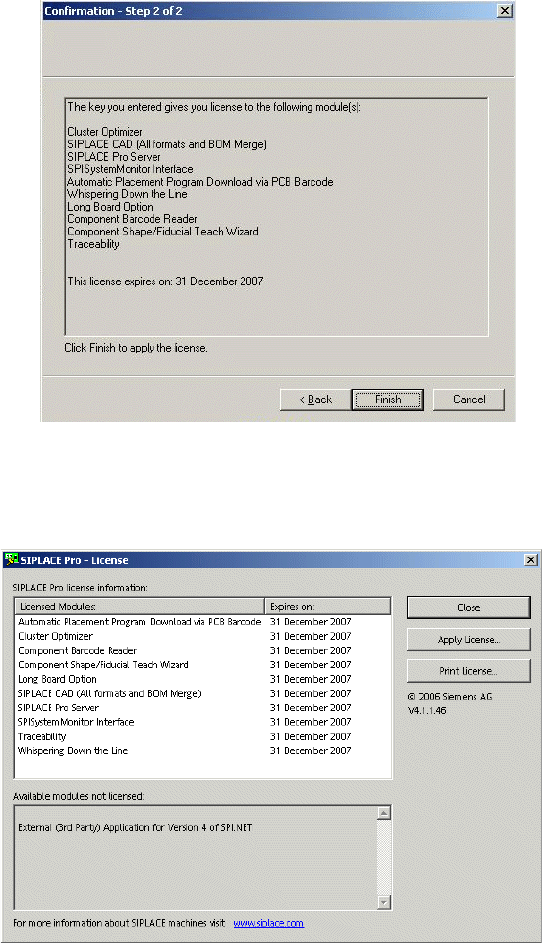
Fig. 4 - 18 Finish licence key
– Click Finish to apply the licence(s) (Step 2 of 2). All licensed modules are listed.
4
Fig. 4 - 19 List licence key C
– Click Close to finish.
Step 10
– The "Setup Complete" window confirms that the installation has been completed successfully.
– If you are prompted to reboot the computer, be sure the CD is still in the drive and leave it there
until the computer has completely rebooted.
Installation manual SIPLACE Pro 4 Installation of SIPLACE Pro and possible Setup Types
Edition 12/2006 US
31
4.2.3 Setup Type – SIPLACE Pro Desk
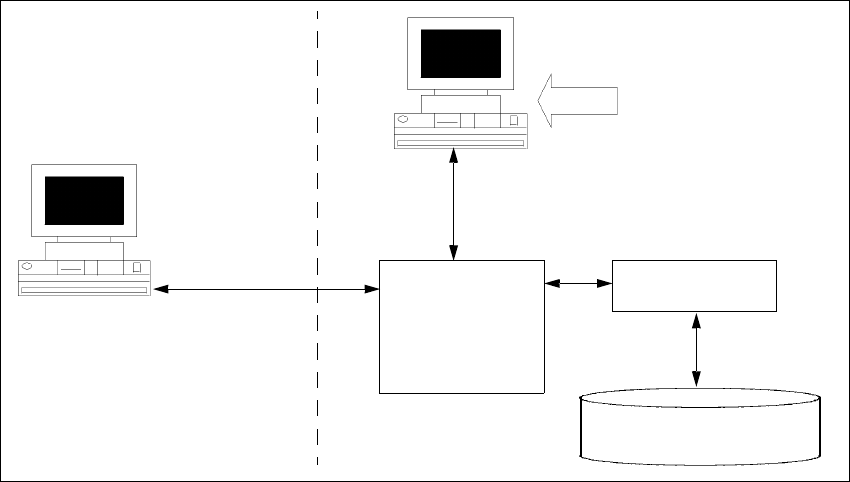
This setup type only contains a "Client" portion of SIPLACE Pro, i.e. the user interface. The
SIPLACE Pro Desk setup requires that the SIPLACE Pro server has already been installed either
locally or remotely. The SIPLACE Pro Desk setup type is used in a distributed system in order to
create additional programming desks which are only operational together with the server. 4
4
Fig. 4 - 20 Components – SIPLACE Pro Desk (sample configuration)
Step 1
Æ Run through the steps in ”Starting installation – first steps” from page 13.
Æ Select the SIPLACE Pro Desk setup type.
Æ Click Next.
MS SQL Server with
SIPLACE Pro Server and
Database pre-installed
SIPLACE Pro
Desk
SIPLACE Pro
Interface
Setup
COM+
Resource
Manager
COM+
Line computer
master data