00195342-01_InstallationGuide_SiPro_4.1.pdf - 第55页
Installation manual SIPLACE Pro 7 Troubleshooting Edition 12/2006 US 53 7 Cause: 7 When a databa se is restored but the repair security script hasn’t completed successfully . 7 Solution: 7 Click on Next . Setup will retu…
7 Troubleshooting Installation manual SIPLACE Pro
Edition 12/2006 US
52
. 7
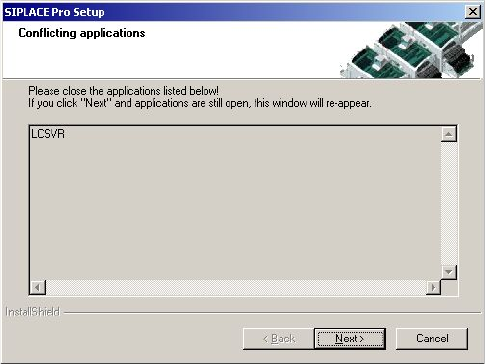
Fig. 7 - 3 Conflicting applications
Cause: 7
The service LineControlServer could not be stopped. 7
Solution: 7
Please proceed as follows: 7
Æ (1) Press the Next button several times. Sometimes the applications simply need time to close.
As soon as the application is terminated, the installation will continue.
Æ (2) Check if the LCGUI is running on another client. If yes, please stop it and try to continue
the installation by pressing the Next button again.
Æ (3) Open Services from the start menu (Start/Settings/System Control/Administration/Services.
Locate the line for the "LineControlServer". If the status is "started", try to stop the service by
context menu. After that try to continue the installation by pressing the button Next.
Æ (4) If the Service cannot be "stopped", the service could not be stopped as requested. Please
restart your computer.
7.1.6 Cannot add Logins
Error description: 7
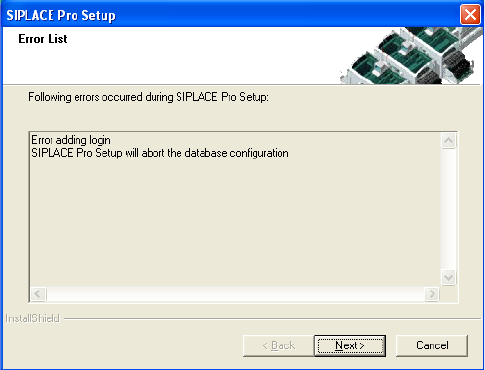
The installation displays in the dialog "Cannot add Logins, need to run Repair Security". 7
Installation manual SIPLACE Pro 7 Troubleshooting
Edition 12/2006 US
53
7
Cause: 7
When a database is restored but the repair security script hasn’t completed successfully. 7
Solution: 7
Click on Next. Setup will return the database to it’s state at the beginning of the Installation. The
database administrator should start the Query Analyser (or equivalent) and run the script
RepairSecurity.tsq, which can be found in the SIPLACE Pro Installation directory in the folder
DBSkripts. Now restart Setup.exe. The database should now be processed correctly. 7
7.1.7 Error - 16xx...
Error description: 7
Message with unspecific error message "Error -16xx ..." is displayed during setup. 7
Cause: 7
SIPLACE Pro's installation program is made up of several programs running simultaneously, and
in this case, the runtime system of the installation may detect errors, which cannot be caught or
handled by the installation program. Therefore the native error messages as provided by the
runtime system are displayed. Examples for such errors are: 7
– Error -1601 The Windows InstallerService could not be accessed.
– Error -1603: Fatal Error During Installation
– Error -1607: Unable to Install InstallShield Scripting Runtime
– Error -1608: Unable to create InstallDriver instance
– Error -1628: Failed to complete script based install
7
7
7 Troubleshooting Installation manual SIPLACE Pro
Edition 12/2006 US
54
– Solution:
If these or other generic error messages are displayed during installation of SIPLACE Pro, please
refer to the InstallShield Customer Central (http://consumer.installshield.com/common.asp
) for in-
formation on how to handle this case. 7
7.2 After installation
7.2.1 Database in single user mode after installation of SIPLACE Pro
Error description: 7
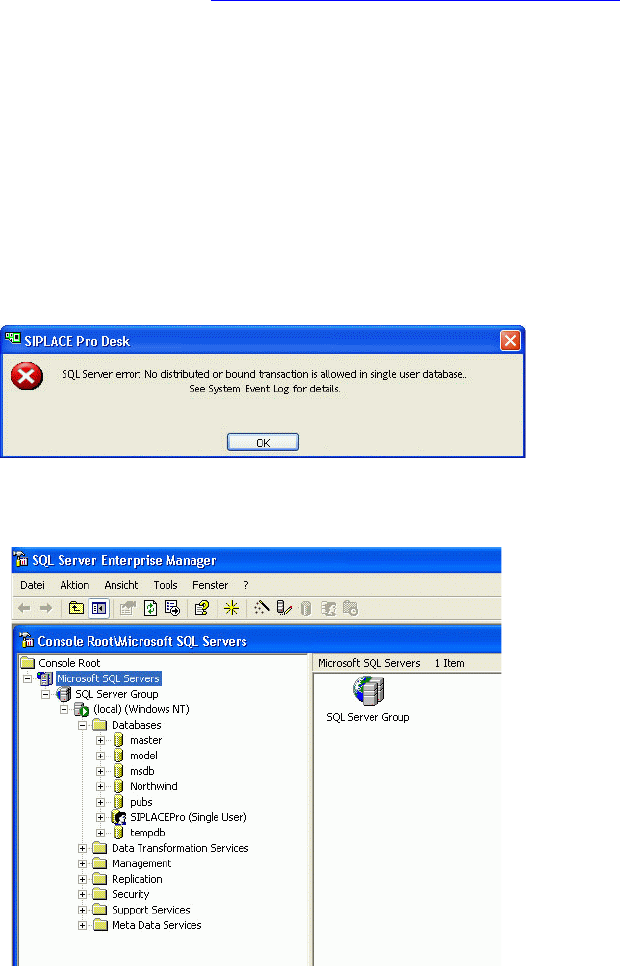
After the installation, the database is in single user mode and SIPLACE Pro can not be started 7
. 7
Fig. 7 - 4 Single user mode - error message
7
Fig. 7 - 5 Single user mode - SQL Server
Solution: 7
Æ Open SQLServer EnterpriseManager.
Æ In the tree view locate the server where the SIPLACE Pro database is installed.