00197185-01_IM_Required_Steps_before_using_Support_Media_EN.pdf - 第17页
Required Steps before using Suppo rt Media 10/2011 Edition Figure 5-3: Password Complexity Policy setting ► Now, you can verify/change the setting as ne eded. Enabled means only complex passwords being allowed, where as …
Required Steps before using Support Media 10/2011 Edition
► Press CTRL + SHIFT + ENTER to execute the command with administrative permissions.
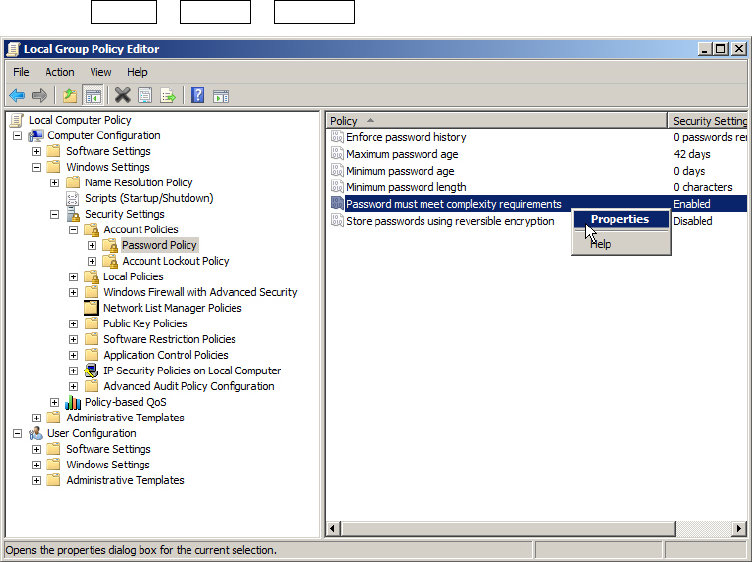
Figure 5-2: Local Group Policy Editor – Password Complexity Policy
► In the Local Group Policy Editor, navigate to
Local Computer Policy – Computer Configuration – Windows Settings – Security Settings –
Account Policies – Password Policy.
► Select the entry Password must meet complexity requirements, right-click on it and select
Properties.
16
Required Steps before using Support Media 10/2011 Edition
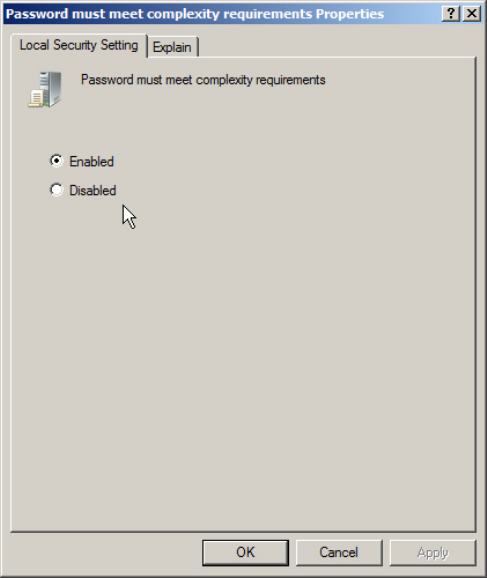
Figure 5-3: Password Complexity Policy setting
► Now, you can verify/change the setting as needed. Enabled means only complex passwords
being allowed, whereas Disabled also allows simple passwords.
► If you are done, click the OK button.
17
Required Steps before using Support Media 10/2011 Edition
6 (Re-)set created Accounts and Passwords
Since Operating System Setups differ depending on the OS version and also on the vendor which
provides the setup, it is not always ensured the passwords for created accounts being set correctly.
Therefore we strongly recommend to re-set the passwords for created accounts and to create
missing accounts.
The following chapters describe this for the built-in Administrator account (which always exists but
may be disabled) and the SIPLACEAdmin account, which is the default administrative account
provided for SIPLACE service technicians.
6.1 Resetting Password of Administrator Account
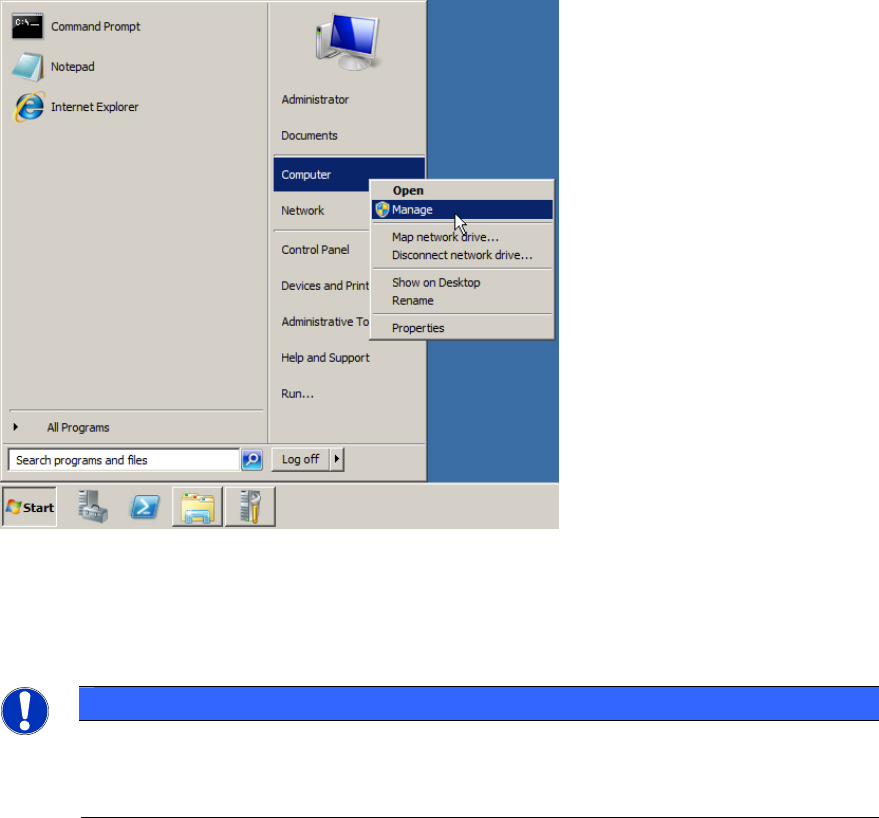
Figure 6-1: Starting Computer Management
► Click on Start.
► Right-click on Computer and select Manage.
NOTICE
Computer Management on older Operating Systems
If you can’t find the Computer entry in the start menu, you may use the Icon My
Computer on the Desktop instead.
18