00197185-01_IM_Required_Steps_before_using_Support_Media_EN.pdf - 第31页
Required Steps before using Suppo rt Media 10/2011 Edition Figure 8-3: Calling SIPLACE Pro Share Permissions ► Click the Permissions button to acce ss share permissions. Figure 8-4: Adding Share permissions ► Click the A…
Required Steps before using Support Media 10/2011 Edition
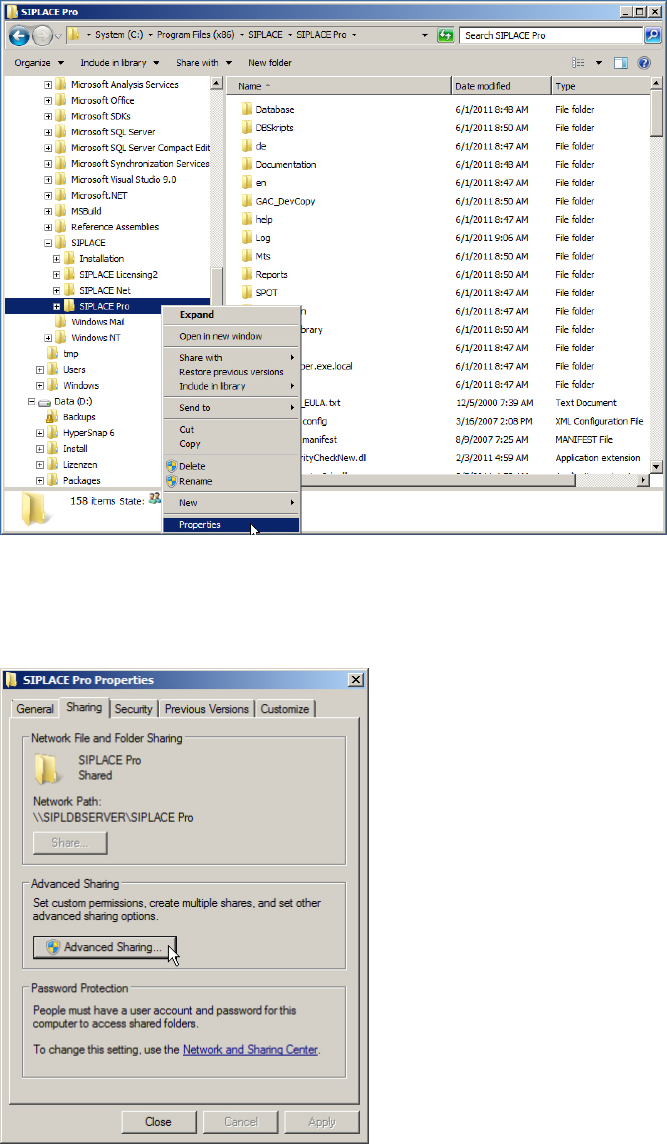
Figure 8-1: Calling Properties of SIPLACE Pro directory
► Open a new Windows Explorer window and browse to your SIPLACE Pro installation folder
► Right-click the SIPLACE Pro folder and select Properties.
Figure 8-2: Sharing Properties of SIPLACE Pro folder
► Select the Sharing tab.
► On newer Operating Systems, you may have to click at Advanced Sharing… to access the
share permissions.
30
Required Steps before using Support Media 10/2011 Edition
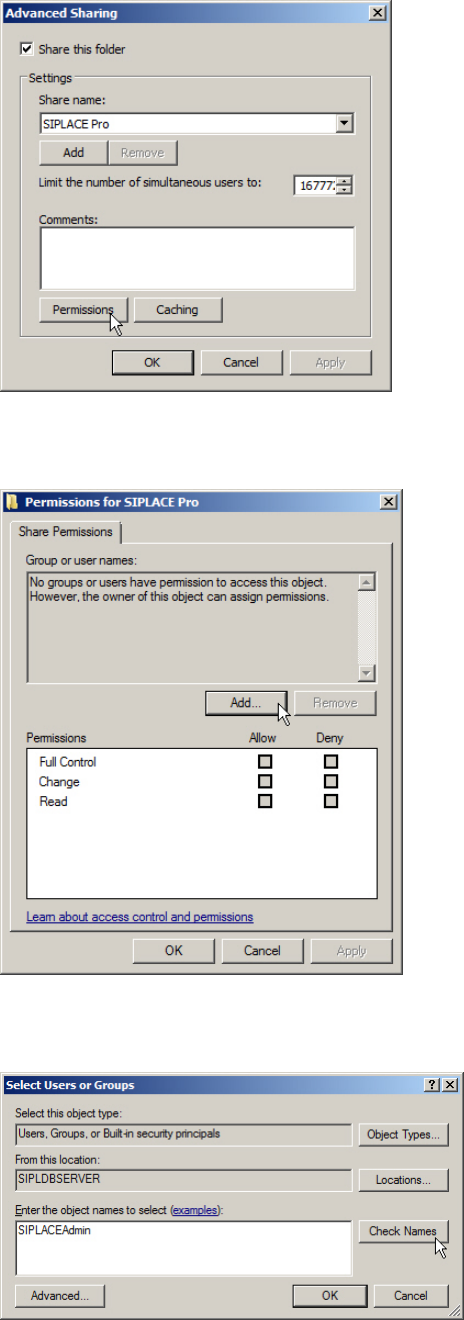
Figure 8-3: Calling SIPLACE Pro Share Permissions
► Click the Permissions button to access share permissions.
Figure 8-4: Adding Share permissions
► Click the Add… button.
Figure 8-5: Adding SIPLACEAdmin account permissions
► Enter the SIPLACEAdmin account.
► Click on Check Names.
31
Required Steps before using Support Media 10/2011 Edition
Windows should detect the SIPLACEAdmin account.
► Click OK to close the window.
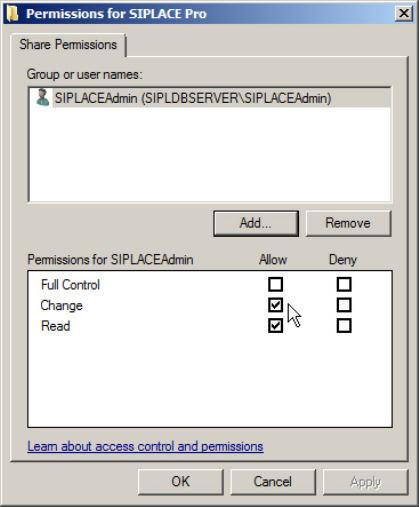
Figure 8-6: Giving SIPLACEAdmin change permissions on SIPLACE Pro share
► Go back to the previous window, select the SIPLACEAdmin account in the upper part of the
window.
► Check the checkbox besides Change in the Allow column.
► Click the OK button to apply the changes.
You have now prepared your SIPLACE Pro Server installation to be accessed by SIPLACE Pro
Client Setups.
32