00197185-01_IM_Required_Steps_before_using_Support_Media_EN.pdf - 第34页
Required Steps before using Suppo rt Media 10/2011 Edition To change the order of network conn ections: Figure 8-7: Opening Network Settings ► Click on Start . ► Right-click on Network and select Properties . NOTICE Alte…

Required Steps before using Support Media 10/2011 Edition
8.2 Network Infrastructure
This chapter includes some hints and troubleshooting information, which you should be familiar
with when integrating computers in a network infrastructure.
8.2.1 Strictly distinguishing Networks
To avoid network identification and communication problems, you should:
– Use different IP subnet ranges for different networks; each network adapter should access an
own, dedicated IP subnet without overlapping.
– Only use the Default Gateway setting, if you have a default gateway.
– Avoid configurations where destination computers can be accessed using multiple addresses.
This means, don’t connect computers together using multiple network cards and IP subnets –
this makes no sense and provokes routing errors. For example, MSMQ backchannel problems
might occur if you do this.
– Use own, unique IP addresses and computer names for all computers in the network
8.2.2 Uniform Time and Date
For authentication and communication, it is very important to ensure all involved computers having
the same* date and time.
Additionally some SIPLACE Products (like OIS), require time zone to be identical.
*For Windows authentication on Vista and newer (using NTLMv2) to work correctly, system time
must not differ too much (<36 h) from the client.
Some information on NTLMv2: http://support.microsoft.com/?scid=kb%3Ben-
us%3B823659&x=12&y=9
8.2.3 Order of Network Adapters when using Vision Teach Station
At the SIPLACE Pro Server computer, make sure the network card communicating with the Vision
Teach Station is the first in order. Otherwise the Vision Teach Station can not communicate with
the SIPLACE Pro Server.
NOTICE
Listed Network Connections are Examples
This chapter describes the general way of changing the order of network connections.
The network connections on your SIPLACE Pro Server computer may differ from the
connections in these screenshots. You have to identify the appropriate connection which
is communicating with Vision Teach Station by yourself.
33
Required Steps before using Support Media 10/2011 Edition
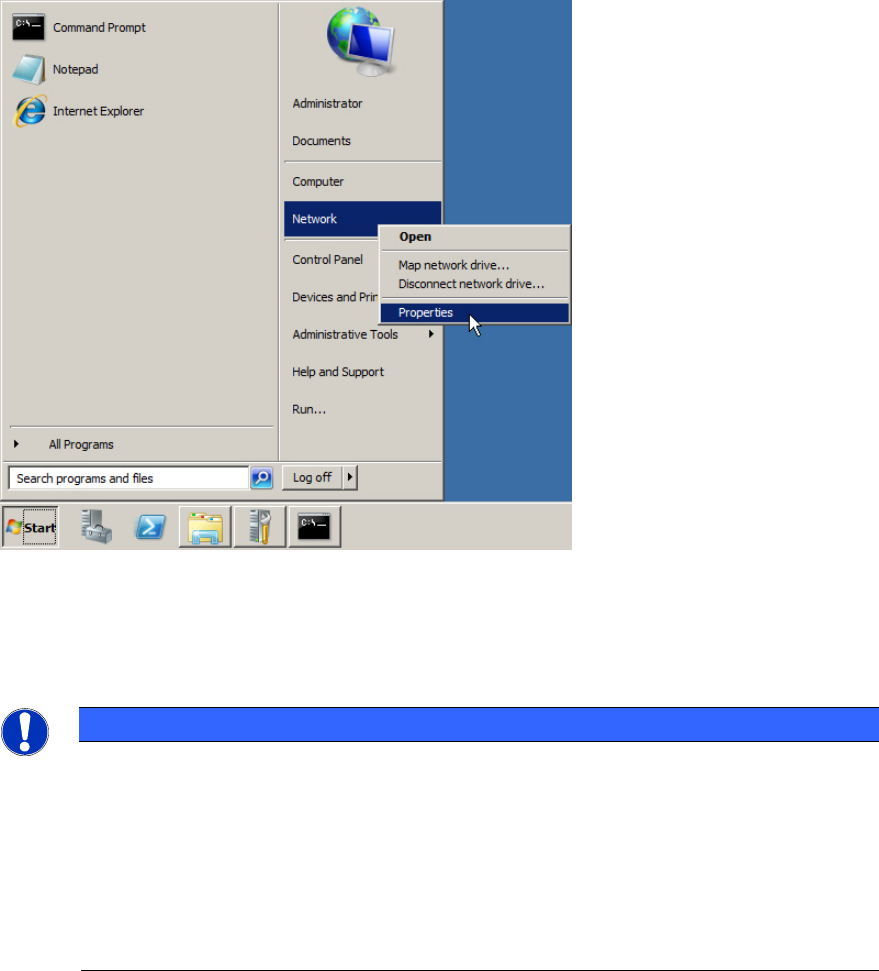
To change the order of network connections:
Figure 8-7: Opening Network Settings
► Click on Start.
► Right-click on Network and select Properties.
NOTICE
Alternative Ways to Network Settings
If you don’t have such an entry:
a) Search for the My Network Places icon on the Desktop, right-click on it and select
Properties (Windows XP and Windows Server 2003).
b) Open Control Panel – Network and Internet – Network and Sharing Center
(Windows 7)
34
Required Steps before using Support Media 10/2011 Edition
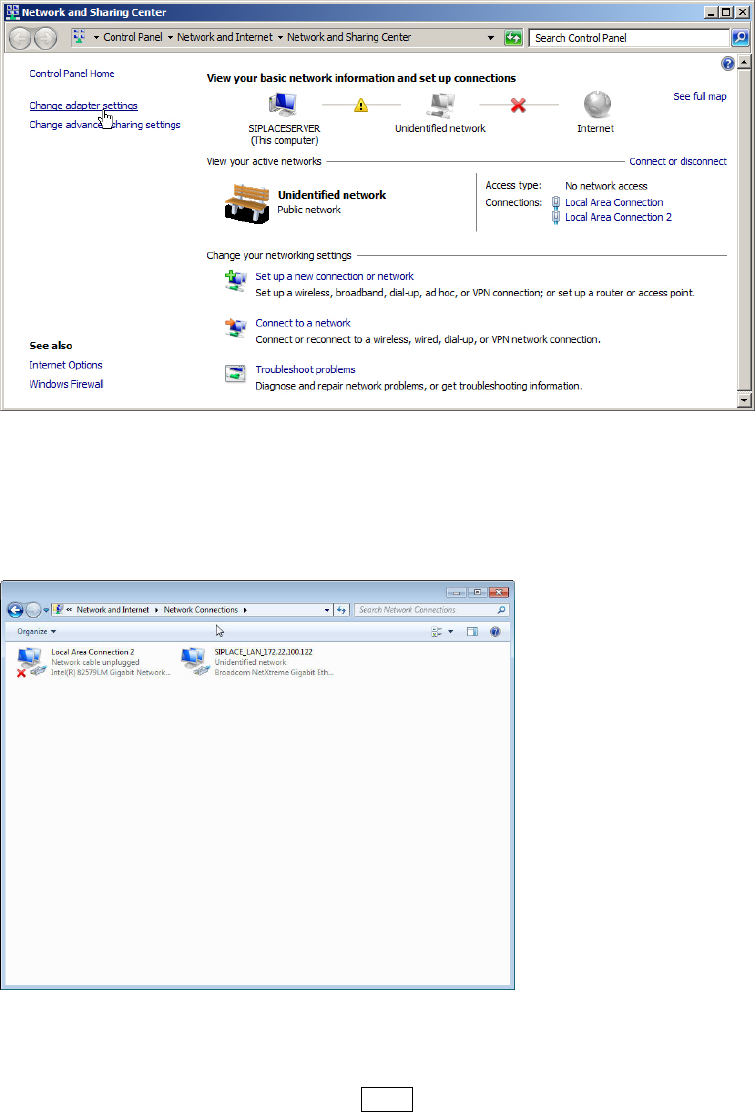
On newer Operating Systems, the following window appears.
Figure 8-8: Network and Sharing Center – clicking Change adapter settings
► Click on Change adapter settings to view the network adapters.
The following window appears.
Figure 8-9: Network Connections window
On newer Operating Systems, the menu bar with options like File, Edit, etc. is missing.
► If the menu bar is missing, press the ALT key to display it again.
35